How to Convert PDF Tables to Editable Excel Spreadsheets (XLSX)
Frustrated by copy-pasting tables from PDF into Excel only to get a single messy column? Discover how automated coordinate analysis reconstructs clean, formula-ready XLSX spreadsheets.
Technical Document Guide
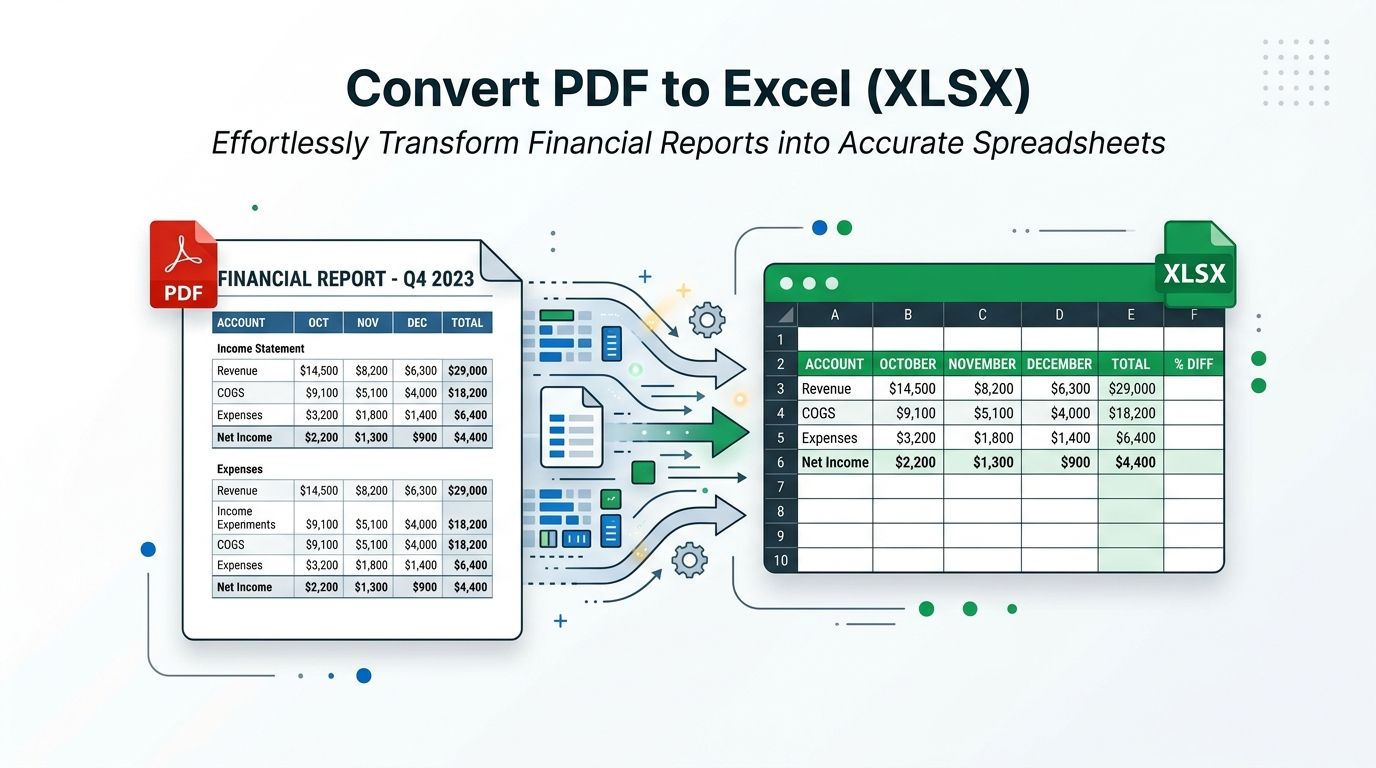 Visual guide to extracting structured tabular data and financial statements from PDF into formula-ready Excel XLSX worksheets.
Key Takeaways & Executive Summary
Intelligent column gutter detection: Analyzes horizontal whitespace and vertical alignment to separate columns without clipping text.
Numeric and currency preservation: Numbers, percentages, and currencies are exported with numerical typing, ready for instant SUM and AVERAGE formulas.
Zero broken cell line breaks: Prevents words from wrapping into multiple disjointed spreadsheet rows.
Multi-page table stitching: Automatically joins continuous tables spanning across page boundaries into a single unified worksheet.
Bank-grade in-memory privacy: Financial statements and payroll records are processed in memory and permanently deleted every 12 hours at midnight.
Table of Contents
1. The Copy-Paste Nightmare: Why PDF Tables Break When Pasted into Excel
2. Coordinate Table Detection: How DocsEngine Reconstructs Data Grids
3. Step-by-Step Guide: How to Convert PDF to Excel Online
4. Financial Auditing Best Practices: Verifying Reconstructed Data
Frequently Asked Questions
1. The Copy-Paste Nightmare: Why PDF Tables Break When Pasted into Excel
2. Coordinate Table Detection: How DocsEngine Reconstructs Data Grids
3. Step-by-Step Guide: How to Convert PDF to Excel Online
4. Financial Auditing Best Practices: Verifying Reconstructed Data
Frequently Asked Questions
1. The Copy-Paste Nightmare: Why PDF Tables Break When Pasted into Excel
Anyone who works with financial statements, tax forms, procurement bids, or inventory reports has experienced the frustration of attempting to copy a table from a PDF into Excel. Highlighting the table and pressing Ctrl+C and Ctrl+V almost invariably results in all data dumped into a single column, numbers split onto separate lines, or currency symbols detached from their values.
This happens because PDF documents do not store data as cells. A table in a PDF is simply loose words placed near drawn vector lines. When you copy text, the clipboard has no comprehension of columns, row boundaries, or numerical alignments.
Accounting Time-Saver
Manual data re-entry from PDF statements consumes an estimated 4 to 8 hours per week for corporate finance teams. Automated table extraction reduces this to 3 seconds.
2. Coordinate Table Detection: How DocsEngine Reconstructs Data Grids
DocsEngine solves the tabular extraction problem by applying computational geometry to the PDF content stream. The extraction pipeline evaluates three core factors:
1. Horizontal & Vertical Proximity: Text tokens with identical Y-coordinates are clustered into rows, while consistent X-offsets identify column channels.
2. Line Vector Snapping: When visible borders exist, the engine aligns cell contents strictly within the mathematical rectangle boundaries.
3. Numeric Type Inference: Integer values, decimals, dates, and currency amounts are automatically converted into typed Excel numeric fields rather than raw text strings.
| Document Component | Manual Copy-Paste | DocsEngine Coordinate Reconstruction | Excel Usability |
|---|---|---|---|
| Numbers & Currency | Stored as un-calculable text strings | Native integer / floating point values | Instant =SUM() and =AVERAGE() calculation |
| Multi-line Descriptions | Split into separate unintended rows | Kept unified inside a single cell | Accurate row-by-row data analysis |
| Blank / Missing Cells | Shifts neighboring columns out of place | Preserved as empty cell positions | Column alignment remains 100% true |
| Multi-Page Reports | Must be copied page by page manually | Stitched into continuous worksheet | Single unified database table |
3. Step-by-Step Guide: How to Convert PDF to Excel Online
Extracting your tables into Microsoft Excel takes only a few clicks:
- Upload Your PDF Document: Open the DocsEngine PDF to Excel tool and drop your financial statement or report into the upload box.
- Execute Tabular Extraction: Click "Convert to Excel". The coordinate engine identifies column boundaries and compiles the OpenXML spreadsheet.
- Download Your XLSX File: Open your spreadsheet in Microsoft Excel, Google Sheets, or Apple Numbers to begin formulas and analysis.
4. Financial Auditing Best Practices: Verifying Reconstructed Data
When converting audited financial records or quarterly earnings reports, it is best practice to perform a quick sanity check by running a =SUM() formula on the extracted total row and cross-referencing it with the grand total on the original PDF statement to ensure 100% reconciliation.
Extract Your PDF Tables into Excel Now
Transform locked financial statements and data tables into clean, formula-ready XLSX spreadsheets in seconds.
Frequently Asked Questions
Our engine detects continuous tabular structures across consecutive pages and merges them into a single unbroken spreadsheet table, eliminating repetitive header rows.
Yes. Table header rows, bold styling, and column widths are calculated and mapped directly into native OpenXML styles.
Yes. Files are processed in isolated buffers and permanently deleted every 12 hours at midnight. We never inspect, store, or share your financial data.
Table of Contents
1. The Copy-Paste Nightmare: Why PDF Tables Break When Pasted into Excel
2. Coordinate Table Detection: How DocsEngine Reconstructs Data Grids
3. Step-by-Step Guide: How to Convert PDF to Excel Online
4. Financial Auditing Best Practices: Verifying Reconstructed Data
Frequently Asked Questions
1. The Copy-Paste Nightmare: Why PDF Tables Break When Pasted into Excel
2. Coordinate Table Detection: How DocsEngine Reconstructs Data Grids
3. Step-by-Step Guide: How to Convert PDF to Excel Online
4. Financial Auditing Best Practices: Verifying Reconstructed Data
Frequently Asked Questions
PDF to Excel (XLSX)
Run fast, private document processing in your browser with zero permanent storage.
Share this guide
How to Convert PDF to Word (DOCX) Without Losing Formatting: The Complete Guide

How to Compress PDF Files Without Losing Quality: The Complete Engineering Guide
