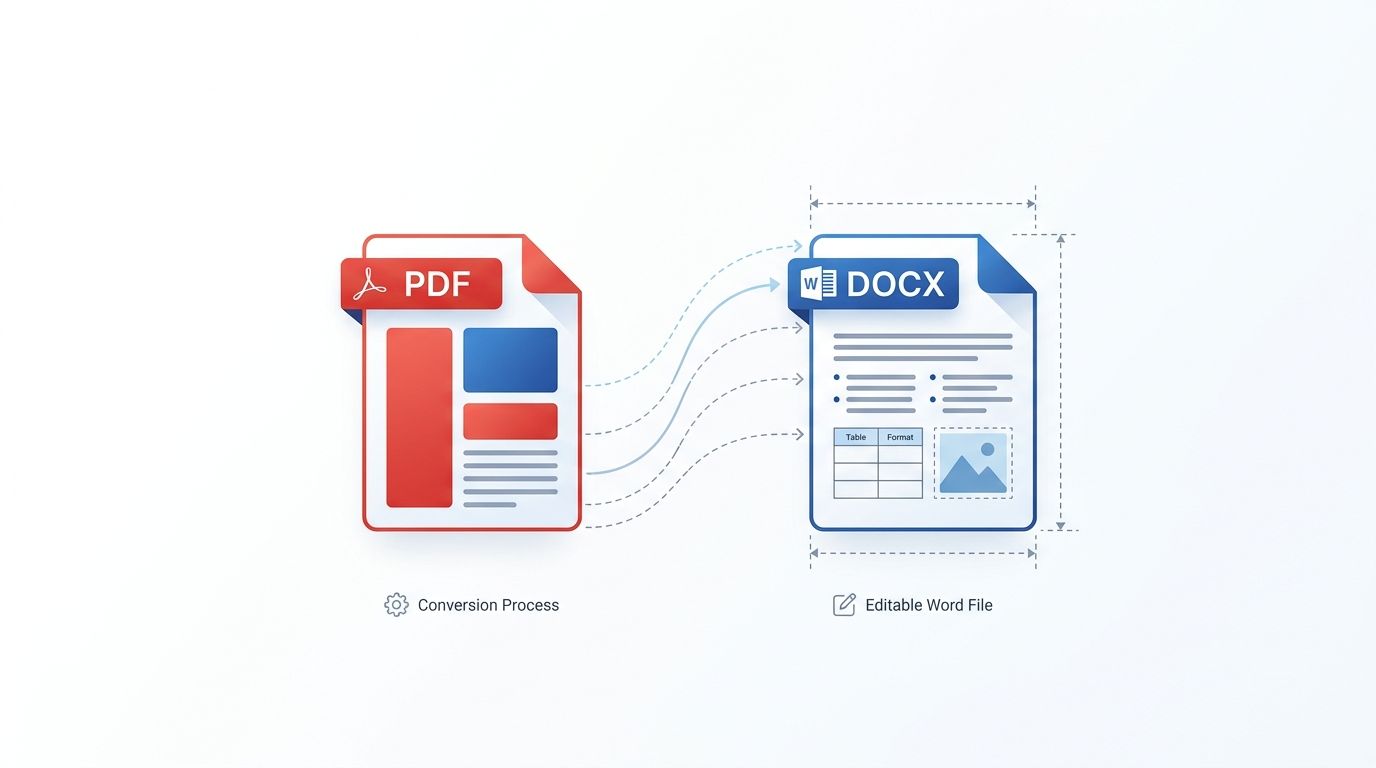
How to Convert Excel (XLSX) to PDF Without Cutting Off Columns or Formulas
Printing or exporting wide Excel sheets to PDF frequently breaks financial reports across random page borders. Discover how automatic print area detection and smart scaling fit all columns neatly on a single page.
Technical Document Guide
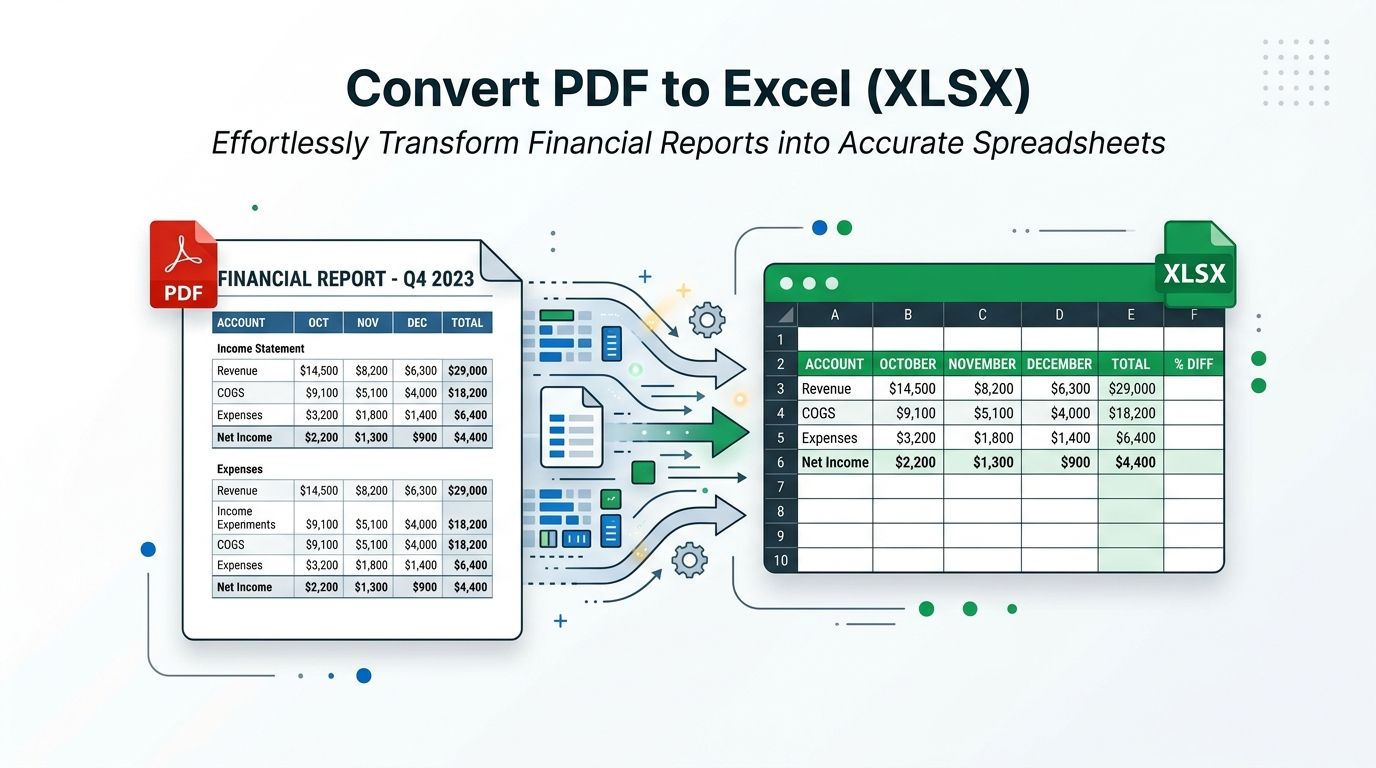 Visual representation of converting wide multi-column Excel workbooks into cleanly formatted vector PDF documents.
Key Takeaways & Executive Summary
Fit All Columns on One Page: Automatically scales worksheet column widths to fit neatly across portrait or landscape paper widths, eliminating horizontal page spillage.
Active worksheet & workbook scope: Choose between exporting only the active sheet or compiling all workbook tabs into a unified, sequential PDF document.
Formula evaluation fidelity: Preserves calculated numerical outputs from SUM, VLOOKUP, INDEX/MATCH, and pivot tables without displaying raw formula syntax.
Cell styling & border preservation: Maintains custom cell fills, accounting double underlines, conditional formatting rules, and embedded Excel charts.
Client-side privacy assurance: Financial audit models, sales forecasts, and payroll data are handled in temporary memory buffers and erased every 12 hours at midnight.
Table of Contents
1. Why Converting Excel to PDF Cuts Off Wide Columns Across Multiple Pages
2. How DocsEngine Solves Excel to PDF Column Truncation
3. Step-by-Step Guide: How to Convert Excel to PDF Online Without Cutoffs
4. Excel Best Practices for Flawless PDF Conversions
Frequently Asked Questions
1. Why Converting Excel to PDF Cuts Off Wide Columns Across Multiple Pages
2. How DocsEngine Solves Excel to PDF Column Truncation
3. Step-by-Step Guide: How to Convert Excel to PDF Online Without Cutoffs
4. Excel Best Practices for Flawless PDF Conversions
Frequently Asked Questions
1. Why Converting Excel to PDF Cuts Off Wide Columns Across Multiple Pages
Spreadsheets are inherently elastic: an analyst can add 20 columns and 500 rows to a single sheet without worrying about physical paper constraints. However, standard paper formats (like A4 or US Letter) have rigid physical boundaries.
When you click "Save As PDF" inside default office software without configuring print scaling, Excel naively slices your table vertically. Columns A through F end up on page 1, while columns G through L are pushed onto page 2. Reviewing financial statements that require flipping back and forth between alternating pages is an exercise in extreme frustration.
Executive Presentation Risk
Submitting a board report or client invoice with truncated, floating columns makes financial models unreadable and looks unprofessional to executives and investors.
2. How DocsEngine Solves Excel to PDF Column Truncation
DocsEngine features an automated page geometry engine that analyzes your spreadsheet structure prior to compiling vector PDF output:
1. Print Area Calculation: Detects the active bounding box of cells containing data, styles, or borders, ignoring extraneous empty columns.
2. Auto-Orientation Switch: If your sheet exceeds 7 columns, our engine automatically defaults to Landscape orientation (11 × 8.5 inches) to maximize horizontal width.
3. Dynamic Fit-to-Width Scaling: Automatically applies proportional downscaling so all columns fit cleanly onto a single horizontal page width while allowing rows to flow naturally across consecutive vertical pages.

| Export Mode | Horizontal Behavior | Vertical Behavior | Best For |
|---|---|---|---|
| Fit All Columns on One Page | 100% of columns fit horizontally | Rows flow across multiple pages naturally | Financial statements, sales ledgers, inventory audits |
| Fit Entire Sheet on One Page | Fits width on one page | Shrinks entire sheet onto a single page | Executive summary dashboards, one-page KPI overviews |
| Original Scale (100%) | May wrap across pages | Standard row flow | Very small tables (3–5 columns) |
| Landscape Auto-Switch | Wide 297mm canvas | Standard row flow | Spreadsheets with 8–15 columns |
3. Step-by-Step Guide: How to Convert Excel to PDF Online Without Cutoffs
Converting spreadsheets to clean PDF documents takes seconds:
- Upload Excel Workbook: Drop your .xlsx, .xls, or .csv file into the DocsEngine Excel to PDF tool.
- Select Page Orientation & Scaling: Choose Landscape or Portrait, and select "Fit All Columns on One Page".
- Convert to Vector PDF: Click "Convert to PDF". Our engine parses OpenXML sheets, evaluates formulas, and renders tables.
- Download Your Formatted Document: Save your professional, cleanly aligned PDF report.
4. Excel Best Practices for Flawless PDF Conversions
• Enable Repeat Header Rows: For reports spanning several vertical pages, ensure table headers repeat at the top of each page so column categories remain clear.
• Set Explicit Column Widths: Avoid letting numbers turn into "###" by double-clicking column dividers in Excel to auto-fit text length prior to export.
• Embed Charts into Cells: Place summary bar charts and sparklines directly aligned with cell gridlines for sharp vector rendering.
Convert Your Excel Spreadsheets to PDF Now
Fit all columns on one page with zero cutoffs or broken tables. 100% free with no watermark.
Frequently Asked Questions
Yes. You can choose to convert either the entire multi-sheet workbook into a sequential multi-page PDF or export only the primary active worksheet.
Yes. All calculated formula results (e.g. SUM, AVERAGE, VLOOKUP, pivot totals) are rendered as clean, finalized text numbers in the PDF.
Yes. DocsEngine supports legacy Microsoft Excel 97-2003 formats (.xls), modern OpenXML workbooks (.xlsx), and comma-separated spreadsheets (.csv).
Table of Contents
1. Why Converting Excel to PDF Cuts Off Wide Columns Across Multiple Pages
2. How DocsEngine Solves Excel to PDF Column Truncation
3. Step-by-Step Guide: How to Convert Excel to PDF Online Without Cutoffs
4. Excel Best Practices for Flawless PDF Conversions
Frequently Asked Questions
1. Why Converting Excel to PDF Cuts Off Wide Columns Across Multiple Pages
2. How DocsEngine Solves Excel to PDF Column Truncation
3. Step-by-Step Guide: How to Convert Excel to PDF Online Without Cutoffs
4. Excel Best Practices for Flawless PDF Conversions
Frequently Asked Questions
Excel to PDF
Run fast, private document processing in your browser with zero permanent storage.
Share this guide

How to Compress PDF Files Without Losing Quality: The Complete Engineering Guide