How to Convert PDF to Word (DOCX) Without Losing Formatting: The Complete Guide
Stuck with a locked PDF document that you need to edit in Microsoft Word? Learn how modern layout reconstruction converts PDF to DOCX while preserving tables, fonts, and columns.
Technical Document Guide
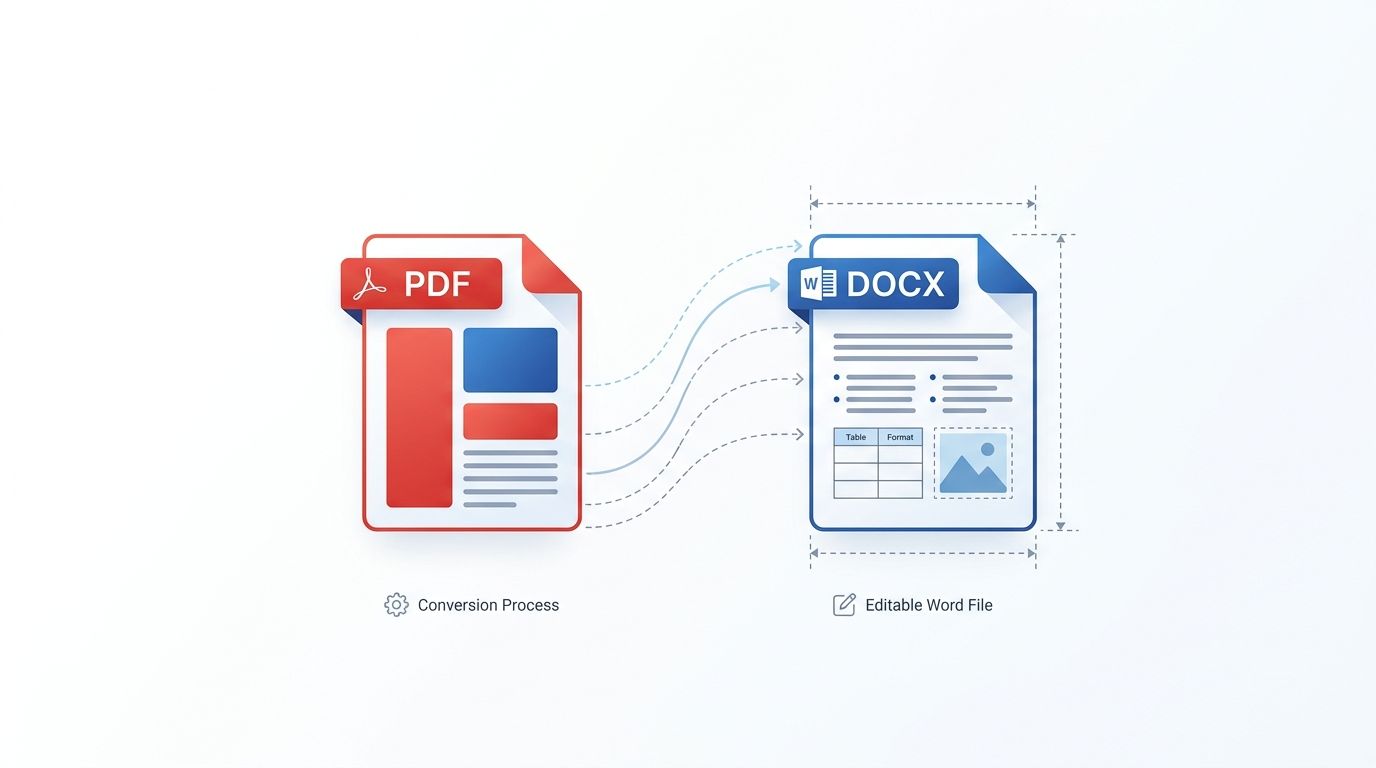 Visual representation of transforming locked PDF documents into native, editable Microsoft Word files with preserved layouts.
Key Takeaways & Executive Summary
Structural layout reconstruction: Advanced engines parse text bounding boxes, columns, and data tables into true native OpenXML paragraph and table tags.
Fully editable text and formatting: Edit text, change typography, modify table values, and replace images directly in Microsoft Word or Google Docs.
Preserve tabular structures: Financial statements and data matrices are exported as editable Word tables rather than broken tab-spaced text strings.
Native vs scanned PDFs: Standard digital PDFs convert with 100% typographic fidelity, while scanned image PDFs require OCR preprocessing.
Private and confidential: Contracts, resumes, and corporate policies are processed in isolated buffers and permanently deleted every 12 hours at midnight.
Table of Contents
1. The Underlying Challenge: Why PDF to Word Conversion Often Breaks
2. How Layout Reconstruction Rebuilds Paragraphs and Tables
3. Step-by-Step Guide: How to Convert PDF to Word Free Online
4. Native Digital PDFs vs. Scanned Documents: When to Use OCR
Frequently Asked Questions
1. The Underlying Challenge: Why PDF to Word Conversion Often Breaks
2. How Layout Reconstruction Rebuilds Paragraphs and Tables
3. Step-by-Step Guide: How to Convert PDF to Word Free Online
4. Native Digital PDFs vs. Scanned Documents: When to Use OCR
Frequently Asked Questions
1. The Underlying Challenge: Why PDF to Word Conversion Often Breaks
PDF and Microsoft Word represent two fundamentally opposite document paradigms. A PDF file is a static digital printout: every letter, line, and image is anchored to an exact mathematical X/Y coordinate on a canvas. The PDF specification does not inherently understand paragraphs, flowable text columns, or table structures—it only knows where to place glyphs.
Microsoft Word (DOCX), on the other hand, is a dynamic flow document. Text flows naturally from paragraph to paragraph, automatically wrapping around images and reflowing when margins or font sizes change. Converting a PDF into an editable Word document requires reverse-engineering the author's original layout intent.
Engineering Insight
Inferior converters place every line into an isolated absolute text box, making normal editing virtually impossible. DocsEngine uses structural layout reconstruction to output true flowing paragraphs and native tables.
2. How Layout Reconstruction Rebuilds Paragraphs and Tables
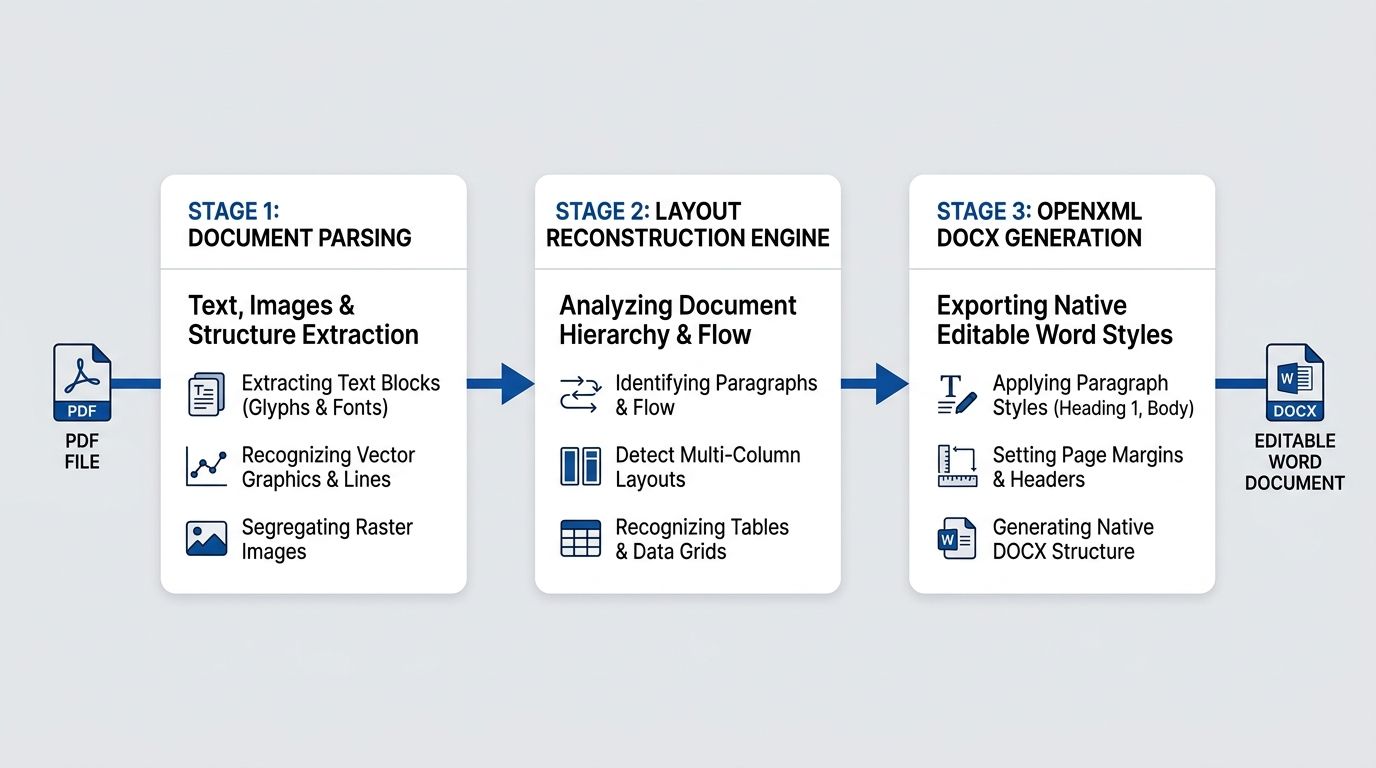
DocsEngine employs a multi-stage layout reconstruction pipeline to turn static coordinates into dynamic OpenXML structures:
Stage 1: Geometry Parsing: The engine extracts glyph boundaries, font weight metrics, line spacing, and raster image positions.
Stage 2: Semantic Clustering: Bounding boxes are clustered to identify running paragraphs, multi-column articles, and table borders.
Stage 3: OpenXML Generation: Content is compiled into clean Microsoft Word DOCX formatting with true Heading styles, bulleted lists, and native table grids.
| Document Element | Basic Converters | DocsEngine Reconstruction | Editing Experience in Word |
|---|---|---|---|
| Body Paragraphs | Split into separate text boxes per line | Unified flowing paragraph streams | Standard text editing with auto-wrap |
| Data Tables | Unconnected text and drawn vector lines | True native Word tables with rows & cells | Add/delete rows and edit numbers seamlessly |
| Headings & Hierarchy | Manual bold text with no styles | Mapped to Heading 1, 2, and 3 styles | Full Word Navigation Pane support |
| Embedded Images | Often missing or overlapping text | Inline and anchored image objects | Resize and replace images freely |
| Font Styling | Substituted with generic fonts | Matched to standard OpenXML font definitions | Preserves document aesthetic and weight |
3. Step-by-Step Guide: How to Convert PDF to Word Free Online
Converting your locked PDF into an editable Word file takes only seconds:
- Upload Your PDF: Open the DocsEngine PDF to Word tool and drop your PDF into the upload area.
- Execute Structural Parsing: Click "Convert to Word". Our layout engine analyzes paragraphs, tables, and typography.
- Download Your Editable DOCX: Save your converted file and open it in Microsoft Word, Google Docs, or LibreOffice.
4. Native Digital PDFs vs. Scanned Documents: When to Use OCR
It is crucial to distinguish between native digital PDFs (created in Word, InDesign, or Google Docs) and scanned image PDFs (created by office scanners or smartphone photo scanner apps).
Native digital PDFs convert directly to editable Word files with complete accuracy. If your PDF is a flat photocopy scan, standard conversion will only output images of each page inside Word. For scanned documents, use our OCR PDF Scanner first to convert bitmap glyphs into selectable text before generating your document.
Convert Your PDF to Editable Word Now
Transform locked PDF documents into fully formatted, editable DOCX files in seconds. No registration required.
Frequently Asked Questions
Our layout reconstruction engine analyzes horizontal and vertical text alignments to identify true table columns and row gutters, exporting them as native Word tables instead of fragmented text boxes.
Yes, but scanned PDFs require Optical Character Recognition. Use our OCR PDF Scanner tool to recognize text in image-based PDFs prior to conversion.
No. DocsEngine provides free PDF to Word conversion without daily quotas, page limits, or registration requirements.
Table of Contents
1. The Underlying Challenge: Why PDF to Word Conversion Often Breaks
2. How Layout Reconstruction Rebuilds Paragraphs and Tables
3. Step-by-Step Guide: How to Convert PDF to Word Free Online
4. Native Digital PDFs vs. Scanned Documents: When to Use OCR
Frequently Asked Questions
1. The Underlying Challenge: Why PDF to Word Conversion Often Breaks
2. How Layout Reconstruction Rebuilds Paragraphs and Tables
3. Step-by-Step Guide: How to Convert PDF to Word Free Online
4. Native Digital PDFs vs. Scanned Documents: When to Use OCR
Frequently Asked Questions
PDF to Word (DOCX)
Run fast, private document processing in your browser with zero permanent storage.
Share this guide
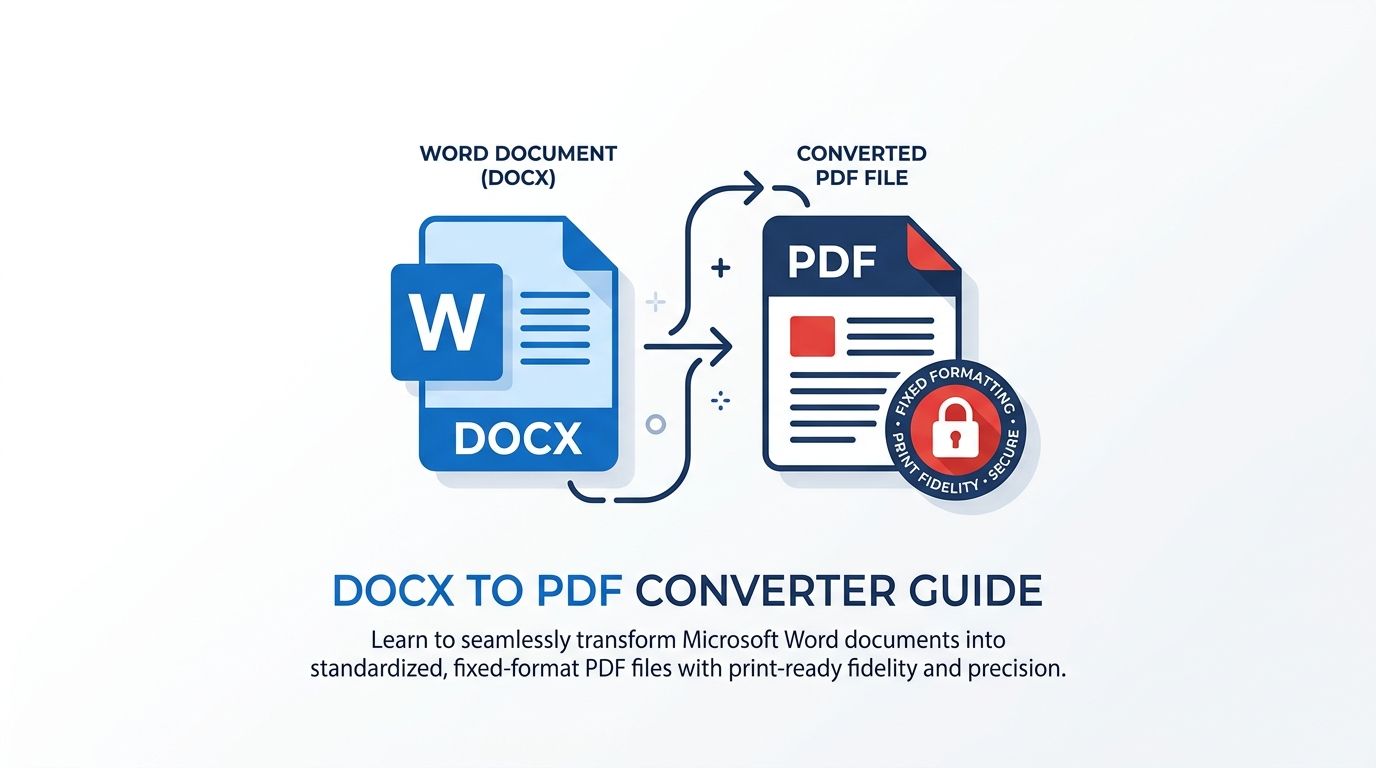
How to Convert Word DOCX to PDF While Preserving Exact Layouts and Fonts
How to Compress PDF Files Without Losing Quality: The Complete Engineering Guide
