How to Convert PDF to PowerPoint (PPTX): Picture Slides or Editable Text
Got a deck only as a PDF? Here is how to turn it back into a .pptx, what the two slide conversion modes do, and which parts of a slide stay a flat picture.
DocsEngine Editorial Team
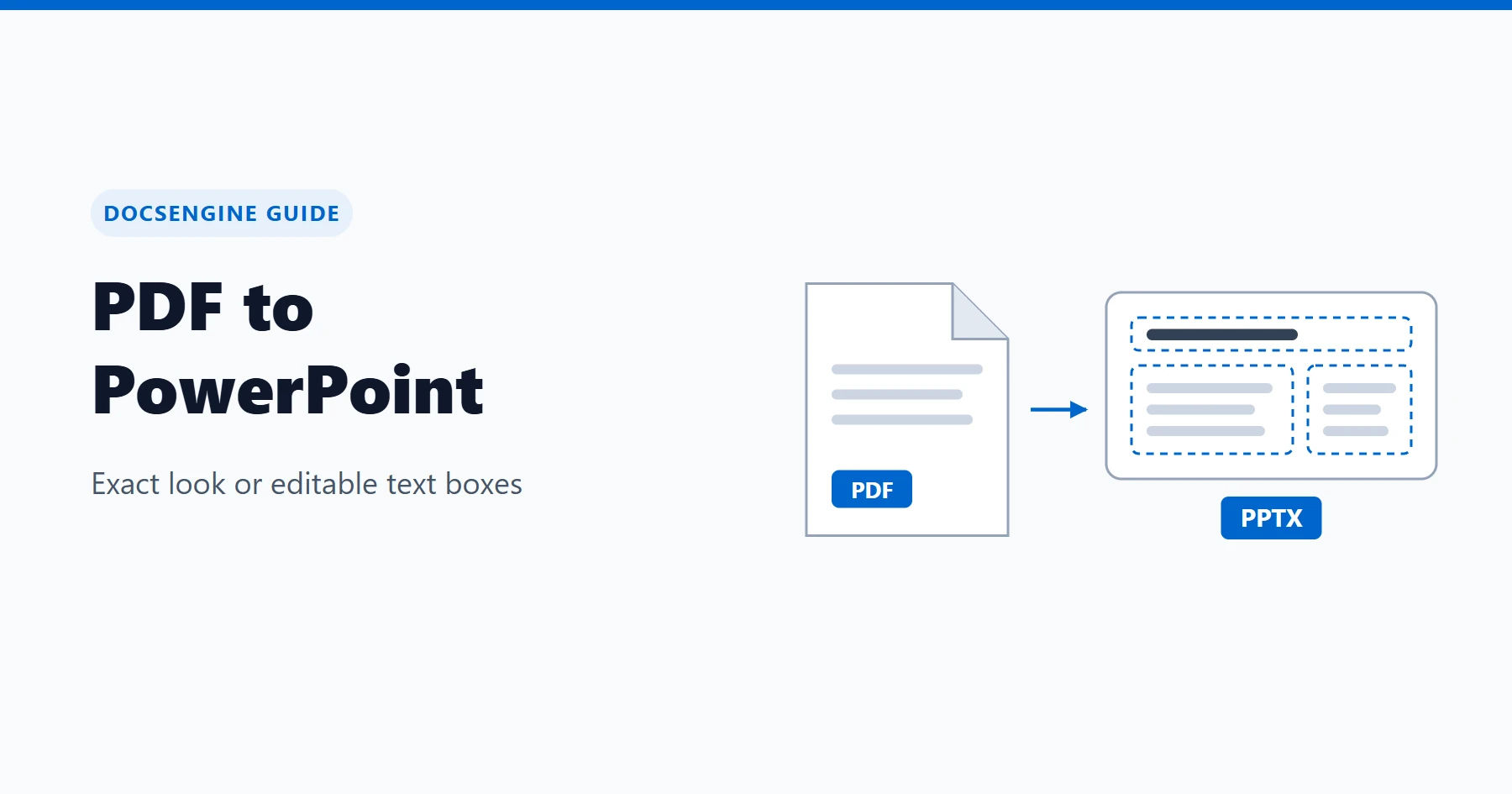 PDF to PowerPoint: keep the exact look, or get editable text boxes.
Key Takeaways & Executive Summary
Each PDF page becomes one slide. Choose Exact look (pictures) to keep the design, or Editable text to get real text boxes.
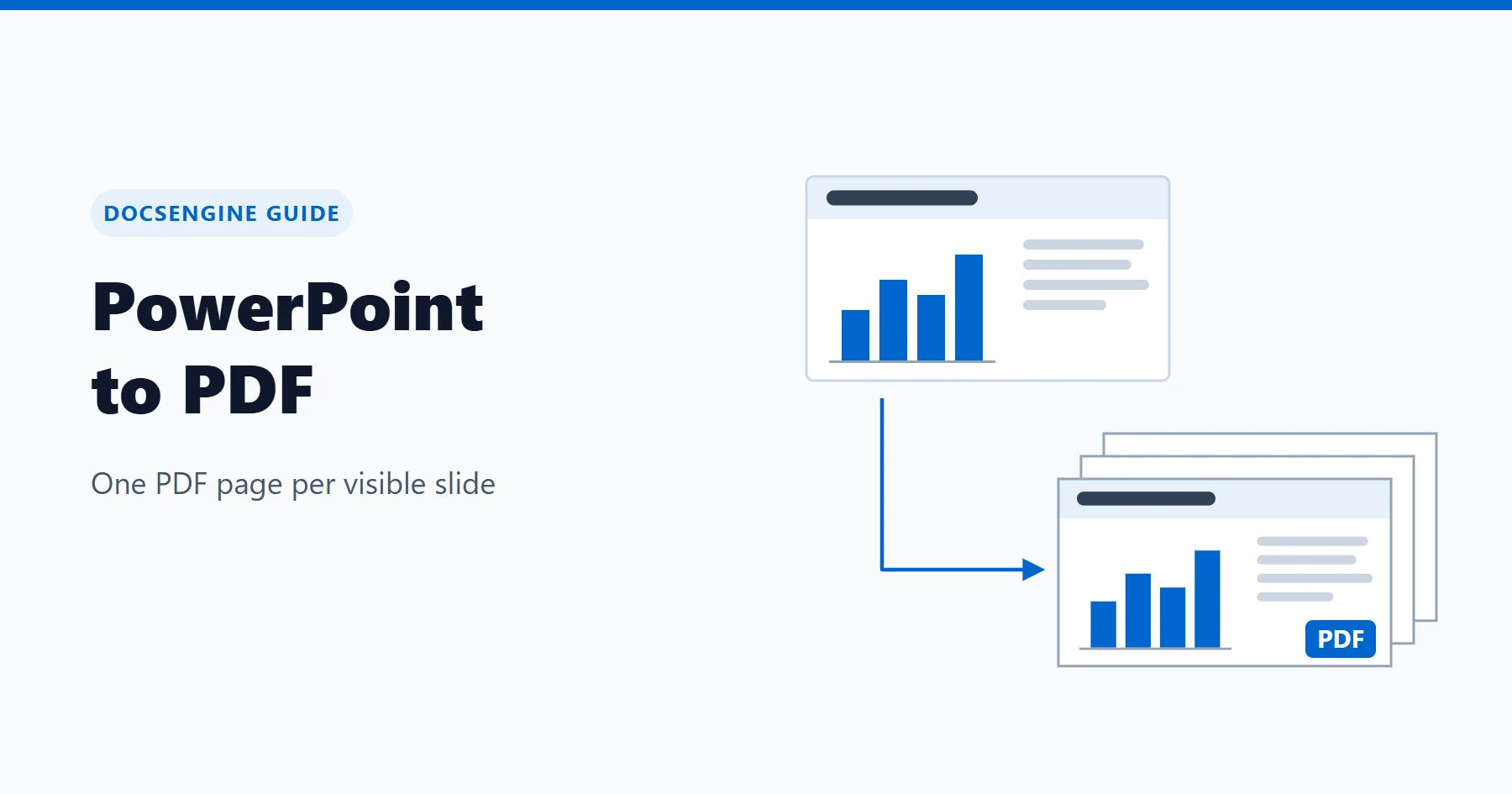
Exact look turns every slide into a single picture and puts the page text in the speaker notes. Nothing on the slide itself can be edited.
Editable text keeps fonts, sizes, colours, bullets and links. Images, shapes and charts stay in a flat background, and tables become separate text boxes.
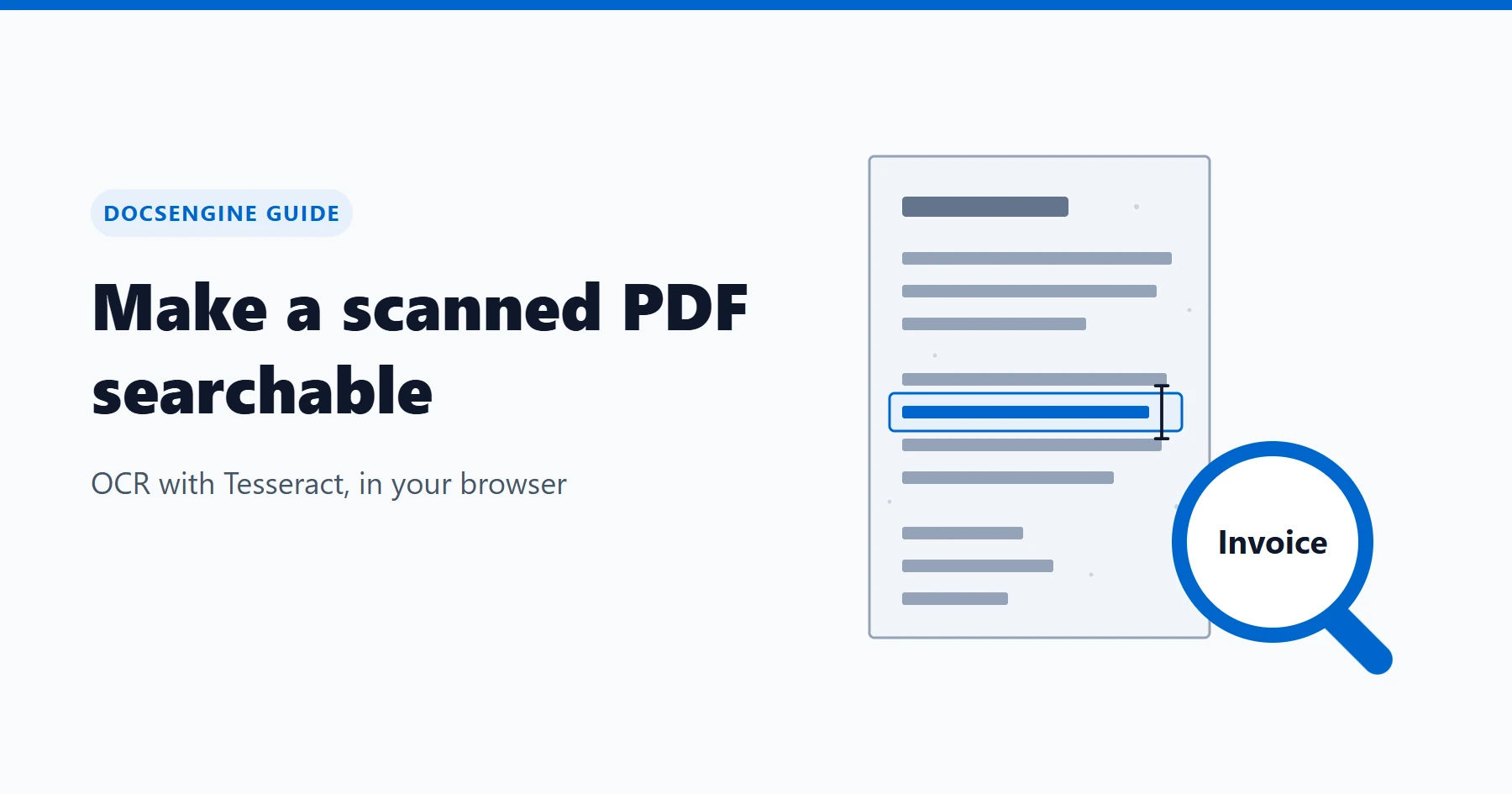
Scanned pages stay pictures in both modes. OCR PDF makes their text searchable, but you still can’t retype it on the slide.
The conversion runs in your browser, so your PDF stays on your device.
Table of Contents
How to convert a PDF to PowerPoint (quick answer)
Step by step: convert PDF to PPTX in your browser
Exact look vs. Editable text: which mode to pick
How Exact look (pictures) works
How Editable text works
Slide size and mixed page sizes
Scanned PDFs: why they stay pictures
Limitations and what to use instead
Privacy: the conversion runs on your device
Frequently Asked Questions
Sources
How to convert a PDF to PowerPoint (quick answer)
Open PDF to PowerPoint, add your PDF, pick a Slide Conversion Mode and click PDF to PowerPoint (PPTX). Every page of the PDF becomes one slide in a .pptx file you can open in PowerPoint.
The default mode, Exact look (pictures), turns each slide into a picture of the page, so it looks exactly like the PDF but can’t be edited. If you need to change the words, choose Editable text instead. Each paragraph then becomes a real PowerPoint text box on top of a background picture of the page.
Step by step: convert PDF to PPTX in your browser
- Open the PDF to PowerPoint tool and drop in your PDF. You can add up to 50 PDFs at once, and each one becomes its own presentation.
- If the PDF needs a password to open, type the password when you’re asked for it. You can also remove the password first with Unlock PDF.
- Under Slide Conversion Mode, choose Exact look (pictures) to keep the page’s appearance, or Editable text to get text boxes you can type in.
- Click PDF to PowerPoint (PPTX). Your device processes the pages one at a time, so a long PDF takes longer than a short one.
- Download the result. For example, report.pdf becomes report.pptx. If you converted several PDFs, they come packed in a ZIP file.
- Open the file in PowerPoint and check each slide. The page text is also copied into the speaker notes, which helps if you present from the deck or want to copy text out.
Exact look vs. Editable text: which mode to pick
The two Slide Conversion Mode options trade appearance against editing. Neither mode turns photos, charts or diagrams back into editable PowerPoint objects. The only difference is what happens to the text.
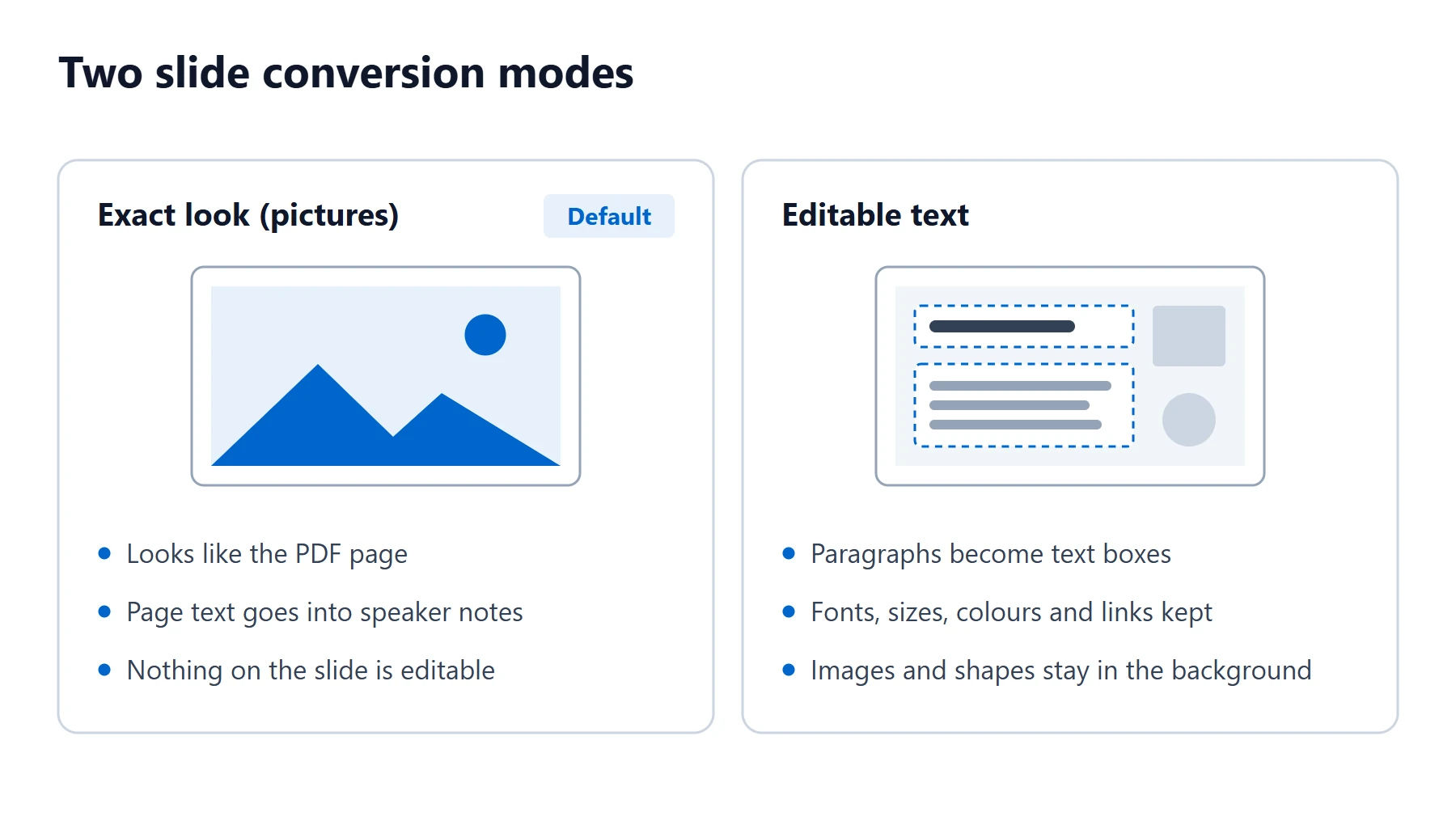
| Mode | What each slide contains | Best for |
|---|---|---|
| Exact look (pictures), the default | One full-slide JPEG picture of the page, with the page text in the speaker notes | Presenting a PDF deck as it is, handouts, keeping the design intact |
| Editable text | A background picture of the page without its text, plus one real text box per paragraph | Fixing typos, updating figures or dates, translating slide text |
How Exact look (pictures) works
The tool draws each page with PDF.js, Mozilla’s open-source PDF renderer, and saves it as a JPEG at 90% quality, 2,200 pixels on its long edge on a desktop computer. That drops to 1,700 px when the PDF has more than 80 pages, and to 1,600 or 1,200 px on phones. The picture fills the slide, so fonts, colours and layout match the PDF.
Because the whole slide is one picture, you can’t click into a heading and change it. You can still add new text boxes, shapes or slides on top, reorder slides, and use the page text in the speaker notes as a script.
How Editable text works
In this mode, the tool draws the page without its text and uses that picture as the slide background. It then places one text box per paragraph where the text sat in the PDF, keeping its font, size, colour, bullets and links.
Tables are rebuilt as separate text boxes, not as a PowerPoint table. You can edit the text in each cell but can’t add rows. Each text box also uses the font named in the PDF. If that font isn’t installed on your computer, PowerPoint shows a substitute, and line breaks can shift slightly.
Photos, icons, charts and drawn shapes stay part of the flat background picture. If you delete a text box, you get a blank patch of background where the text was.
Slide size and mixed page sizes
A .pptx file follows the Office Open XML standard (ECMA-376) and has one slide size for the whole presentation, so the tool uses the most common page size in your PDF. A deck that was exported from PowerPoint with 16:9 pages comes back as 16:9 slides. An A4 or US Letter report becomes portrait slides of that size.
Pages with a different size or orientation are scaled to fit and centered, with empty bands at the sides or top and bottom. Nothing is cut off. If your PDF mixes portrait and landscape pages, it can be cleaner to split it first and convert each part on its own.
Scanned PDFs: why they stay pictures
A scanned page is a photo of paper. It holds no text that the tool could turn into text boxes. So scanned pages are inserted as pictures in both modes. In Editable text mode, the tool also shows a note listing which pages they were.
Running OCR PDF first adds an invisible, searchable text layer to the scan. After that, the recognized text goes into the speaker notes. In Editable text mode it is also added as invisible text boxes over the scan, so you can search and copy it in PowerPoint. The slide still shows the scanned picture, though. You can’t retype the visible words, and any OCR mistakes carry over.
Limitations and what to use instead
Going the other way
To turn a .pptx into a PDF, use PowerPoint to PDF. Our guide to converting PowerPoint to PDF explains what carries over.
- No native tables, charts or SmartArt. Tables become separate text boxes, and charts and diagrams stay part of the background picture.
- Photos and logos are not separate objects that you can move or crop. To reuse them, pull the embedded pictures out with Extract Images and place them on the slide yourself.
- Animations, transitions and the original speaker notes don’t come back. A PDF exported from PowerPoint no longer contains them, so the notes field holds the page text instead.
- Editable text keeps each paragraph where it was. It doesn’t rebuild slide layouts or placeholders, so re-arranging a slide takes manual work.
- If you mainly need the text in a document, PDF to Word rebuilds flowing paragraphs, headings and real tables.
- If you still have the original .pptx, edit that file instead. Converting back from a PDF never restores everything.
Privacy: the conversion runs on your device
PDF to PowerPoint runs in your browser, so your files never leave your device. The slides are built on your computer or phone, and you download the .pptx from there.
Large files
The size limit is 300 MB on a desktop and 100 MB on a phone. If a file is too large for your device, the page offers to process it on our server instead. Nothing is uploaded unless you click Use secure server.
Turn your PDF back into slides
Choose Exact look or Editable text and get a .pptx file, converted on your own device.
Frequently Asked Questions
That is the default Exact look (pictures) mode, which keeps each slide looking like the PDF page. Convert again with Editable text if you need to change the words.
No. In Editable text mode, table cells come out as separate text boxes. You can change the values, but you can’t add rows or columns.
Scanned pages are inserted as pictures because they contain no real text. OCR PDF can make that text searchable, but the slide still shows the scanned image.
No. The conversion runs in your browser and the PDF stays on your device. The page only offers server processing for files that are too large for your device, and it uploads nothing unless you agree.
Sources
- ECMA-376 Office Open XML file formats (Ecma International)
- PDF.js (Mozilla)
Table of Contents
How to convert a PDF to PowerPoint (quick answer)
Step by step: convert PDF to PPTX in your browser
Exact look vs. Editable text: which mode to pick
How Exact look (pictures) works
How Editable text works
Slide size and mixed page sizes
Scanned PDFs: why they stay pictures
Limitations and what to use instead
Privacy: the conversion runs on your device
Frequently Asked Questions
Sources
How to convert a PDF to PowerPoint (quick answer)
Step by step: convert PDF to PPTX in your browser
Exact look vs. Editable text: which mode to pick
How Exact look (pictures) works
How Editable text works
Slide size and mixed page sizes
Scanned PDFs: why they stay pictures
Limitations and what to use instead
Privacy: the conversion runs on your device
Frequently Asked Questions
Sources
PDF to PowerPoint (PPTX)
Free, no sign-up. Runs in your browser, so your files never leave your device.
Share this guide