How to Extract Text from a PDF (Copy All the Text to a .txt File)
Selecting text in a PDF viewer often scrambles columns and breaks words. Here is how to get every page’s text into a plain .txt file in a readable order.
DocsEngine Editorial Team
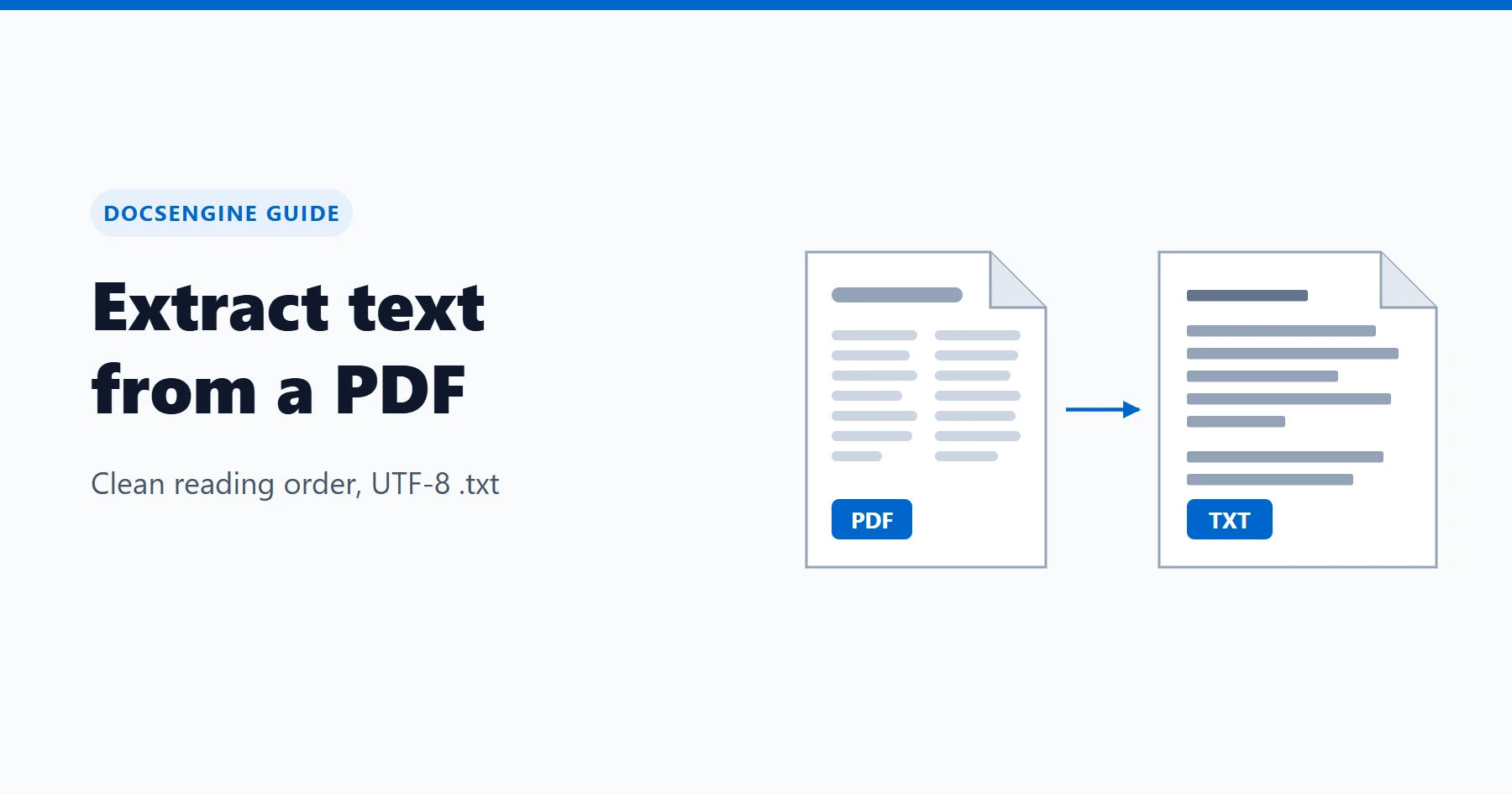 Extract the text of a PDF into a UTF-8 .txt file in reading order.
Key Takeaways & Executive Summary
In PDF to Text, Extract Text saves all of a PDF’s text as one UTF-8 .txt file.
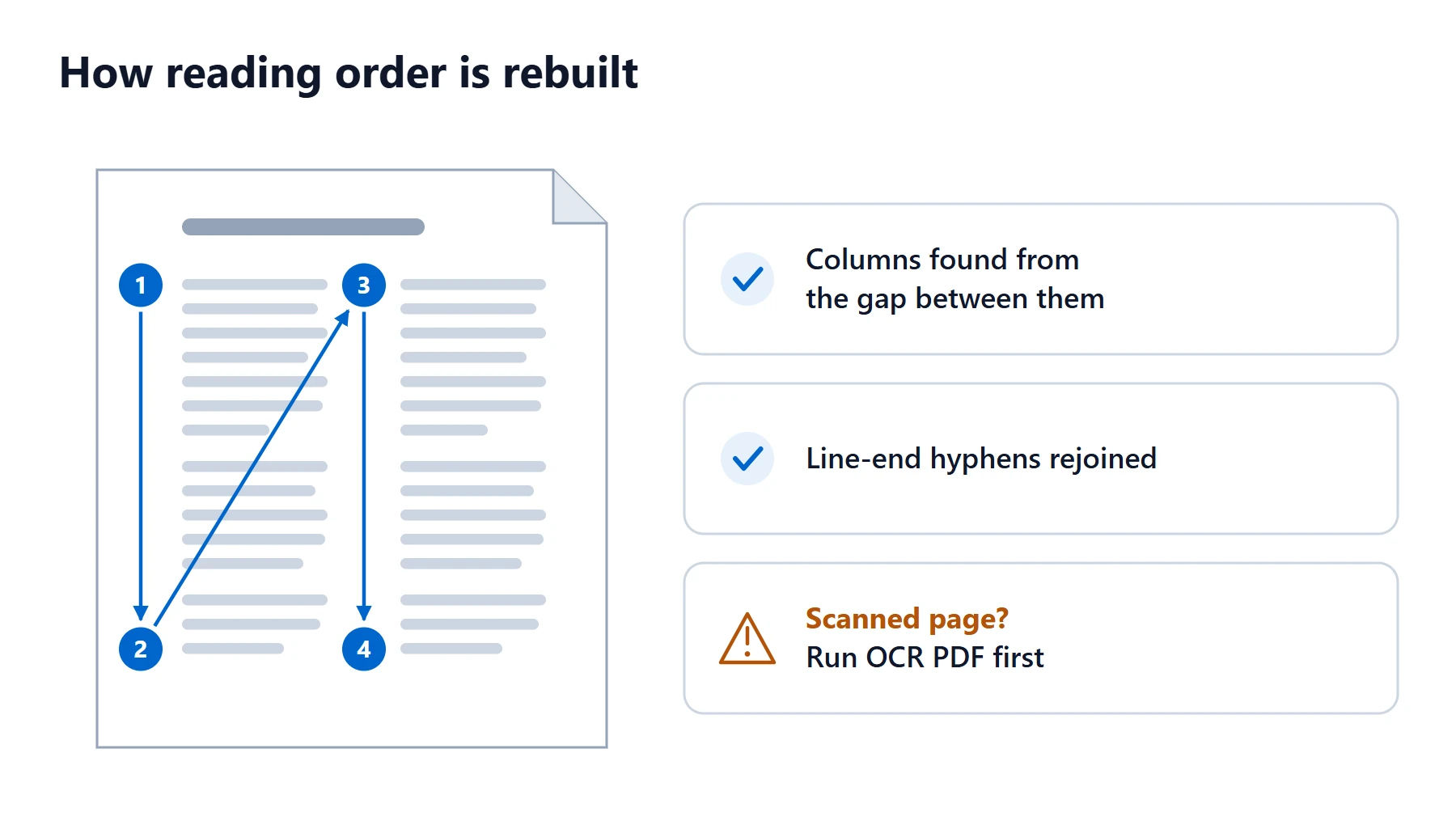
The reading order is rebuilt. Columns are read one at a time, lines are joined into paragraphs, and line-end hyphens are removed where that is safe.
Add page markers (off by default) puts a “— Page N —” line before each page.
Scanned PDFs have no text to extract. Run OCR PDF on them first.
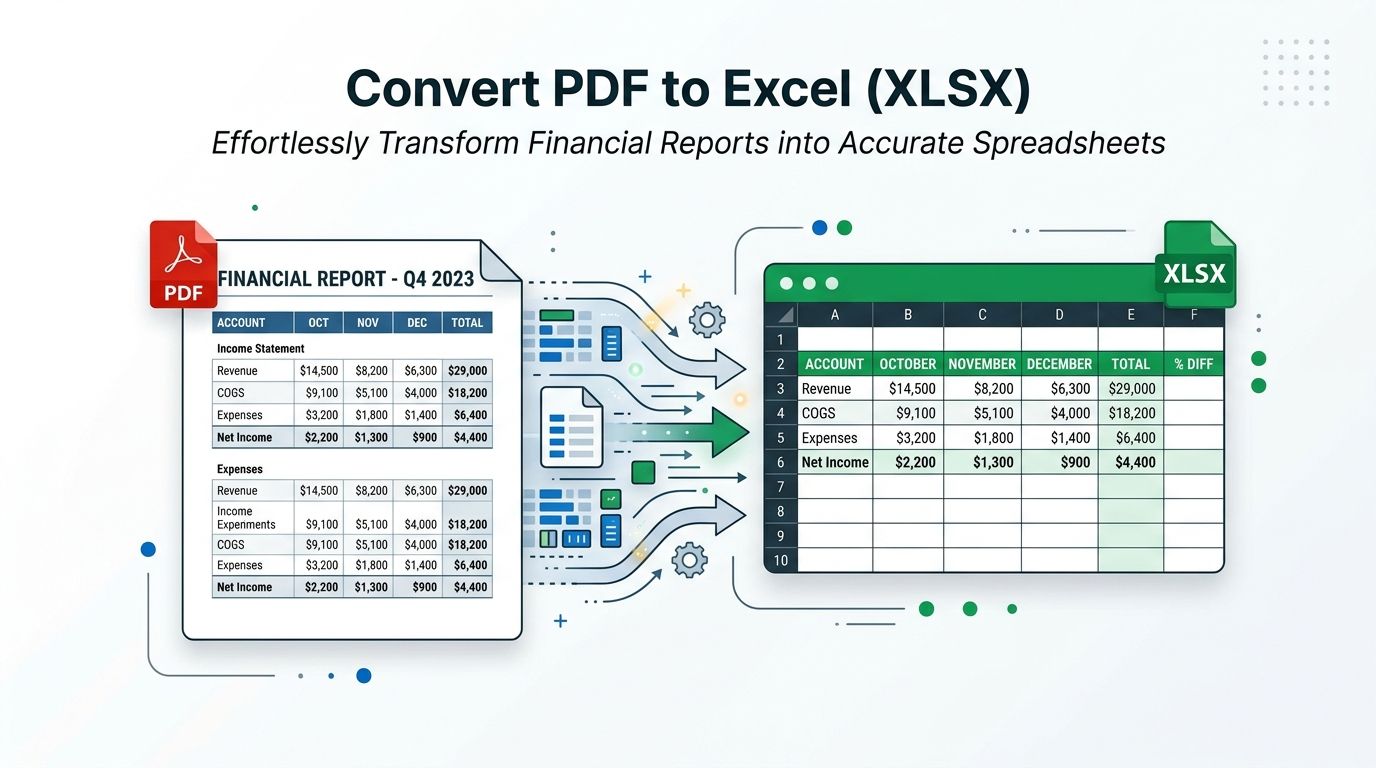
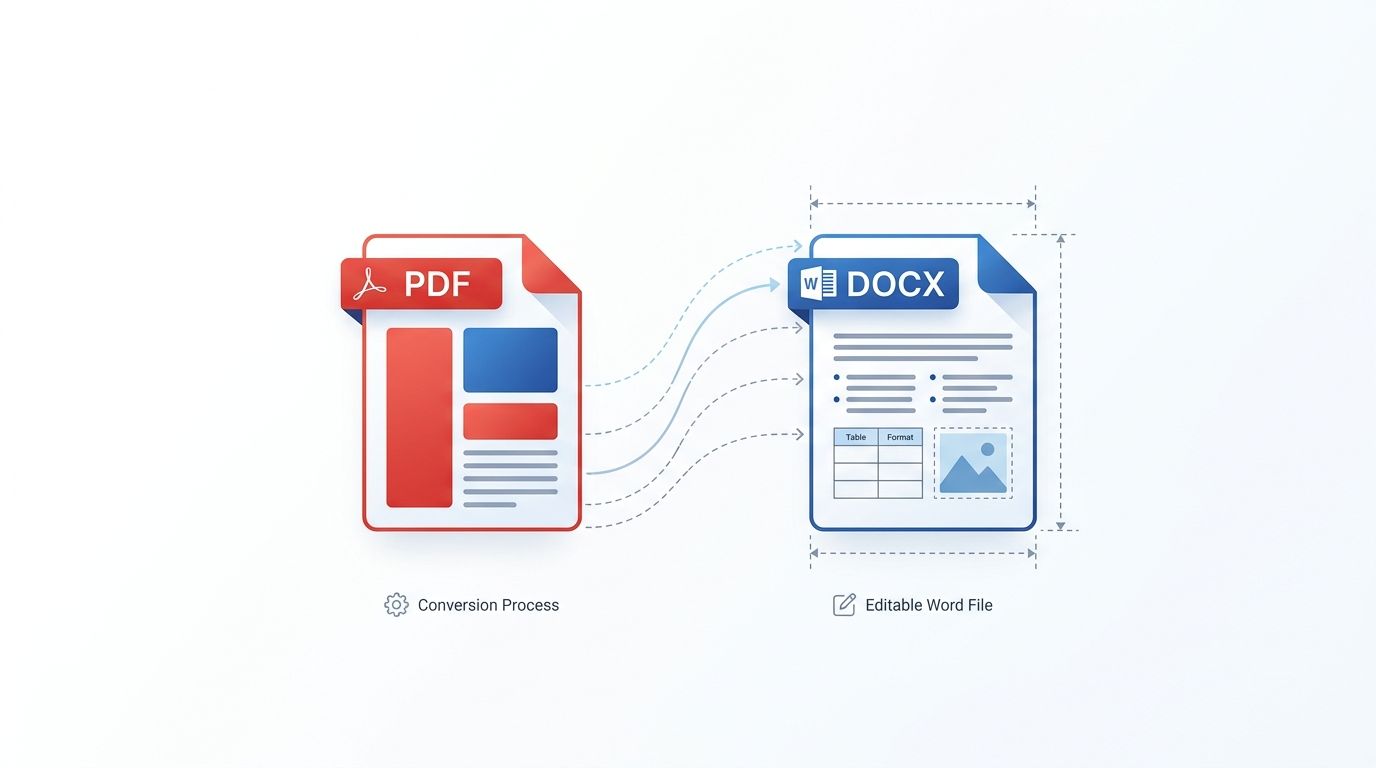
Tables come out as spaced text. For tables, use PDF to Excel. For formatting, use PDF to Word.
Table of Contents
How to extract text from a PDF (quick answer)
Step by step: PDF to TXT
What you get in the .txt file
Why copied PDF text comes out scrambled, and how the order is rebuilt
Scanned PDFs: run OCR first
Tables, formatting and when to use another tool
PDF to Text or Extract Text?
Limitations
Privacy: the text is extracted on your device
Frequently Asked Questions
Sources
How to extract text from a PDF (quick answer)
To extract all the text from a PDF, open PDF to Text, add your file and click Extract Text. You get a plain UTF-8 .txt file with the text in reading order. Pages with several columns are read one column at a time, and paragraphs stay separate.
This works for PDFs that already contain real text, such as files exported from Word or saved from a browser. A scanned PDF is only pictures of pages, so you need to run OCR PDF on it first.
Step by step: PDF to TXT
- Open PDF to Text and add your PDF. You can add up to 25 files, and each one becomes its own text file.
- Optional: turn on Add page markers to put a line such as “— Page 3 —” before each page’s text.
- Click Extract Text. Your browser reads the pages one after another.
- Download the result. For example, contract.pdf becomes contract.txt. If you added several PDFs, you get a ZIP file.
- Open the .txt file in any text editor, or paste the text into a document, an email or a translation tool.
- If you see “No selectable text found. This looks like a scanned PDF — run OCR PDF first, then extract the text.”, follow the scanned-PDF steps below.
What you get in the .txt file
The tool has one setting. Everything else in the table below happens automatically on every file.
| Setting or behavior | What it does | Why it matters |
|---|---|---|
| Add page markers (off by default) | Inserts a “— Page N —” line before each page’s text | Citing page numbers, splitting the text later, spotting empty pages |
| Column reading | Reads two or more columns one column at a time | Papers, newsletters and brochures stay readable |
| Hyphen repair | Rejoins words split by a hyphen at the end of a line, where that is safe | Justified text doesn’t end up full of half-words |
| Table rows | Keeps each row on one line, with several spaces between cells | Rows stay readable, but they are not a real table |
| UTF-8 encoding | Writes accented letters, symbols and non-Latin scripts as real characters | The file opens correctly in modern text editors |
Why copied PDF text comes out scrambled, and how the order is rebuilt
A PDF doesn’t store paragraphs. Under the PDF standard (ISO 32000), a page is a series of drawing instructions that place pieces of text at positions on the page, and the file doesn’t have to list those pieces in reading order. That is why selecting text in a viewer sometimes jumps across columns or runs words together.
PDF to Text reads the text pieces with PDF.js and rebuilds the order from their positions. It straightens rotated pages and text, groups words into lines by their baseline, and adds spaces where it sees gaps between words. It then finds columns from the empty gap between them and splits the text into paragraphs.
It also handles right-to-left lines, such as Arabic or Hebrew. Ligatures like “fi” become normal letters again, so a search for “file” finds the word.
Use page markers to find empty pages
Turn on Add page markers when the text is for quoting or review. A page without any text, such as one scanned page inside a digital PDF, then shows up as a marker with nothing under it.
Scanned PDFs: run OCR first
If the whole PDF is scanned, PDF to Text stops with the “No selectable text found” message. It doesn’t run OCR (text recognition) by itself. Here is the two-tool route:
About OCR quality
OCR PDF runs the Tesseract engine (through Tesseract.js) in your browser. The engine and language data are downloaded on first use and cached, but your PDF stays on your device. Recognition depends on the scan, so check names and numbers. Our OCR guide covers how to get better results.
- Open OCR PDF, add the scan and pick the Document language. If the pages mix two languages, add a Second language (optional).
- Click Apply OCR and download the searchable copy. Its name ends in _ocr.pdf.
- Add that copy to PDF to Text and click Extract Text.
Tables, formatting and when to use another tool
A .txt file holds only characters. Bold, fonts, colours, images and links are not part of the output, and the page layout is not reproduced.
Tables become rows of text with several spaces between the cells. That keeps them readable, but a spreadsheet won’t reliably split them into columns. For tables you want to sort or calculate with, use PDF to Excel, which detects table grids and writes real cells. If you need headings, lists and formatting, PDF to Word rebuilds an editable document.
PDF to Text or Extract Text?
DocsEngine also has an Extract Text page with the button Extract Text from PDF. It uses the same reading-order extraction and also gives you a UTF-8 .txt file, but it has no page-marker switch. Use PDF to Text when you want the markers.
Limitations
- No page ranges. The whole PDF is extracted. To get only some pages, split the PDF first and extract the part you need.
- No layout. The text keeps its reading order and paragraphs, not its position on the page.
- No automatic OCR. Scanned pages have no text until you run OCR PDF on them.
- Text that was converted to drawn outlines, which is common in logos and some designed headings, is no longer text and can’t be extracted.
- Some PDFs use fonts without a ToUnicode map, the table the PDF standard uses to link each glyph back to a Unicode character. Text from those files can come out as wrong or garbled characters.
- Running headers, footers and page numbers are part of the page text, so they appear in the file too.
- A PDF that needs a password to open has to be unlocked first, or you enter the password when you’re asked for it.
Privacy: the text is extracted on your device
PDF to Text runs in your browser, so your files never leave your device. The text is pulled out on your computer or phone, and the .txt file is saved from there.
Large files
The limit is 600 MB on a desktop and 200 MB on a phone. If your files are too large for your device, the page offers to use our server instead. Nothing is uploaded unless you click Use secure server.
Pull the text out of your PDF
Get a clean UTF-8 .txt file in reading order, extracted on your own device.
Frequently Asked Questions
The PDF is most likely scanned, so its pages are pictures without text. Run OCR PDF first, then extract the text from the _ocr.pdf copy.
Each row stays on one line with spaces between the cells, but a .txt file can’t hold a real table. Use PDF to Excel when you need the table as cells.
Not directly, because the tool extracts the whole PDF. Turn on Add page markers to find the pages you need in the text, or split the PDF first.
UTF-8. Accented letters, symbols and non-Latin scripts are written as real characters, as long as the PDF itself maps its fonts to Unicode.
Sources
- PDF.js (Mozilla)
- ISO 32000-1:2008 (PDF 1.7) public copy (Adobe / ISO)
- Tesseract.js (GitHub)
Table of Contents
How to extract text from a PDF (quick answer)
Step by step: PDF to TXT
What you get in the .txt file
Why copied PDF text comes out scrambled, and how the order is rebuilt
Scanned PDFs: run OCR first
Tables, formatting and when to use another tool
PDF to Text or Extract Text?
Limitations
Privacy: the text is extracted on your device
Frequently Asked Questions
Sources
How to extract text from a PDF (quick answer)
Step by step: PDF to TXT
What you get in the .txt file
Why copied PDF text comes out scrambled, and how the order is rebuilt
Scanned PDFs: run OCR first
Tables, formatting and when to use another tool
PDF to Text or Extract Text?
Limitations
Privacy: the text is extracted on your device
Frequently Asked Questions
Sources
PDF to Text (TXT)
Free, no sign-up. Runs in your browser, so your files never leave your device.
Share this guide
How to Make Scanned PDFs Searchable with Optical Character Recognition (OCR)