How to Add Page Numbers to a PDF (Page 1 of N, Roman Numerals, Skip Cover)
Add page numbers to a PDF in six positions and three formats, start from any number, and leave the cover unnumbered, without uploading the file.
DocsEngine Editorial Team
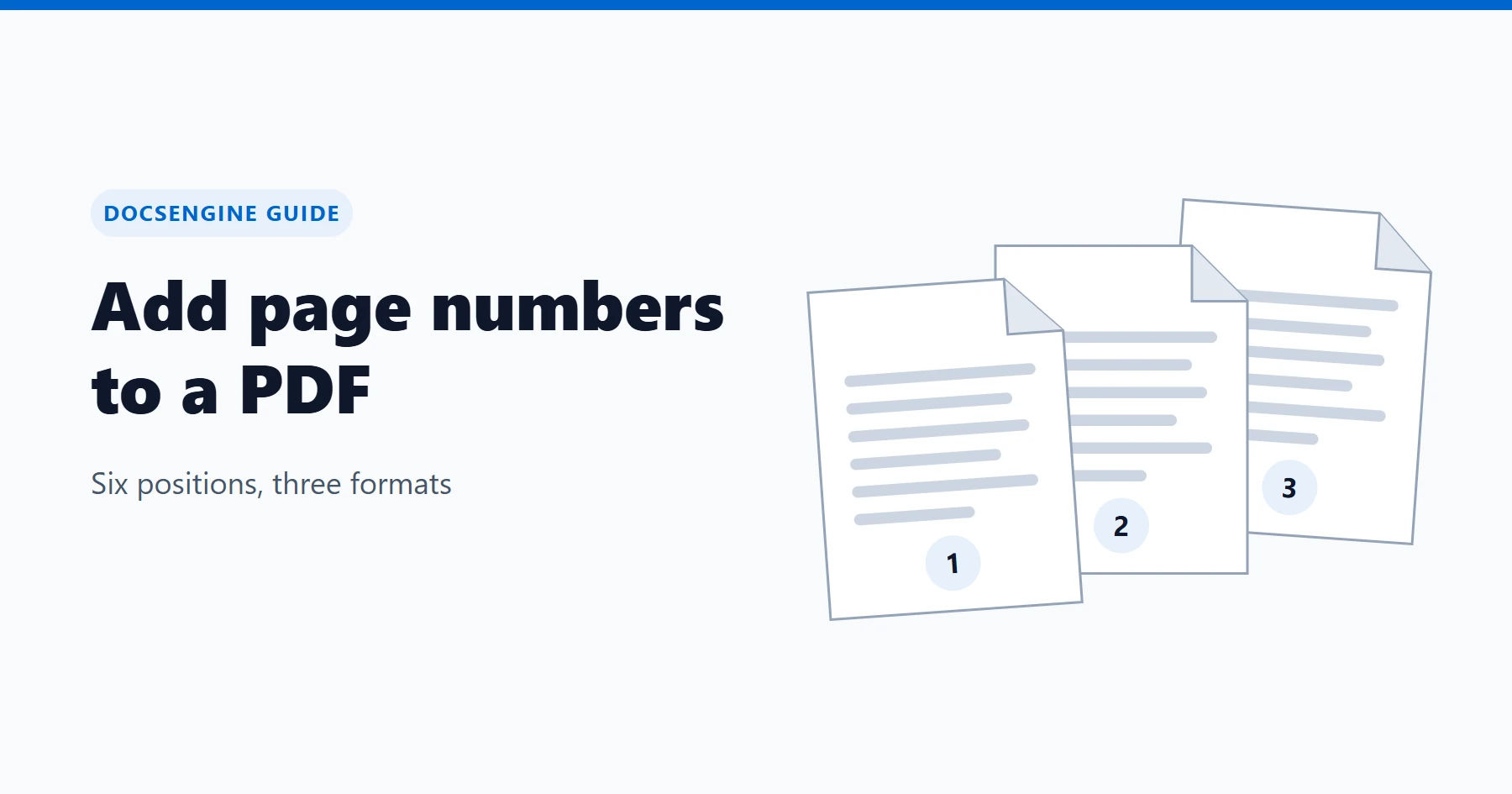 Page numbers are drawn into each page as text.
Key Takeaways & Executive Summary
Pick one of six positions and a format, then click Add Page Numbers; bottom center with plain numbers is the default.
Formats are 1, 2, 3..., lowercase Roman numerals (i, ii, iii...) and Page 1 of N.
In Page X of N, N is the number printed on the last page, so starting at 5 on a 10-page file ends with “Page 14 of 14”.
The cover switch leaves page 1 blank but still counts it, so the second page shows 2.
Each file is numbered separately. Merge files first if you want one continuous sequence.
Table of Contents
How to add page numbers to a PDF (quick answer)
Step-by-step: number the pages of a PDF
Page number settings explained
How “Page X of N” is counted
Numbering several files as one document
Avoiding clashes with existing headers and footers
Limitations and alternatives
Privacy: numbering happens on your device
Frequently Asked Questions
Sources
How to add page numbers to a PDF (quick answer)
Upload your file to Add Page Numbers, choose a spot under Number Placement (bottom center is the default), pick a Numbering Format, and click Add Page Numbers. Every page gets a number (or only the pages you list in Pages to number), and you download a new file: thesis.pdf becomes thesis_numbered.pdf.
The tool is free, runs in your browser, and your PDF never leaves your device. You can also start from any number, use Roman numerals, show “Page 1 of N”, or skip the cover page.
Step-by-step: number the pages of a PDF
You can add up to 20 files at once. Each one is numbered on its own, and several results are downloaded together as a ZIP.
- Open the Add Page Numbers tool and add your PDF.
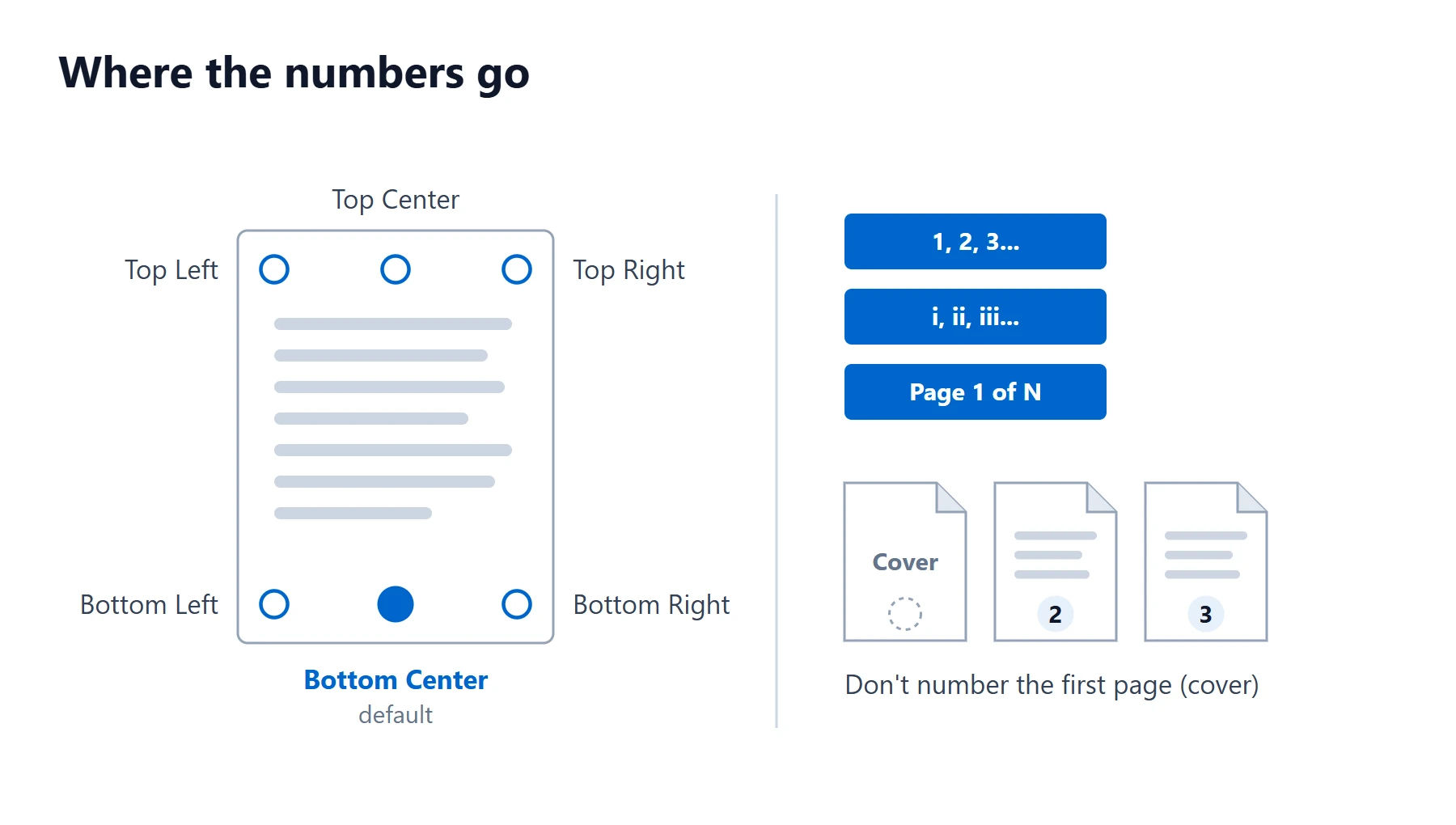
- Under Number Placement, pick Top Left, Top Center, Top Right, Bottom Left, Bottom Center or Bottom Right. You can also click one of the six spots on the sample sheet.
- Choose a Numbering Format: 1, 2, 3..., i, ii, iii... or Page 1 of N.
- If the first page should not be 1, enter a value in Start Numbering From, for example 25 for a second chapter.
- Set the Font Size slider (8 to 20 pt; the default is 10 pt).
- Optional: switch on Don't number the first page (cover), or list the pages to number in Pages to number (for example "3-" to start at page 3). Numbering starts at the first chosen page.
- Click Add Page Numbers and download the numbered PDF.
Page number settings explained
Numbers are black Helvetica text placed 28 pt from the page edge. Since 72 pt make an inch, that is about 0.4 inch, or roughly 10 mm.
| Setting | What it does | When to use it |
|---|---|---|
| Number Placement | Six spots: top or bottom, each left, center or right | Bottom Center for reports; a corner for manuals and books |
| 1, 2, 3... | Plain numbers | Most documents |
| i, ii, iii... | Lowercase Roman numerals | Prefaces, front matter, a separate introduction |
| Page 1 of N | Number plus total, e.g. Page 3 of 12 | Contracts and forms, where a missing page must be obvious |
| Start Numbering From | The number on the first page (1 or higher) | Chapters, appendices, a file that continues another |
| Font Size | 8 to 20 pt, default 10 pt | Around 9 to 11 pt for documents; larger for slides saved as PDF |
| Don't number the first page (cover) | Leaves page 1 unnumbered but still counts it | Title pages and covers |
How “Page X of N” is counted
In Page 1 of N, N is not simply the number of pages in the file. It is the number that ends up on the last page: N = start number + number of pages − 1. That way the last page always reads “Page N of N”.
With the default start of 1, a 10-page PDF runs from “Page 1 of 10” to “Page 10 of 10”. Set Start Numbering From to 5 and the same file runs from “Page 5 of 14” to “Page 14 of 14”, because the total follows your numbering.
The cover switch doesn’t change N. On a 10-page file with the cover switch on, page 1 has no number, the second page shows “Page 2 of 10”, and the last page shows “Page 10 of 10”.
Pages to number works differently: numbering starts at the first page you choose. Type "2-" with a start of 1 and the second page shows “Page 1 of 9”, while the cover stays blank.
Want “Page 1 of 9” after a cover?
Leave the cover switch off and type "2-" in Pages to number with Start Numbering From set to 1. The cover gets no number, the second page shows “Page 1 of 9” and the last page “Page 9 of 9”.
| 10-page file | First number shown | Last page shows |
|---|---|---|
| Start 1 | Page 1 of 10 (page 1) | Page 10 of 10 |
| Start 5 | Page 5 of 14 (page 1) | Page 14 of 14 |
| Start 1, cover skipped | Page 2 of 10 (page 2) | Page 10 of 10 |
Numbering several files as one document
Add Page Numbers treats every uploaded file as its own document, so three files each start at your start number. For one sequence from the first page of the first file to the last page of the last, merge the files first and then number the merged PDF. Our guide to merging PDF files covers ordering the files.
If the parts must stay separate, use Start Numbering From. For example, if part 1 has 12 pages, start part 2 at 13. With Page 1 of N, each file then shows its own last number as N; only the final part shows the overall total.
For Roman-numbered front matter and an Arabic-numbered body, run the tool twice. First number the front matter, for example Pages to number "1-4" with i, ii, iii...; then add the numbered file again and number "5-" with 1, 2, 3... and a start of 1. If you only need part of the document, split the PDF first.
Avoiding clashes with existing headers and footers
Numbers are added on top of the page. Nothing is moved or removed, so if your document already has footer text at the bottom center, the new number will sit over it. Pick another spot, such as Top Right or Bottom Right, or reduce the Font Size.
Each page is numbered as you see it. On landscape and rotated pages the number is upright and sits at the visual top or bottom, not along a side edge.
Limitations and alternatives
Add Page Numbers covers everyday numbering. A few things it doesn’t do:
- No font or color choice: numbers are always black Helvetica. Only the size can change.
- No custom formats such as “3 / 12” or “Chapter 2 – 5”, and no uppercase Roman numerals.
- No mirrored placement for double-sided printing (odd pages right, even pages left).
- No Bates numbering for legal productions.
- One style per run: to mix formats (Roman front matter, Arabic body), run the tool once for each page range.
- Old page numbers already printed on the pages stay; new numbers are added, not replaced.
- A PDF that only has permission restrictions is unlocked automatically, and the numbered copy has no protection. Add it back with Protect PDF if needed.
Privacy: numbering happens on your device
Theses, contracts and reports often contain personal details, so it helps that nothing needs to be uploaded.
Runs in your browser
Add Page Numbers runs in your browser, in a background worker using the open-source pdf-lib library. Your files never leave your device. One run can handle up to 600 MB in total on a desktop and 200 MB on a phone.
Number your PDF pages
Six positions, three formats, a cover option and any start number. Free, and your file stays on your device.
Frequently Asked Questions
N is the number printed on the last page: start number plus page count minus one. With the default start of 1, it equals the page count.
Yes. Merge them into one file with Merge PDF first, then add page numbers to the merged PDF.
They can, because nothing on the page is moved. Choose a different position, such as Top Right, if the bottom center is already in use.
No. Numbers are always black Helvetica; you can only change the size, from 8 to 20 pt.
Yes. They are drawn into the page content as vector text, not added as comments, so they display and print like the rest of the page.
Sources
- pdf-lib (pdf-lib)
- ISO 32000-1:2008 (PDF 1.7) public copy (Adobe / ISO)
Table of Contents
How to add page numbers to a PDF (quick answer)
Step-by-step: number the pages of a PDF
Page number settings explained
How “Page X of N” is counted
Numbering several files as one document
Avoiding clashes with existing headers and footers
Limitations and alternatives
Privacy: numbering happens on your device
Frequently Asked Questions
Sources
How to add page numbers to a PDF (quick answer)
Step-by-step: number the pages of a PDF
Page number settings explained
How “Page X of N” is counted
Numbering several files as one document
Avoiding clashes with existing headers and footers
Limitations and alternatives
Privacy: numbering happens on your device
Frequently Asked Questions
Sources
Add Page Numbers
Free, no sign-up. Runs in your browser, so your files never leave your device.
Share this guide
How to Merge PDF Files into One Document (Free, in Your Browser)
How to Split a PDF: Extract Page Ranges or Separate Every Page