How to Split PDF Pages: Extract Custom Ranges or Separate Every Page
Need to extract just two pages from a 100-page bank statement or textbook? Discover how to split PDF documents by custom ranges or separate every page into individual files without quality loss.
Technical Document Guide
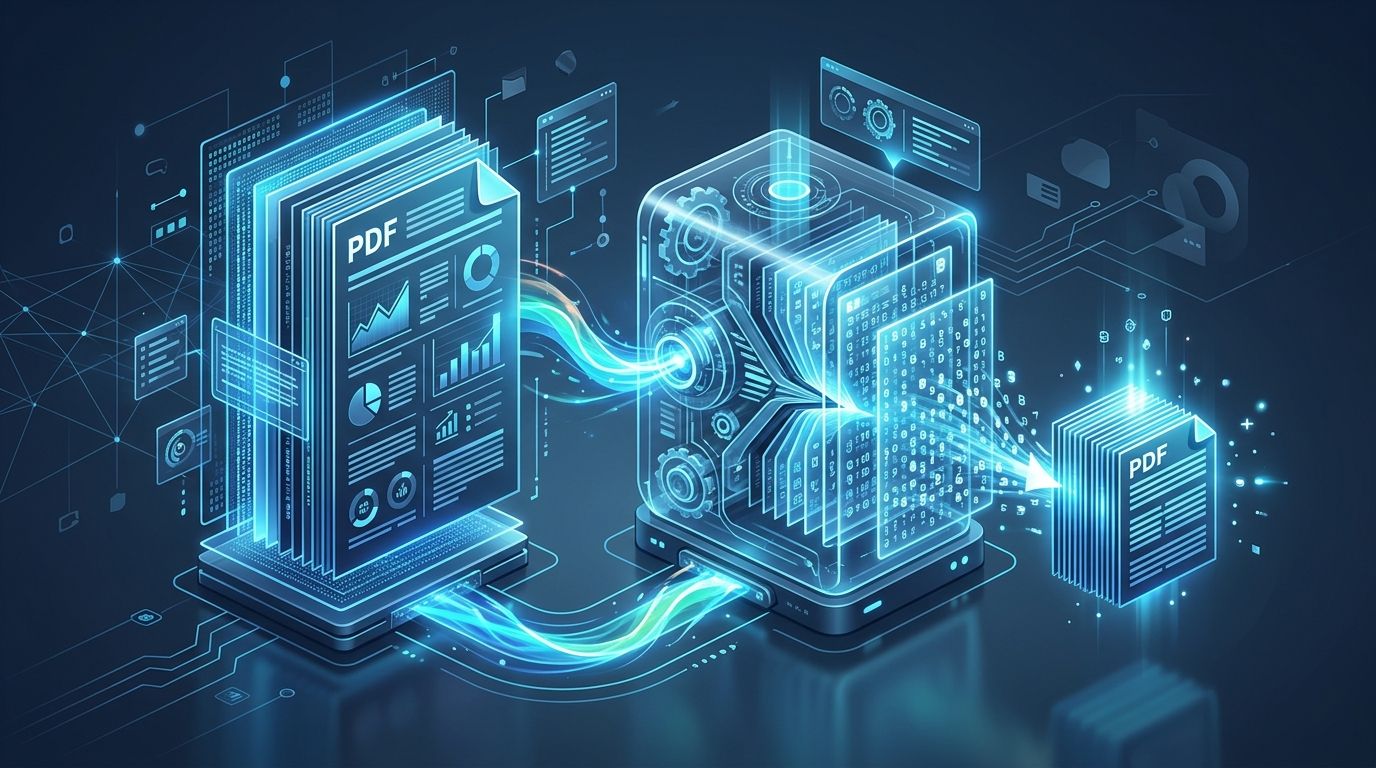
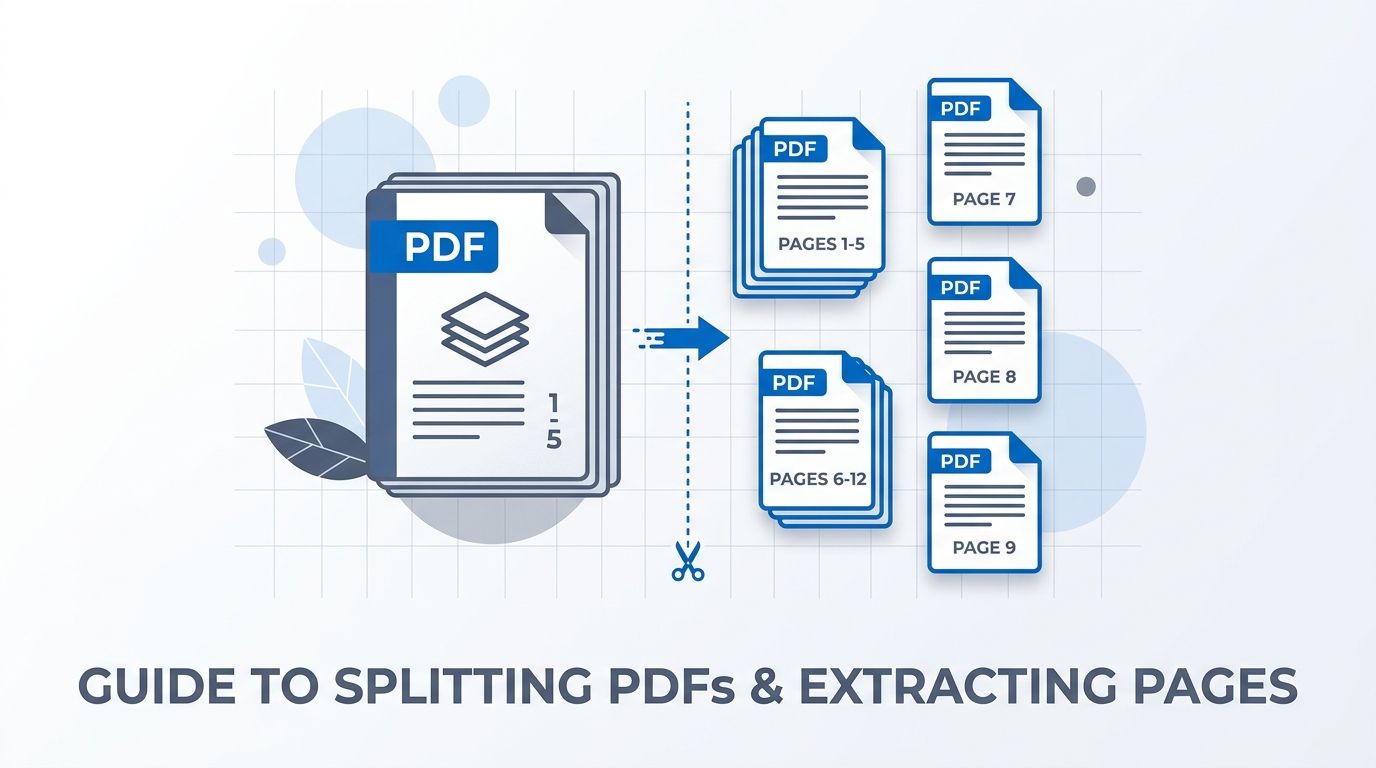 Visual guide to extracting targeted page ranges or splitting multi-page PDFs into single-page documents.
Key Takeaways & Executive Summary
Flexible extraction modes: Extract specific pages using ranges (e.g., 1-3, 7, 10-12) or split all pages into separate standalone files.
Non-destructive separation: Page extraction leaves vector typography, embedded fonts, and high-res image streams mathematically untouched.
Automated ZIP packaging: When generating multiple single-page documents, files are automatically bundled into a clean ZIP archive for 1-click download.
Zero file size limits: Split massive multi-hundred-page textbooks, legal filings, and scanned records without paying for software.
Private in-memory processing: Your confidential legal exhibits and tax returns are never inspected or retained; all buffers auto-purge every 12 hours at midnight.
Table of Contents
1. Common Scenarios That Require Splitting PDF Documents
2. Custom Page Ranges vs. Split Every Page: Choosing the Right Mode
3. Step-by-Step Guide: How to Split PDF Pages Online
4. Post-Extraction Workflows: Merging and Compressing Split Pages
Frequently Asked Questions
1. Common Scenarios That Require Splitting PDF Documents
2. Custom Page Ranges vs. Split Every Page: Choosing the Right Mode
3. Step-by-Step Guide: How to Split PDF Pages Online
4. Post-Extraction Workflows: Merging and Compressing Split Pages
Frequently Asked Questions
1. Common Scenarios That Require Splitting PDF Documents
Large PDF files frequently contain information that should not—or cannot—be shared in its entirety. Whether you need to isolate a single deed from a 50-page real estate closing packet, separate individual chapters from an academic textbook, or extract financial records for an audit without sharing unrelated accounts, splitting a PDF is an indispensable document management skill.
Standard PDF viewing tools like Adobe Acrobat Reader allow users to view files but lock page extraction behind expensive monthly subscriptions. With DocsEngine, page separation is 100% free with zero registration.
Privacy Best Practice
Before emailing court filings, medical records, or tax returns, split the document to extract only the specific pages requested by third parties, protecting sensitive unrelated data.
2. Custom Page Ranges vs. Split Every Page: Choosing the Right Mode
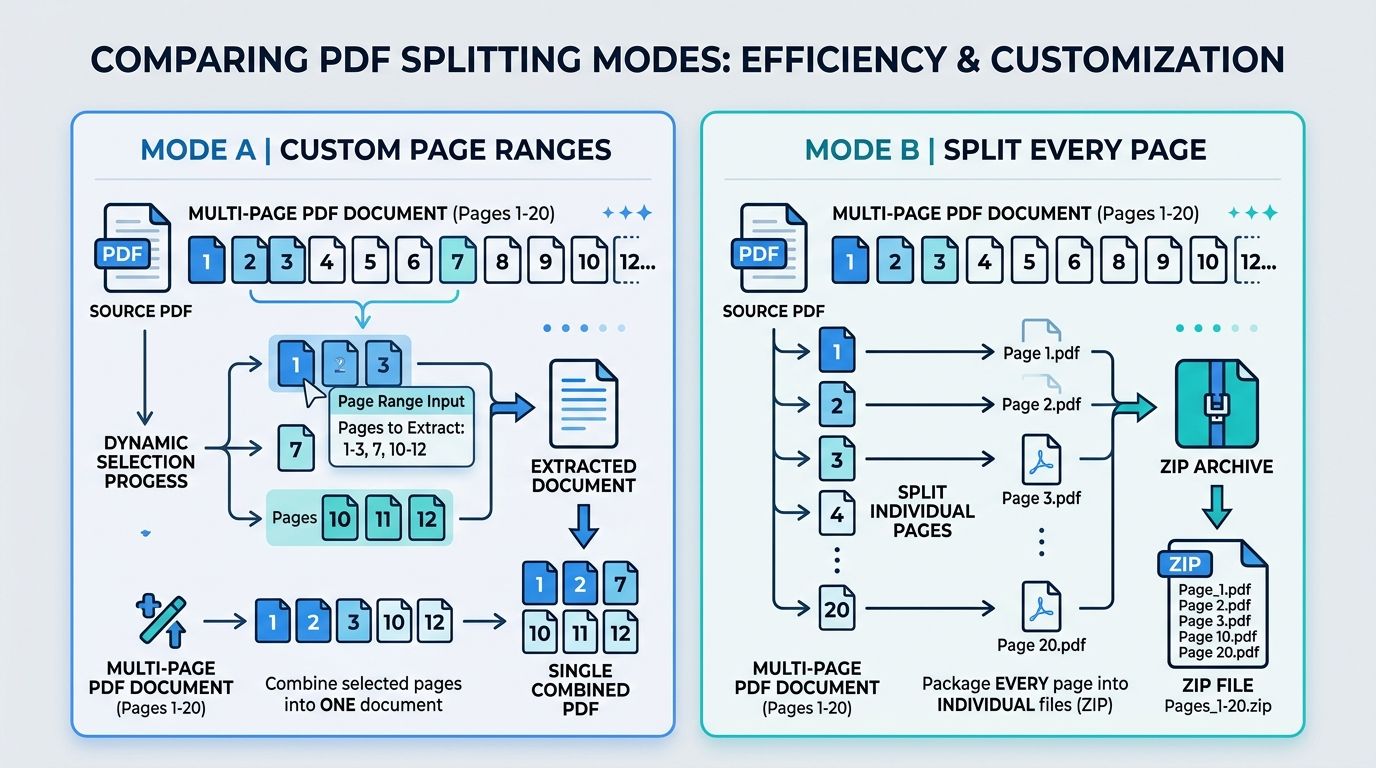
DocsEngine supports two distinct splitting workflows designed for different user objectives:
Mode A (Custom Page Range Selection): Ideal when you need specific sections—for example, pages 1 through 5, page 8, and pages 12 through 15. All chosen pages are assembled into a single, clean new PDF document.
Mode B (Split Every Page): Ideal when archiving invoices, separating signed agreement slips, or cataloging architectural blueprints. Every page in your PDF becomes an independent single-page document, packaged into a ZIP file.
| Extraction Mode | Syntax Example | Output Result | Optimal Use Case |
|---|---|---|---|
| Single Page Extraction | 3 | Single 1-page PDF file | Extracting a certificate or signature page |
| Continuous Page Range | 1-5 | Single 5-page PDF document | Extracting an article chapter or executive summary |
| Discontinuous Ranges | 1-3, 7, 10-14 | Single combined multi-page PDF | Selecting non-contiguous exhibits or financial tables |
| Split Every Page | All pages | Individual PDFs in single ZIP archive | Processing invoice batches, test sheets, or vouchers |
3. Step-by-Step Guide: How to Split PDF Pages Online
Separating pages with DocsEngine requires no software installation or registration:
- Upload Your Document: Open the DocsEngine Split PDF tool and upload your PDF file.
- Select Extraction Mode: Choose between "Extract Custom Ranges" or "Split Every Page".
- Specify Page Numbers: If using custom ranges, type your page numbers (e.g., "1-4, 8, 12-16").
- Download Your Files: Click "Split PDF". Your extracted document or packaged ZIP archive downloads immediately.
4. Post-Extraction Workflows: Merging and Compressing Split Pages
Once you have extracted your desired pages, you can seamlessly connect them to other document operations:
• Need to merge extracted pages with other files? Use our Merge PDF tool to combine them into a single report.
• Need to shrink file weight for email delivery? Run the extracted document through our Compress PDF tool to reduce file size while preserving crisp vector text.
Extract Your PDF Pages with Precision
Extract custom page ranges or separate every page into individual documents packaged in a clean ZIP archive.
Frequently Asked Questions
Yes. Select the "Split Every Page" mode. The engine automatically creates 200 individual single-page PDF files and bundles them into one convenient ZIP archive.
No. Splitting is a purely non-destructive operation. All vector paths, embedded fonts, hyperlinks, and image streams are preserved verbatim.
No. DocsEngine handles documents of any size or page count with zero limitations or subscription fees.
Table of Contents
1. Common Scenarios That Require Splitting PDF Documents
2. Custom Page Ranges vs. Split Every Page: Choosing the Right Mode
3. Step-by-Step Guide: How to Split PDF Pages Online
4. Post-Extraction Workflows: Merging and Compressing Split Pages
Frequently Asked Questions
1. Common Scenarios That Require Splitting PDF Documents
2. Custom Page Ranges vs. Split Every Page: Choosing the Right Mode
3. Step-by-Step Guide: How to Split PDF Pages Online
4. Post-Extraction Workflows: Merging and Compressing Split Pages
Frequently Asked Questions
Split PDF
Run fast, private document processing in your browser with zero permanent storage.
Share this guide
How to Combine Multiple PDF Files into One Document: The Definitive Guide
How to Compress PDF Files Without Losing Quality: The Complete Engineering Guide