How to Rotate PDF Pages Permanently (Single Page or All Pages Online)
Tired of rotating PDF documents in your viewer only to have them revert back to upside down when emailed or printed? Discover how permanent PDF /Rotate dictionary updates solve orientation flaws forever.
Technical Document Guide
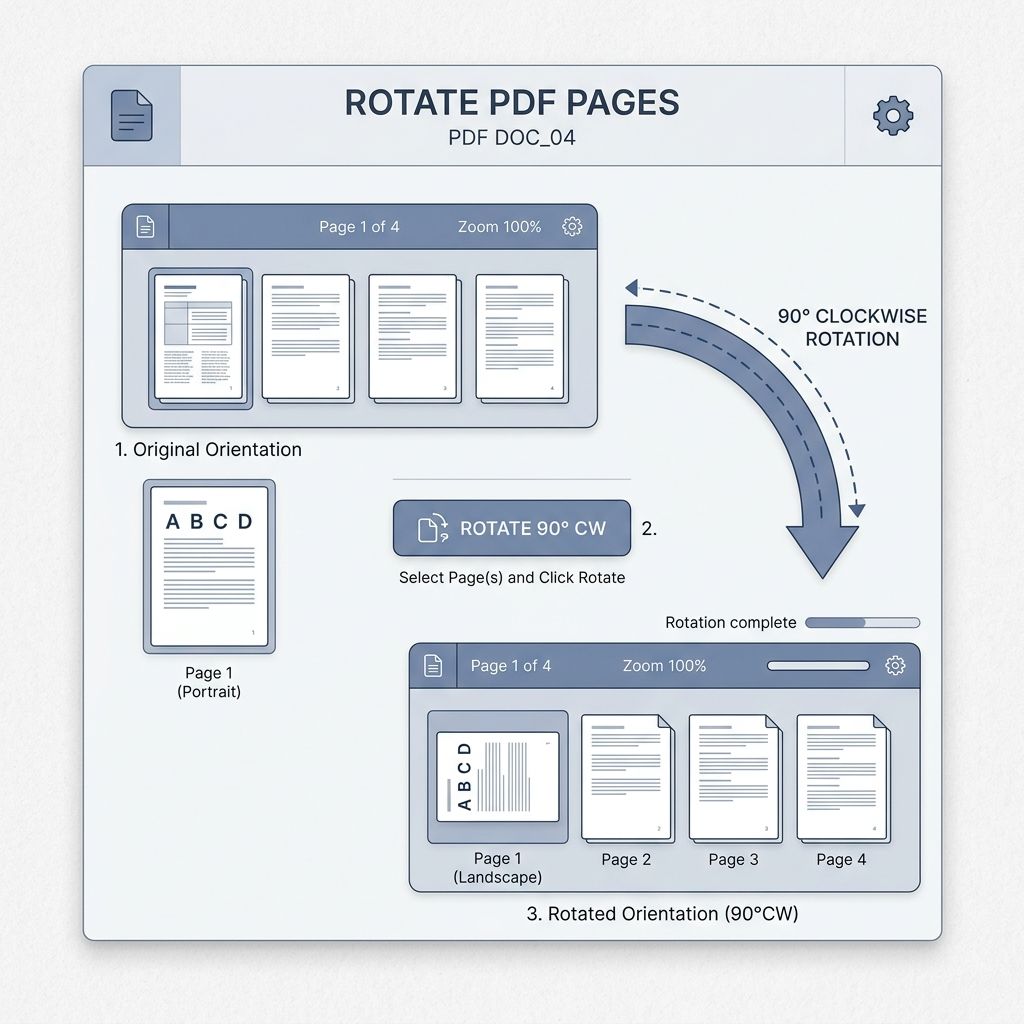 Visual demonstration of adjusting PDF page orientation by modifying page /Rotate dictionary attributes permanently.
Key Takeaways & Executive Summary
Viewer rotation vs. permanent PDF rotation: Rotating a document in Adobe Acrobat or web browser only changes the display canvas in RAM; it reverts back immediately upon closing unless the internal page dictionary is rewritten.
ISO 32000 /Rotate attribute: Permanent rotation updates the internal integer value (/Rotate 90, 180, or 270) within the PDF object tree, preserving vector graphics, text layers, and annotations without raster degradation.
Selective per-page rotation: Rotate isolated landscape spreadsheets, architectural blueprints, or sideways receipt scans without altering the portrait orientation of the remaining pages.
Zero quality loss: Because rotation operates at the metadata coordinate level, fonts, vector paths, and high-resolution images never undergo lossy recompression.
100% private and client-side: Files are processed in memory and never permanently stored or monitored.
Table of Contents
1. Why Does My PDF Keep Reverting to Upside Down or Sideways?
2. How Permanent PDF Rotation Works Under the ISO 32000 Standard
3. Step-by-Step Guide: How to Rotate PDF Pages Permanently Online
4. Best Practices for Mixed Portrait and Landscape Documents
Frequently Asked Questions
1. Why Does My PDF Keep Reverting to Upside Down or Sideways?
2. How Permanent PDF Rotation Works Under the ISO 32000 Standard
3. Step-by-Step Guide: How to Rotate PDF Pages Permanently Online
4. Best Practices for Mixed Portrait and Landscape Documents
Frequently Asked Questions
1. Why Does My PDF Keep Reverting to Upside Down or Sideways?
Few things are more frustrating than opening a scanned legal contract or academic paper, rotating it 90 degrees in your browser or desktop PDF viewer so it is readable, and discovering that the recipient receives it completely upside down or sideways. When you print the file or open it on a mobile device, the problem repeats itself.
The reason lies in the distinction between "View State Rotation" and "Document Stream Rotation". When you click the rotation button inside standard viewers like Apple Preview, Google Chrome, or Adobe Reader, the software merely applies a temporary CSS or viewport transform matrix to your display. It does not rewrite the underlying PDF structure. To make the change permanent across every device, printer, and operating system, the document must be saved with an updated PDF Page Object dictionary.
Display Rotation vs. File Mutation
Browser "Rotate View" shortcuts (Ctrl+Shift+Plus) never alter the saved PDF file. When emailed or printed, the document will revert to its original crooked orientation unless permanently rewritten.
2. How Permanent PDF Rotation Works Under the ISO 32000 Standard
Under ISO 32000-1 specifications, each page in a PDF file contains a specific catalog entry known as the `/Rotate` key. This key accepts clockwise multiples of 90 degrees: 0, 90, 180, or 270.
When DocsEngine rotates a page, it does not re-encode your images or convert vector paragraphs into lossy pixels. Instead, it parses the PDF cross-reference table, locates the specific `/Page` dictionary object, and updates the `/Rotate` entry to the requested angle. This ensures 100% mathematical fidelity—your text remains sharp, vectors stay crisp, and the overall file size remains virtually identical.
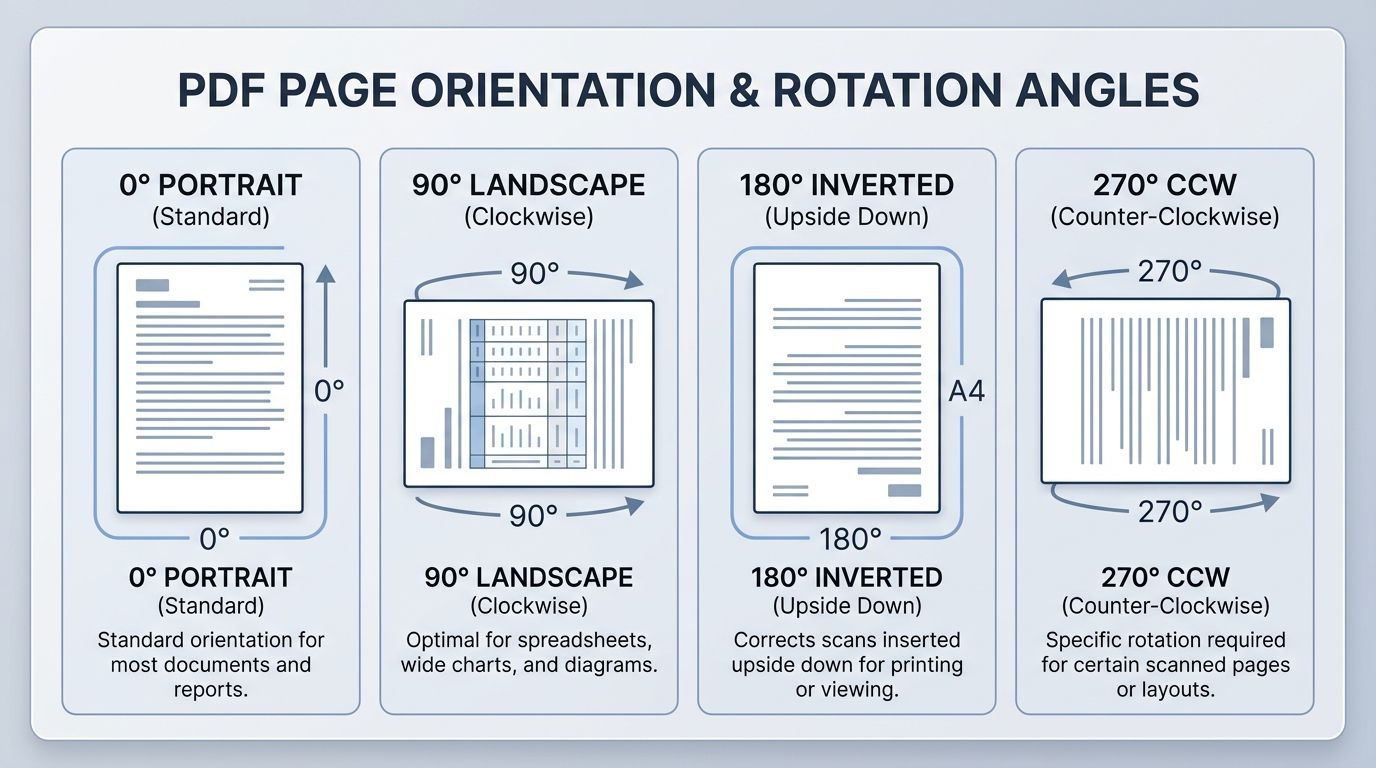
| Rotation Angle | Internal PDF Value | Typical Use Case | Visual Outcome |
|---|---|---|---|
| 90° Clockwise | /Rotate 90 | Scanned horizontal spreadsheet in portrait PDF | Turns horizontal text upright for natural reading |
| 180° Inverted | /Rotate 180 | Document fed upside down into automatic document feeder (ADF) | Flips inverted scan right-side up |
| 270° Counterclockwise | /Rotate 270 | Sideways blueprint or architectural floor plan | Rotates left to restore natural landscape viewing |
| 0° Standard | /Rotate 0 | Default portrait page | Standard upright orientation for print and screen |
3. Step-by-Step Guide: How to Rotate PDF Pages Permanently Online
Rotating individual pages or entire documents takes under 10 seconds with DocsEngine:
- Upload Your Document: Drag and drop your PDF file into the DocsEngine Rotate PDF tool.
- Inspect Visual Thumbnails: Our interactive canvas renders page preview cards for every page in your document.
- Choose Rotation Mode: Click "Rotate All" to turn every page simultaneously, or hover over individual pages to rotate specific sideways diagrams.
- Apply and Download: Click "Apply Changes" and download your permanently oriented PDF file.
4. Best Practices for Mixed Portrait and Landscape Documents
Multi-page financial audits and corporate proposals often contain a mixture of portrait text pages and wide landscape financial spreadsheets. In older workflows, users were forced to rotate all pages or none.
With DocsEngine, you have granular per-page control. You can leave pages 1 through 5 in portrait, rotate page 6 into landscape, and keep page 7 in portrait. Every page preserves its own dedicated `/MediaBox` and `/CropBox` boundaries, guaranteeing clean printing and flawless reading across all platforms.
Preserve Bookmarks & Hyperlinks
DocsEngine preserves internal PDF bookmarks, interactive form fields, and clickable hyperlinks even after page rotation transforms are executed.
Rotate Your PDF Pages Permanently Now
Fix upside-down scans and orient landscape pages forever. 100% free with no watermark.
Frequently Asked Questions
Yes. Our visual page grid lets you hover over any individual page thumbnail and rotate it 90°, 180°, or 270° independently without affecting other pages.
Browser PDF viewers only apply a temporary visual transform to the current screen session. To make rotation permanent across all devices and printers, the internal PDF catalog must be updated using a dedicated tool like DocsEngine.
Yes. All file processing occurs in isolated temporary memory buffers and files are permanently purged every 12 hours at midnight. We never inspect, store, or share your documents.
Yes. DocsEngine runs smoothly in any mobile web browser without requiring app installation or plugin downloads.
Table of Contents
1. Why Does My PDF Keep Reverting to Upside Down or Sideways?
2. How Permanent PDF Rotation Works Under the ISO 32000 Standard
3. Step-by-Step Guide: How to Rotate PDF Pages Permanently Online
4. Best Practices for Mixed Portrait and Landscape Documents
Frequently Asked Questions
1. Why Does My PDF Keep Reverting to Upside Down or Sideways?
2. How Permanent PDF Rotation Works Under the ISO 32000 Standard
3. Step-by-Step Guide: How to Rotate PDF Pages Permanently Online
4. Best Practices for Mixed Portrait and Landscape Documents
Frequently Asked Questions
Rotate PDF
Run fast, private document processing in your browser with zero permanent storage.
Share this guide
How to Combine Multiple PDF Files into One Document: The Definitive Guide
How to Split PDF Pages: Extract Custom Ranges or Separate Every Page