How to Combine Multiple PDF Files into One Document: The Definitive Guide
Sending multiple disjointed PDF attachments creates confusion and lost pages. Discover how to combine multiple PDF documents into a single organized file with custom page sequence and bookmarks preserved.
Technical Document Guide
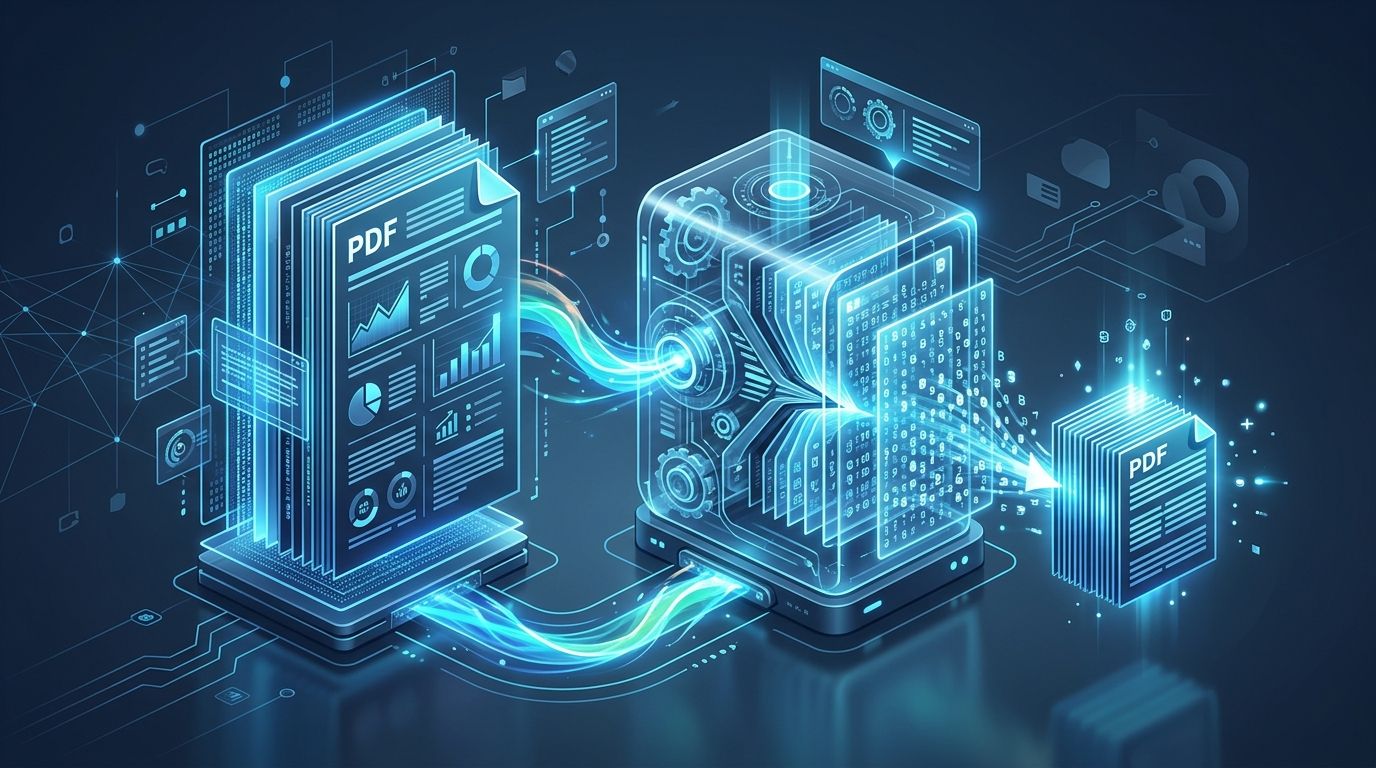
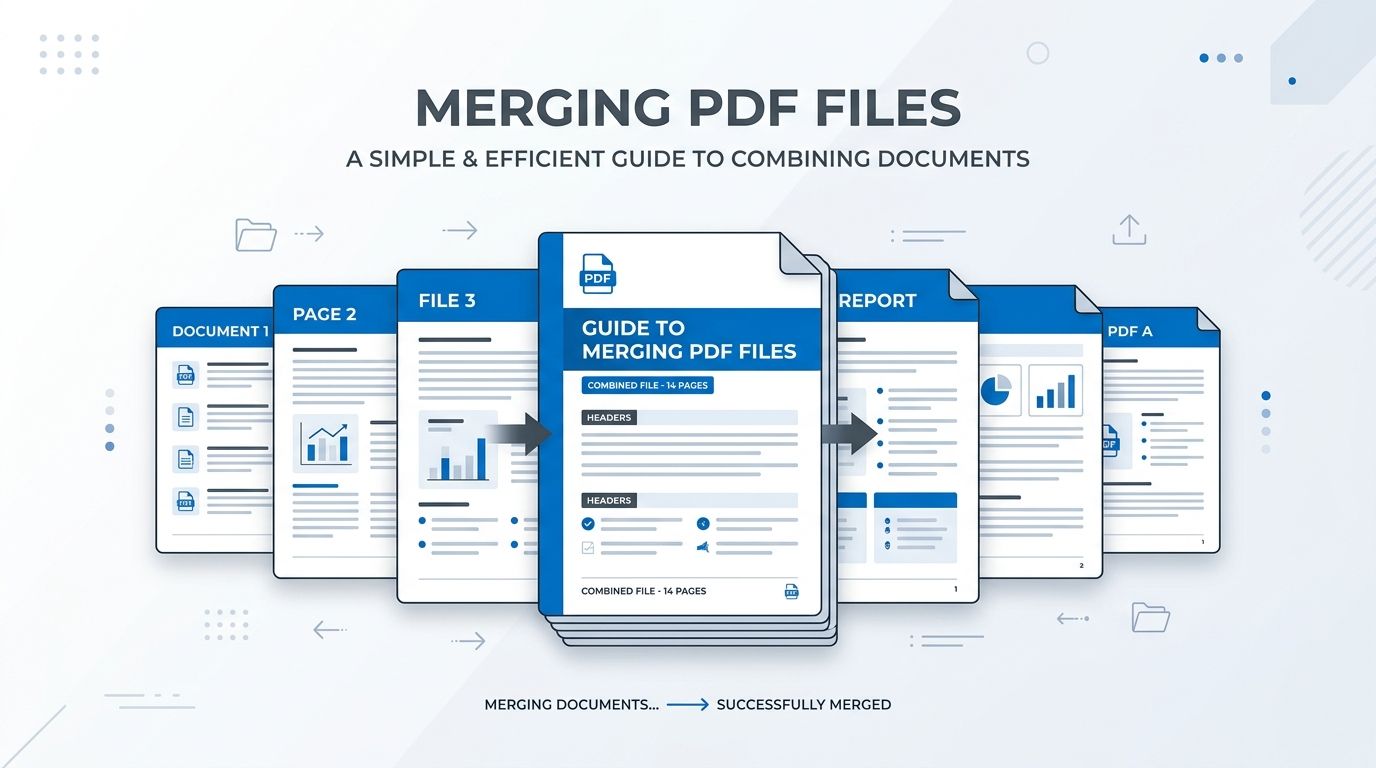 Visual guide to combining multiple PDF reports, invoices, and legal exhibits into a single cohesive file.
Key Takeaways & Executive Summary
How to merge PDF files free: Drag and drop files into the workspace, drag to arrange your desired document sequence, and click Merge PDF for instant compilation.
Preserve document outlines: Modern in-memory PDF merging automatically joins tables of contents, bookmarks, and internal hyperlinks into a consolidated document.
Maintain vector sharpness: In-memory concatenation joins pages verbatim without recompressing text streams, preserving 100% vector typography and image fidelity.
Zero page or file count limits: Merge up to 50 individual PDF files simultaneously without arbitrary paywalls or subscription requirements.
Strict privacy architecture: Files are processed in memory and permanently deleted from temporary buffers every 12 hours at midnight with no human inspection or AI training.
Table of Contents
1. Why Combining Multiple PDFs into One Document Is Essential
2. How In-Memory PDF Merging Works: Preserving Vectors & Bookmarks
3. Step-by-Step Guide: How to Merge PDF Files Free Online
4. Pro Tips for Organizing and Reordering Large Multi-Page Documents
Frequently Asked Questions
1. Why Combining Multiple PDFs into One Document Is Essential
2. How In-Memory PDF Merging Works: Preserving Vectors & Bookmarks
3. Step-by-Step Guide: How to Merge PDF Files Free Online
4. Pro Tips for Organizing and Reordering Large Multi-Page Documents
Frequently Asked Questions
1. Why Combining Multiple PDFs into One Document Is Essential
In modern academic, corporate, and legal environments, dealing with fragmented documents is one of the most common workplace frustrations. Sending an email with six individual PDF attachments—a cover letter, resume, portfolio samples, transcripts, and recommendation letters—forces the recipient to open each file separately, increasing the risk of missing critical information.
Combining related documents into a single cohesive PDF creates a polished, professional impression. Common use cases include compiling quarterly financial statements and appendices, packaging court exhibits and affidavits, bundling monthly invoices for accounting departments, and submitting comprehensive thesis documentation.
Searcher Insight
Over 70% of hiring managers and court clerk portals explicitly require multi-page submissions to be uploaded as a single combined PDF document.
2. How In-Memory PDF Merging Works: Preserving Vectors & Bookmarks
Many legacy online PDF tools merge documents by converting each page into a flattened image and recompiling them. This outdated approach destroys text selectability, bloats file sizes, and leaves vector charts blurry when zoomed.
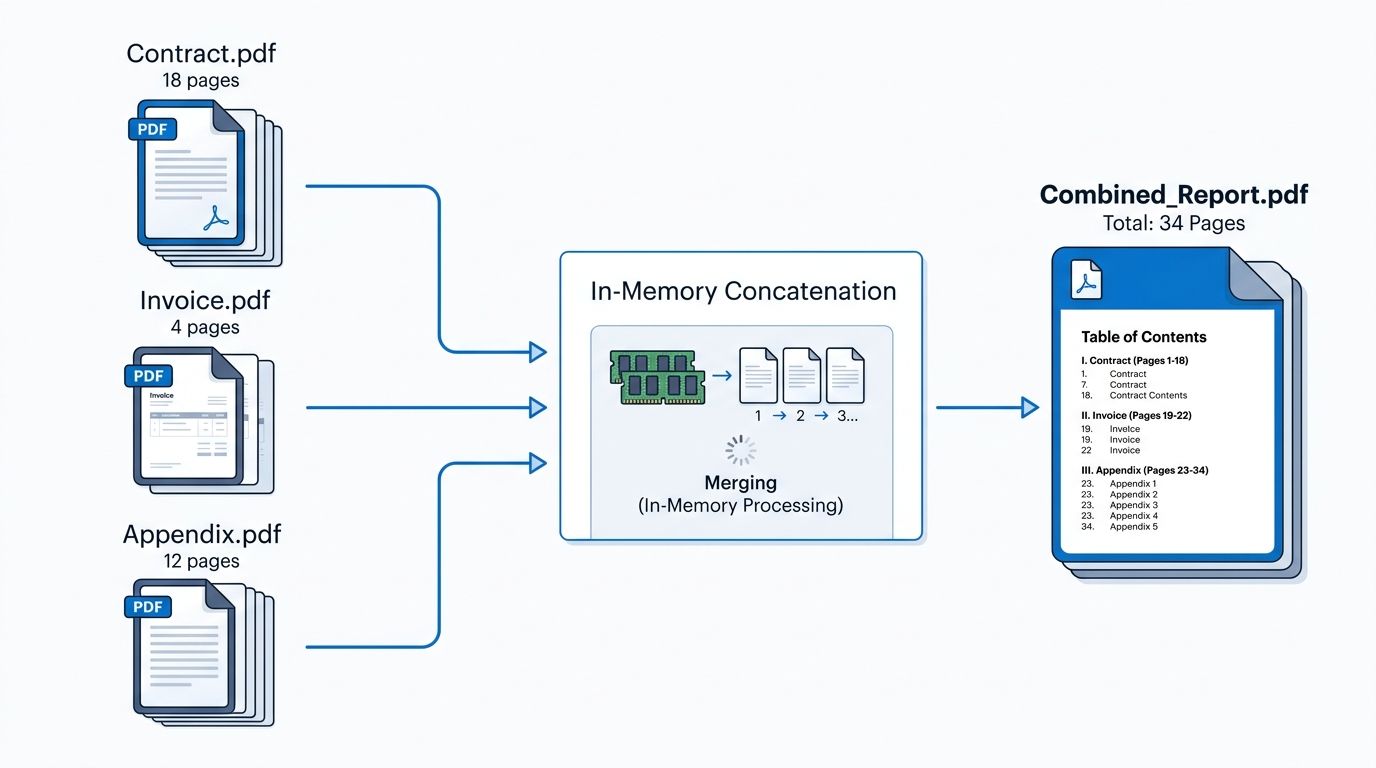
DocsEngine employs high-speed in-memory PDF tree concatenation. Instead of rasterizing pages, the engine parses the internal Cross-Reference (XRef) tables and Object Streams of each source document, re-indexes the indirect objects, and links the page tree nodes into a single master document catalog.
| Document Element | Legacy Flattened Merging | DocsEngine In-Memory Concatenation | Resulting Quality |
|---|---|---|---|
| Vector Typography & Fonts | Rasterized into blurry pixels | Original font streams preserved verbatim | 100% crisp at any zoom level |
| Bookmarks & Outlines | Completely stripped and lost | Merged into unified navigation tree | Full chapter and section navigation |
| Internal Hyperlinks | Destroyed and deactivated | Hyperlink destination targets re-mapped | Active, clickable links intact |
| High-Res Photos & Scans | Subjected to double compression loss | Embedded binary streams inserted directly | Zero compression degradation |
| Processing Latency | Slow (10 to 45 seconds) | Blazing fast (under 2 seconds) | Near-instantaneous download |
3. Step-by-Step Guide: How to Merge PDF Files Free Online
Combining your documents with DocsEngine takes less than 30 seconds. Follow these four simple steps:
- Upload Your Documents: Open the DocsEngine Merge PDF tool and drag two or more PDF files into the upload workspace, or click to browse from your device.
- Organize Page Sequence: Use the up/down arrow buttons or drag-and-drop handles to arrange your documents in the exact order you want them to appear in the final file.
- Execute Concatenation: Click the prominent "Merge PDF" button. The engine concatenates document streams directly in memory.
- Download Your Combined PDF: Click Download to save your organized document. Your file retains all original bookmarks, outlines, and selectable text.
4. Pro Tips for Organizing and Reordering Large Multi-Page Documents
When assembling large reports with dozens of pages, a few simple preparation practices can save significant time and ensure optimal results:
1. Standardize File Naming: Prefix your files numerically (e.g., 01_Cover_Page.pdf, 02_Executive_Summary.pdf, 03_Financial_Data.pdf) before uploading. This ensures they automatically land in your desired sequence.
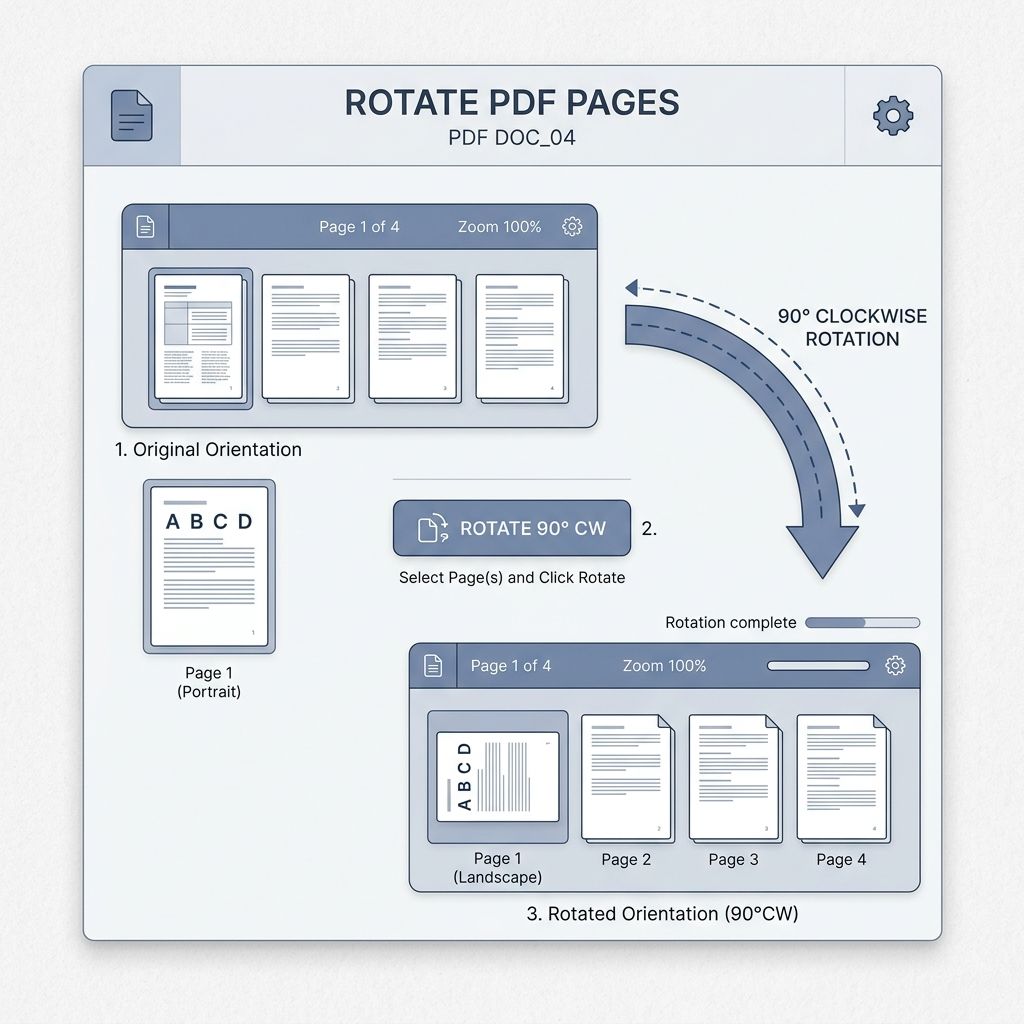
2. Rotate Scans Before Merging: If any scanned pages are upside down or sideways, use our Rotate PDF tool before joining them to maintain consistent reading orientation throughout.
3. Compress Oversized Master Files: After combining multiple high-resolution scans, your merged PDF may exceed email attachment limits. Run the resulting document through our Compress PDF tool to reduce file size without losing readability.
Combine Your PDF Documents in Seconds
Merge contracts, invoices, and multi-page reports into a single organized file. 100% free, zero registration, and automatic 12-hour midnight file purge.
Frequently Asked Questions
Yes. Document outlines, bookmarks, and internal links are automatically linked and preserved in the final combined table of contents.
No. DocsEngine allows you to merge up to 50 PDF files simultaneously with zero file size caps, page count restrictions, or paywalls.
No. Original image streams and vector graphics are inserted verbatim without recompression, ensuring maximum visual fidelity.
Yes. Files are processed in isolated buffers and permanently purged every 12 hours at midnight. We never inspect, share, sell, or train AI models on user documents.
Table of Contents
1. Why Combining Multiple PDFs into One Document Is Essential
2. How In-Memory PDF Merging Works: Preserving Vectors & Bookmarks
3. Step-by-Step Guide: How to Merge PDF Files Free Online
4. Pro Tips for Organizing and Reordering Large Multi-Page Documents
Frequently Asked Questions
1. Why Combining Multiple PDFs into One Document Is Essential
2. How In-Memory PDF Merging Works: Preserving Vectors & Bookmarks
3. Step-by-Step Guide: How to Merge PDF Files Free Online
4. Pro Tips for Organizing and Reordering Large Multi-Page Documents
Frequently Asked Questions
Merge PDF
Run fast, private document processing in your browser with zero permanent storage.
Share this guide
How to Split PDF Pages: Extract Custom Ranges or Separate Every Page
How to Compress PDF Files Without Losing Quality: The Complete Engineering Guide