How to Crop PDF Margins (Trim White Borders in Points)
Crop the white border off every page of a PDF with exact margins in points, and learn why cropped content is hidden rather than deleted.
DocsEngine Editorial Team
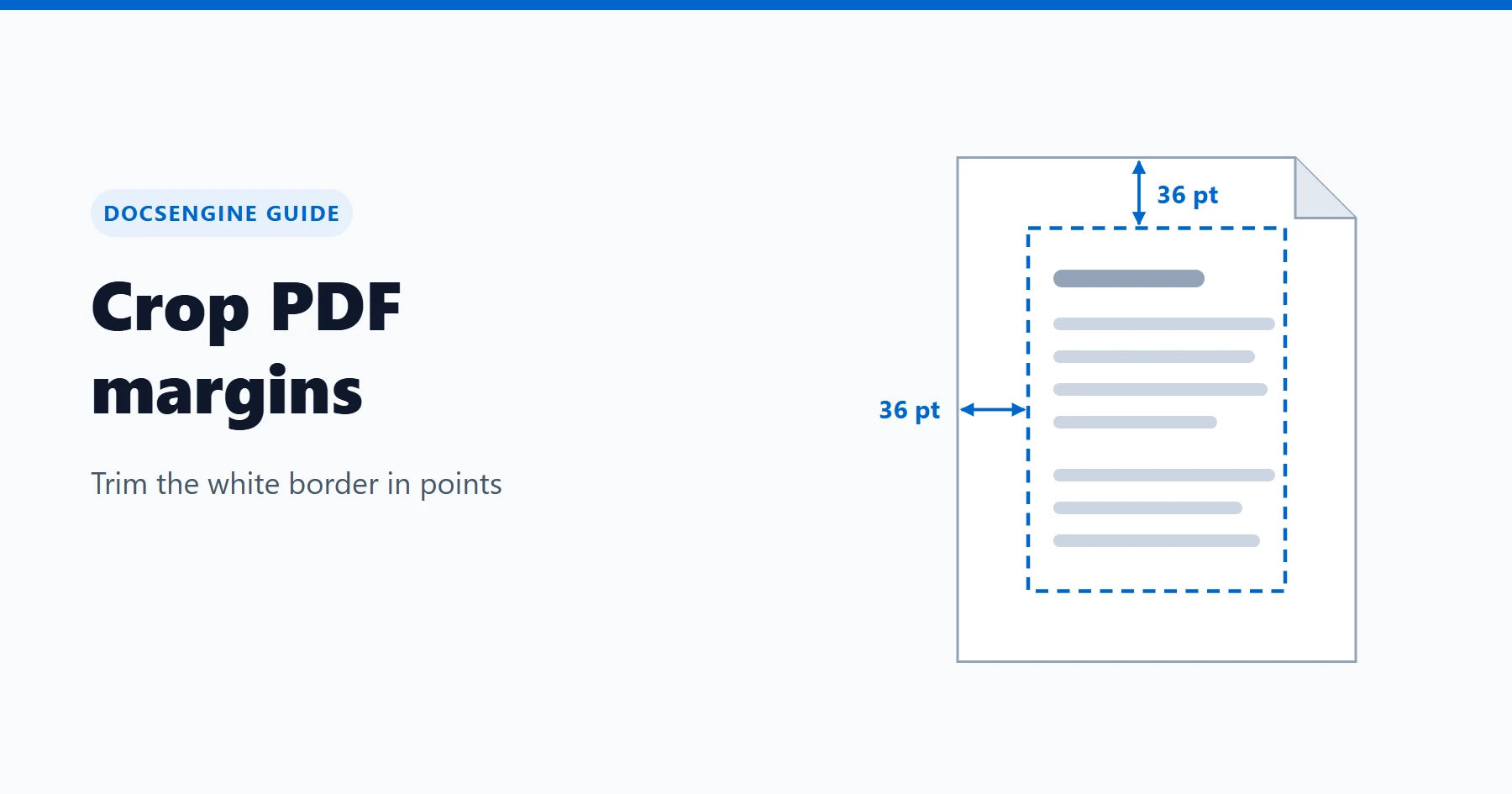 A 36 pt margin is half an inch.
Key Takeaways & Executive Summary
Pick a preset or enter Top, Bottom, Left and Right margins in points, then click Crop PDF Margins.
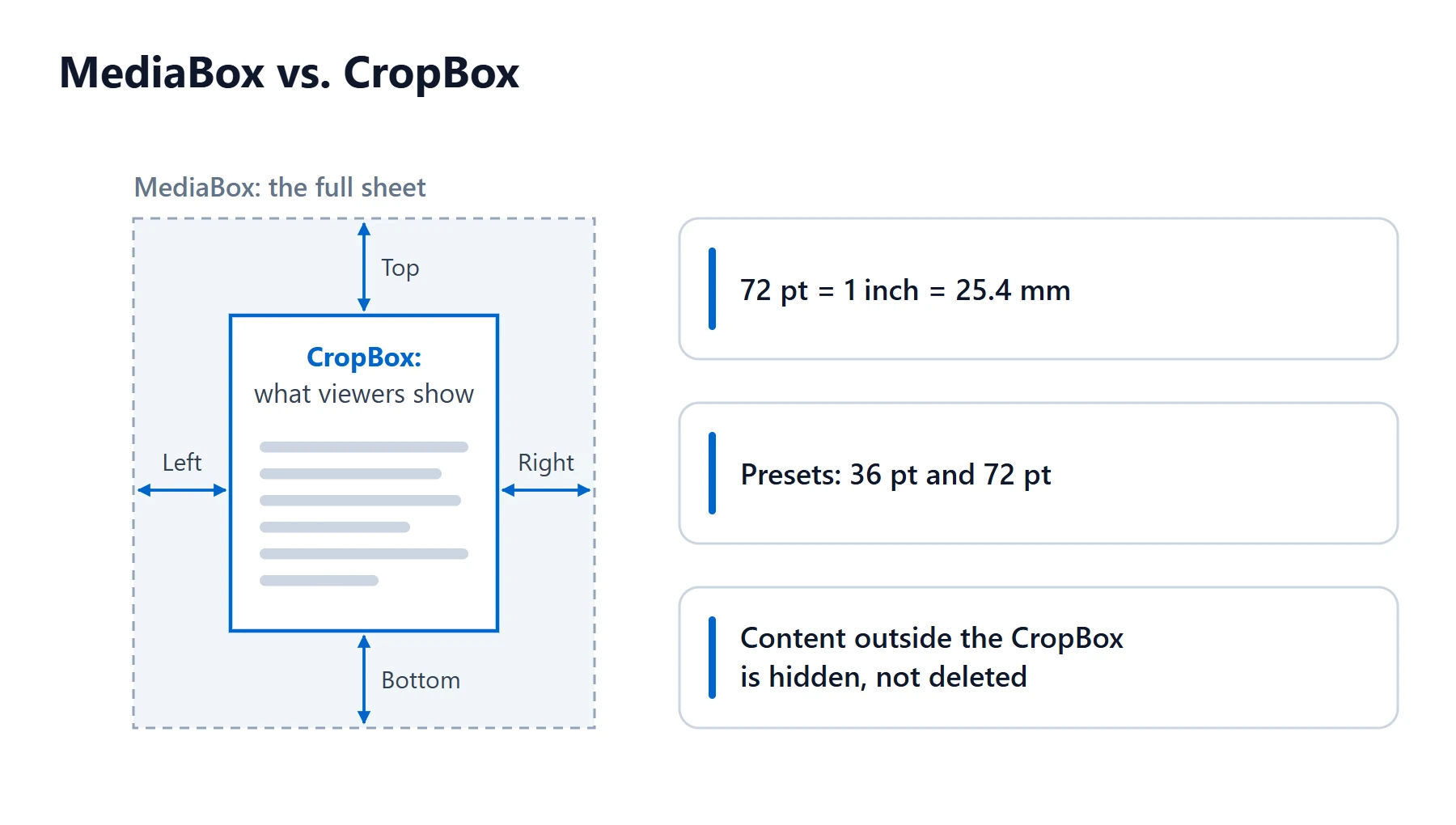
72 pt = 1 inch = 25.4 mm, so 36 pt is half an inch (12.7 mm) and 1 mm is about 2.83 pt.
The same margins are trimmed from every page; there is no automatic white-space detection.
Cropping sets the CropBox: trimmed content is hidden, not deleted, and the file doesn’t get smaller.
At least 36 pt (0.5 inch) of width and height must remain on every page.
Table of Contents
How to crop PDF margins (quick answer)
Step-by-step: trim the margins of a PDF
Presets and margin fields
Points, inches and millimeters
MediaBox vs. CropBox: what cropping actually changes
Why at least 36 pt must remain
Limitations and alternatives
Privacy: cropping happens on your device
Frequently Asked Questions
Sources
How to crop PDF margins (quick answer)
Open Crop PDF, pick a preset such as Standard Trim (0.5 in / 36pt) or type your own margins in points, and click Crop PDF Margins. Every page is trimmed by the same amounts, and you download a new file: scan.pdf becomes scan_cropped.pdf.
You choose the margins; the tool doesn’t detect white space for you. It runs in your browser, so the file stays on your device.
Step-by-step: trim the margins of a PDF
You can crop up to 50 files in one run, all with the same margins.
The page graphic is not a preview
The small page drawing next to the margin fields only illustrates the values you typed. It doesn’t show your document, and you can’t drag its edges.
- Open the Crop PDF tool and add your PDF.
- Measure the border you want to remove and convert it to points (see the table below). A 1-inch white border, for example, is 72 pt.
- Click one of the Quick Margin Presets, or type values into Top Margin (pt), Bottom Margin (pt), Left Margin (pt) and Right Margin (pt) under Custom Margins to Crop. Use whole numbers; 0 leaves that side as it is.
- Click Crop PDF Margins and download the result.
- Open the cropped file and check the page with the least white space. If text is cut off, crop the original file again with smaller margins.
Presets and margin fields
Standard Trim (0.5 in / 36pt) is selected when you open the tool. Picking any preset fills in the four fields, and you can adjust them afterwards.
| Preset | Top and bottom | Left and right | Good for |
|---|---|---|---|
| Standard Trim (0.5 in / 36pt) | 36 pt (12.7 mm) | 36 pt (12.7 mm) | Moderate white borders on reports and exported documents |
| Wide Trim (1 in / 72pt) | 72 pt (25.4 mm) | 72 pt (25.4 mm) | Pages with very wide margins |
| Headers & Footers Only | 54 pt (19.05 mm) | 0 | Hiding a running header and footer band |
| Left & Right Margins | 0 | 54 pt (19.05 mm) | Larger text when a phone or tablet fits the page to its screen width |
Points, inches and millimeters
PDF measures pages in points. The PDF specification defines the default unit as 1/72 inch, so 72 pt = 1 inch = 25.4 mm. The margin fields only accept points, so convert first.
Inches to points: multiply by 72. Millimeters to points: multiply by 72 ÷ 25.4, which is about 2.835. Points to millimeters: multiply by about 0.3528.
Because the fields take whole numbers, round to the nearest point. Rounding moves the cut by at most half a point, about 0.18 mm.
Know your page size
US Letter is 612 × 792 pt (8.5 × 11 in) and A4 is about 595 × 842 pt (210 × 297 mm). On a Letter page, 72 pt margins on both sides leave a 468 pt (6.5 in) wide area.
| Margin | Points (pt) | Inches | Millimeters |
|---|---|---|---|
| Quarter inch | 18 | 0.25 | 6.35 |
| Half inch (Standard Trim) | 36 | 0.5 | 12.7 |
| Three-quarter inch (54 pt presets) | 54 | 0.75 | 19.05 |
| One inch (Wide Trim) | 72 | 1 | 25.4 |
| 5 mm | 14 (14.17) | 0.2 | 5 |
| 10 mm | 28 (28.35) | 0.39 | 10 |
| 20 mm | 57 (56.69) | 0.79 | 20 |
MediaBox vs. CropBox: what cropping actually changes
Every PDF page has a MediaBox, the full sheet, and can have a CropBox, the area viewers display and print. Crop PDF moves the CropBox inward by your margins and leaves the MediaBox untouched. If a page also has a TrimBox, BleedBox or ArtBox, those are clipped to the new area.
Content outside the CropBox is hidden, not deleted. The text and images are still in the file, which is why the file doesn’t get smaller, and a PDF editor can reveal them again by resetting the crop. Never use cropping to get rid of confidential information; use a proper redaction tool that removes the content.
Margins are measured from what you currently see. If a PDF was already cropped, the new margins start from its visible area, and cropping the result again trims further. Margins also follow page rotation: Top is always the top as the reader sees it, even on a page stored sideways.
Why at least 36 pt must remain
Crop PDF refuses margins that would leave less than 36 pt (0.5 inch) of width or height on any page, and the message names the page that is too small. It checks every page before changing anything, so you never end up with a half-cropped file. If all four margins are 0, there is nothing to crop and it asks you to enter at least one.
Files that mix page sizes need extra care. A margin that suits a Letter page can be too large for a small receipt or a narrow ticket page in the same document.
Limitations and alternatives
Crop PDF is a precise trimming tool, not a page editor. It doesn’t do the following:
- No automatic margin or white-space detection: you enter the numbers.
- No page selection and no per-page crop; the same margins apply to every page. If only some pages need trimming, split the PDF, crop that part, and merge the pieces back with Merge PDF.
- Points only, in whole numbers. There is no millimeter or inch input.
- Cropped areas are hidden, not removed, so the file won’t shrink and the content can be recovered. For a smaller file, use Compress PDF.
- Sideways pages don’t need fixing first, because margins follow rotation, but if you want them upright, rotate the pages as a separate step.
- A PDF that only has permission restrictions is unlocked automatically, and the cropped copy has no protection.
Privacy: cropping happens on your device
Scans of IDs, invoices and contracts are common cropping jobs, and none of them needs to be uploaded.
Runs in your browser
Crop PDF runs in your browser, in a background worker using the open-source pdf-lib library. Your files never leave your device. One run can handle up to 600 MB in total on a desktop and 200 MB on a phone.
Trim your PDF margins
Enter margins in points and crop every page. Free, and your file stays on your device.
Frequently Asked Questions
No. You enter the margins in points, and the same margins are applied to every page.
One inch is 72 pt, and one centimeter is about 28.35 pt (72 ÷ 2.54).
Yes. The trimmed area is only hidden, so a PDF editor can reset the CropBox. The simplest fix is to crop your original file again with different margins.
No. The cropped content is still in the file and can be recovered. Use a redaction tool that actually deletes it.
At least 36 pt must remain in each direction on every page. Reduce the margins, keeping the smallest page in the file in mind.
Sources
- ISO 32000-1:2008 (PDF 1.7) public copy (Adobe / ISO)
- ISO 32000-2:2020 (PDF 2.0) (ISO)
- pdf-lib (pdf-lib)
Table of Contents
How to crop PDF margins (quick answer)
Step-by-step: trim the margins of a PDF
Presets and margin fields
Points, inches and millimeters
MediaBox vs. CropBox: what cropping actually changes
Why at least 36 pt must remain
Limitations and alternatives
Privacy: cropping happens on your device
Frequently Asked Questions
Sources
How to crop PDF margins (quick answer)
Step-by-step: trim the margins of a PDF
Presets and margin fields
Points, inches and millimeters
MediaBox vs. CropBox: what cropping actually changes
Why at least 36 pt must remain
Limitations and alternatives
Privacy: cropping happens on your device
Frequently Asked Questions
Sources
Crop PDF Margins
Free, no sign-up. Runs in your browser, so your files never leave your device.
Share this guide
How to Rotate PDF Pages Permanently (Single Page or All Pages Online)
How to Split a PDF: Extract Page Ranges or Separate Every Page