How to Add a Watermark to a PDF (Text, Opacity and Position)
Stamp a text watermark such as CONFIDENTIAL, DRAFT or your company name on every page of a PDF, and learn what a watermark can and cannot protect.
DocsEngine Editorial Team
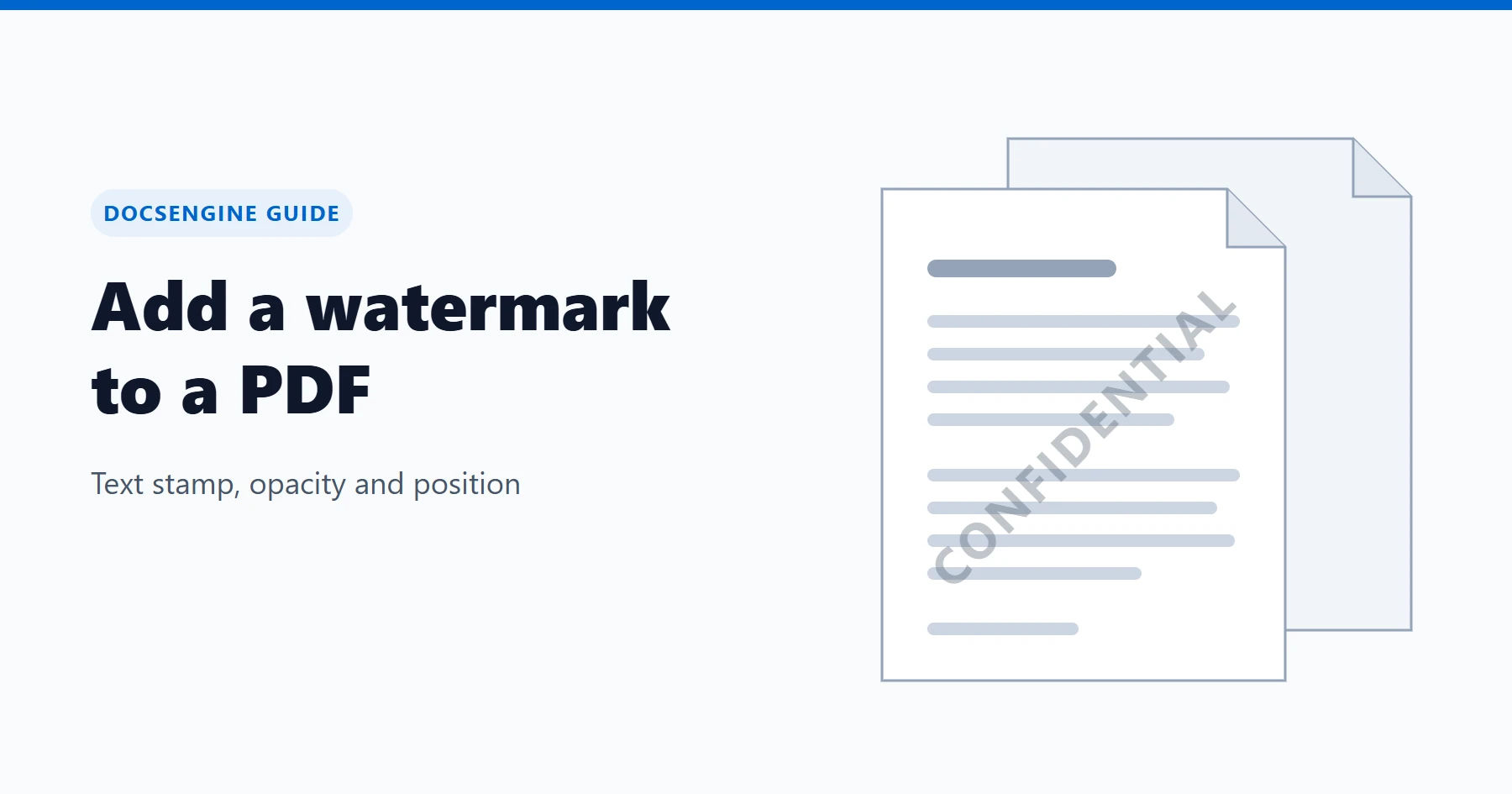 A diagonal CONFIDENTIAL stamp at low opacity keeps the page readable.
Key Takeaways & Executive Summary
Upload your PDF, pick a preset like CONFIDENTIAL or DRAFT (or type your own text), choose a position, and click Apply Watermark.
The watermark is one line of text, up to 300 characters, in one of four positions. It goes on every page unless you list pages in Pages to watermark.
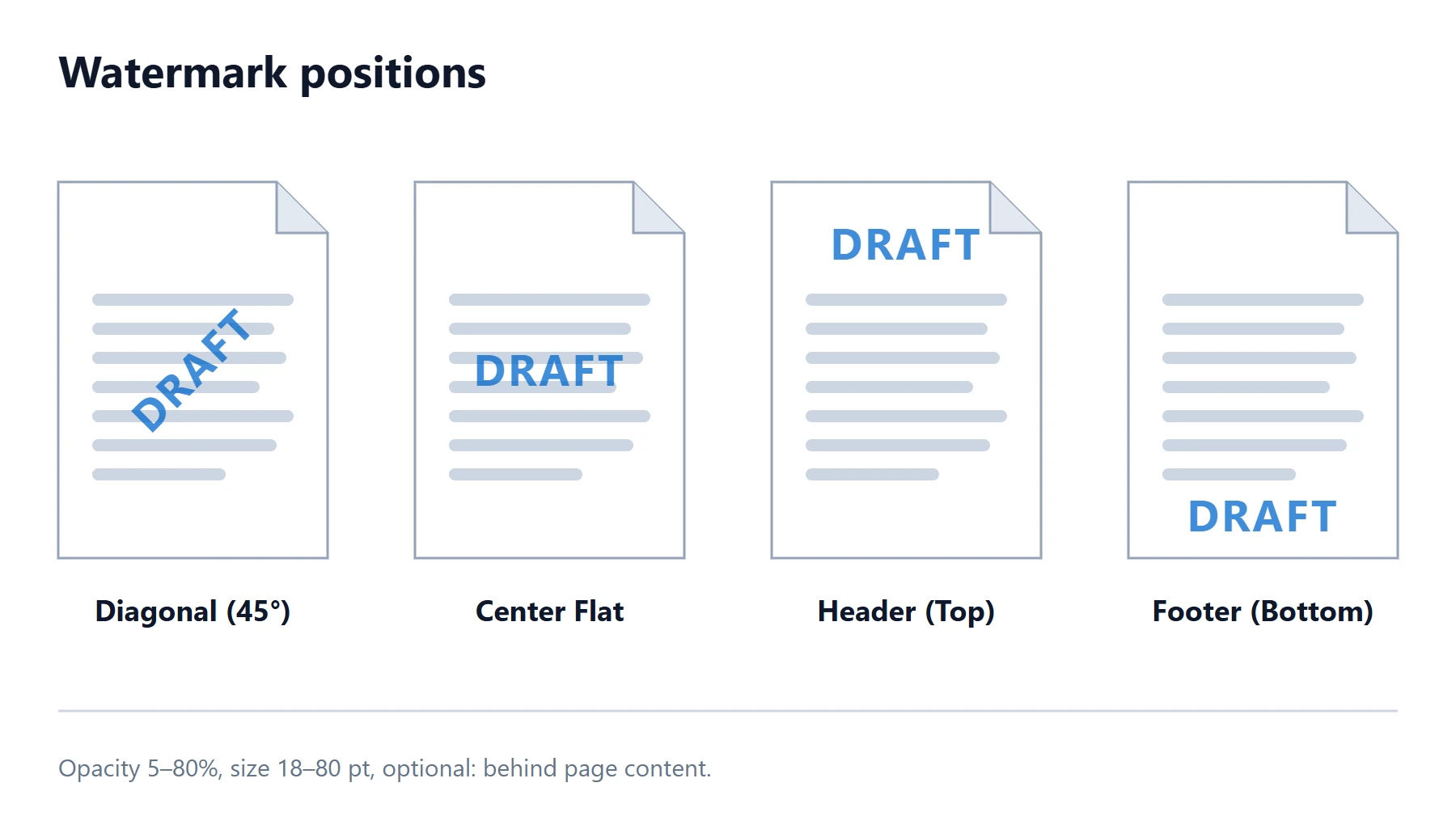
Opacity runs from 5% to 80% and size from 18 to 80 pt; text that is too wide for a page is shrunk to fit.
The text is drawn into the page content, so readers can’t simply hide it, but anyone with a PDF editor can still remove or cover it.
A watermark is a deterrent, not protection. Use Protect PDF when you need to control who can open, print or copy the file.
Table of Contents
How to add a watermark to a PDF (quick answer)
Step-by-step: watermark every page of a PDF
Watermark settings explained
Choosing a position: diagonal, center, header or footer
On top of the page or behind the content?
Non-Latin text and emoji
What a watermark protects (and what it doesn’t)
Limitations and alternatives
Privacy: your PDF stays on your device
Frequently Asked Questions
Sources
How to add a watermark to a PDF (quick answer)
Open Watermark PDF, add your file, click a preset such as CONFIDENTIAL or DRAFT (or type your own text, like your company name), pick a position and opacity, and click Apply Watermark. The text is stamped on every page, and you download a new file: report.pdf becomes report_watermarked.pdf.
The tool is free and runs in your browser, so the document never leaves your device. The defaults (gray CONFIDENTIAL, 25% opacity, 44 pt, diagonal) suit most drafts, so often you only need to upload and click.
Step-by-step: watermark every page of a PDF
You can add up to 20 PDFs in one run; each file gets the same watermark.
The preview is a sample page
The Live Document Sheet Preview shows your settings on a mock A4 sheet, not on your document. Open the downloaded file and check a page or two before you send it, especially if your pages are landscape or have a colored background.
- Open the Watermark PDF tool and drop your PDF into the upload area.
- Under Quick Preset Templates, click CONFIDENTIAL, DRAFT, DO NOT COPY, SAMPLE, TOP SECRET or APPROVED, or type your own words in Custom Watermark Text.
- Choose a layout under Watermark Position & Angle: Diagonal (45°), Center Flat, Header (Top) or Footer (Bottom).
- Pick a Text Color (Gray, Red, Blue, Green or Black), then adjust the Watermark Opacity and Font Scale sliders.
- Optional: switch on Place behind page content if the page’s text and images should stay on top of the watermark.
- Optional: to stamp only some pages, type them in Pages to watermark, for example "1-3, 8" or "5-" (page 5 to the end). Leave it empty for every page.
- Click Apply Watermark and download the result. Several files come back together in one ZIP.
Watermark settings explained
The same text, position and style are drawn on every page you select (all pages unless you fill in Pages to watermark).
| Setting | What it does | When to use it |
|---|---|---|
| Quick Preset Templates | Fills in CONFIDENTIAL, DRAFT, DO NOT COPY, SAMPLE, TOP SECRET or APPROVED | Standard status labels for drafts, reviews and approvals |
| Custom Watermark Text | One line of your own text, up to 300 characters | Company or client name, a date, “Prepared for …” |
| Watermark Position & Angle | Diagonal (45°), Center Flat, Header (Top) or Footer (Bottom) | Diagonal for a classic stamp; header or footer when body text must stay clear |
| Text Color | Gray, Red, Blue, Green or Black | Gray for quiet marks, red for warnings such as DO NOT COPY |
| Watermark Opacity | 5% to 80%, default 25% | Low values keep text readable; high values make a proof look unusable |
| Font Scale | 18 to 80 pt, default 44 pt | Larger for short words; long text is shrunk to fit the page anyway |
| Place behind page content | Draws the watermark under existing text and images | Plain text documents; not scans or pages with a solid background |
| Pages to watermark | Limits the stamp to the pages you list, e.g. 1-3, 5, 8-; empty means every page | Mark only the draft chapters, or skip a cover page |
Choosing a position: diagonal, center, header or footer
Diagonal (45°) is the classic CONFIDENTIAL or DRAFT stamp. It crosses the middle of the page, which makes it harder to crop out of a screenshot than a line in the margin, and at around 20–30% opacity the text underneath stays readable.
Center Flat runs the text horizontally across the middle and suits short labels such as SAMPLE or APPROVED. Header (Top) and Footer (Bottom) place the line near the top or bottom edge, where it doesn’t cover body text. They work well for a company name or a “Copy for …” note.
The tool draws one stamp per page; it doesn’t repeat the text in a tiled pattern. Each page is handled as you see it, so landscape, rotated and cropped pages get a correctly placed watermark. If your text is wider than 90% of a page, it is shrunk to fit that page.
On top of the page or behind the content?
By default the watermark is drawn over everything on the page at the opacity you chose. With Place behind page content switched on, the existing text and images are drawn over the watermark, which keeps body text crisp.
There is a catch. A scanned page is one big picture, and many designed pages have a solid background that fills the sheet. A watermark placed behind those is covered and won’t be visible. Leave the switch off for scans, slides saved as PDF and brochures.
Non-Latin text and emoji
Latin text is drawn with Helvetica Bold as real vector text, so it stays sharp at any zoom. Text in other scripts, such as Hindi, Chinese, Japanese, Korean or Arabic, and emoji are drawn as a transparent image with the same size, angle and opacity.
What a watermark protects (and what it doesn’t)
Watermark PDF draws the text into the page content itself, not as a comment or annotation. A reader can’t hide it with a “hide comments” option, and it prints along with the page.
It is still ordinary page content. Anyone with a PDF editor can delete it, cover it with a white box, or copy the text into a new document. A watermark tells readers the status of a document and who it belongs to; it does not stop copying.
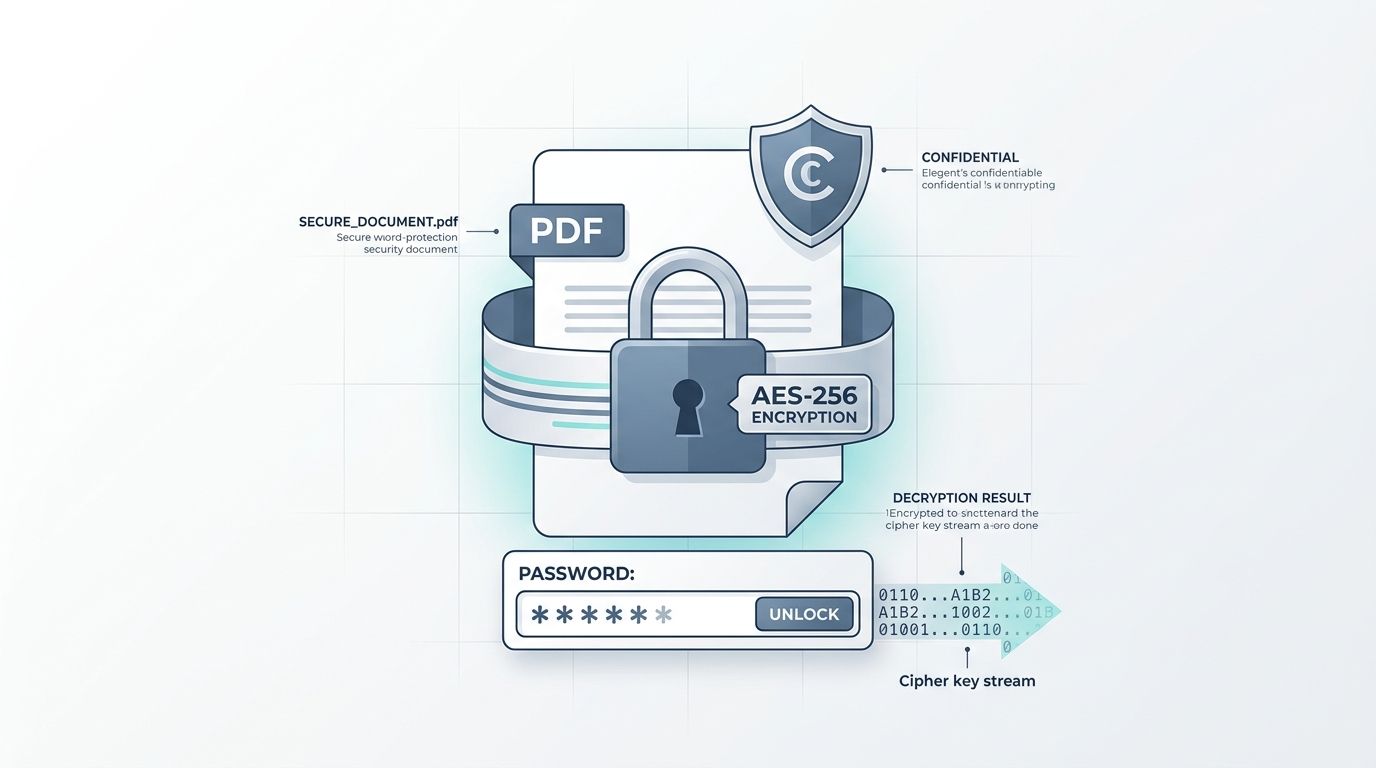
If you need real access control, protect the PDF after watermarking. An open password with AES-256 encryption keeps out anyone who doesn’t have it, and you can switch off printing, copying and editing for readers that respect those settings. Our guide on restricting printing, copying and editing explains what those switches really do.
Watermark first, then protect
Apply the watermark before you add a password. If a PDF needs a password to open, enter it when the page asks or unlock the file first. A PDF that only has permission restrictions is unlocked automatically, and the watermarked copy has no protection, so protect it again afterwards.
Limitations and alternatives
Watermark PDF does one job: a single line of text on each page. Here is what it doesn’t do.
- Text only: no image or logo watermarks, no font choice, and no custom angle (the text is either flat or at 45°).
- One line and one stamp per page: no line breaks and no tiled, repeating pattern.
- One setting for all pages you select: you can’t put different text on different pages in one run. Run the tool again on the result with other text and a different Pages to watermark range if you need that.
- It can be removed with a PDF editor. Treat it as a label and a deterrent, not as security.
- It doesn’t make the file smaller. If the result is too big to email, compress it afterwards.
- Need page numbers as well? Add Page Numbers stamps them the same way, as text drawn into each page.
Privacy: your PDF stays on your device
Documents that need a CONFIDENTIAL stamp are usually the ones you shouldn’t upload anywhere, which is why this tool processes them locally.
Runs in your browser
Watermark PDF runs entirely in your browser, in a background worker using the open-source pdf-lib library. Your files never leave your device and there is no upload step. One run can handle up to 600 MB in total on a desktop and 200 MB on a phone.
Watermark your PDF
Stamp CONFIDENTIAL, DRAFT or your own text on every page. Free, and your file stays on your device.
Frequently Asked Questions
Yes. Type the pages in Pages to watermark, for example "1-3, 8" or "5-" for page 5 to the end. Leave the field empty to stamp every page.
Yes, with a PDF editor. Because it is drawn into the page content, viewers can’t simply hide it, but it is not tamper-proof.
Yes. It is part of the page content, so it prints with the text at the opacity you chose.
You probably switched on Place behind page content. A scanned page is one full-page image that covers anything behind it, so switch the option off and apply the watermark again.
Yes. Text that Helvetica can’t show is drawn as a transparent image with the same size, angle and opacity.
Sources
- pdf-lib (pdf-lib)
- ISO 32000-1:2008 (PDF 1.7) public copy (Adobe / ISO)
Table of Contents
How to add a watermark to a PDF (quick answer)
Step-by-step: watermark every page of a PDF
Watermark settings explained
Choosing a position: diagonal, center, header or footer
On top of the page or behind the content?
Non-Latin text and emoji
What a watermark protects (and what it doesn’t)
Limitations and alternatives
Privacy: your PDF stays on your device
Frequently Asked Questions
Sources
How to add a watermark to a PDF (quick answer)
Step-by-step: watermark every page of a PDF
Watermark settings explained
Choosing a position: diagonal, center, header or footer
On top of the page or behind the content?
Non-Latin text and emoji
What a watermark protects (and what it doesn’t)
Limitations and alternatives
Privacy: your PDF stays on your device
Frequently Asked Questions
Sources
Watermark PDF
Free, no sign-up. Runs in your browser, so your files never leave your device.
Share this guide
How to Restrict Printing, Copying and Editing in a PDF (Permissions Explained)
How to Add Page Numbers to a PDF (Page 1 of N, Roman Numerals, Skip Cover)