How to Restrict Printing, Copying and Editing in a PDF (Permissions Explained)
Use the Allow printing, Allow copying text and Allow editing switches in Protect PDF to limit what readers can do, and see why permissions are rules for PDF readers rather than a lock.
DocsEngine Editorial Team
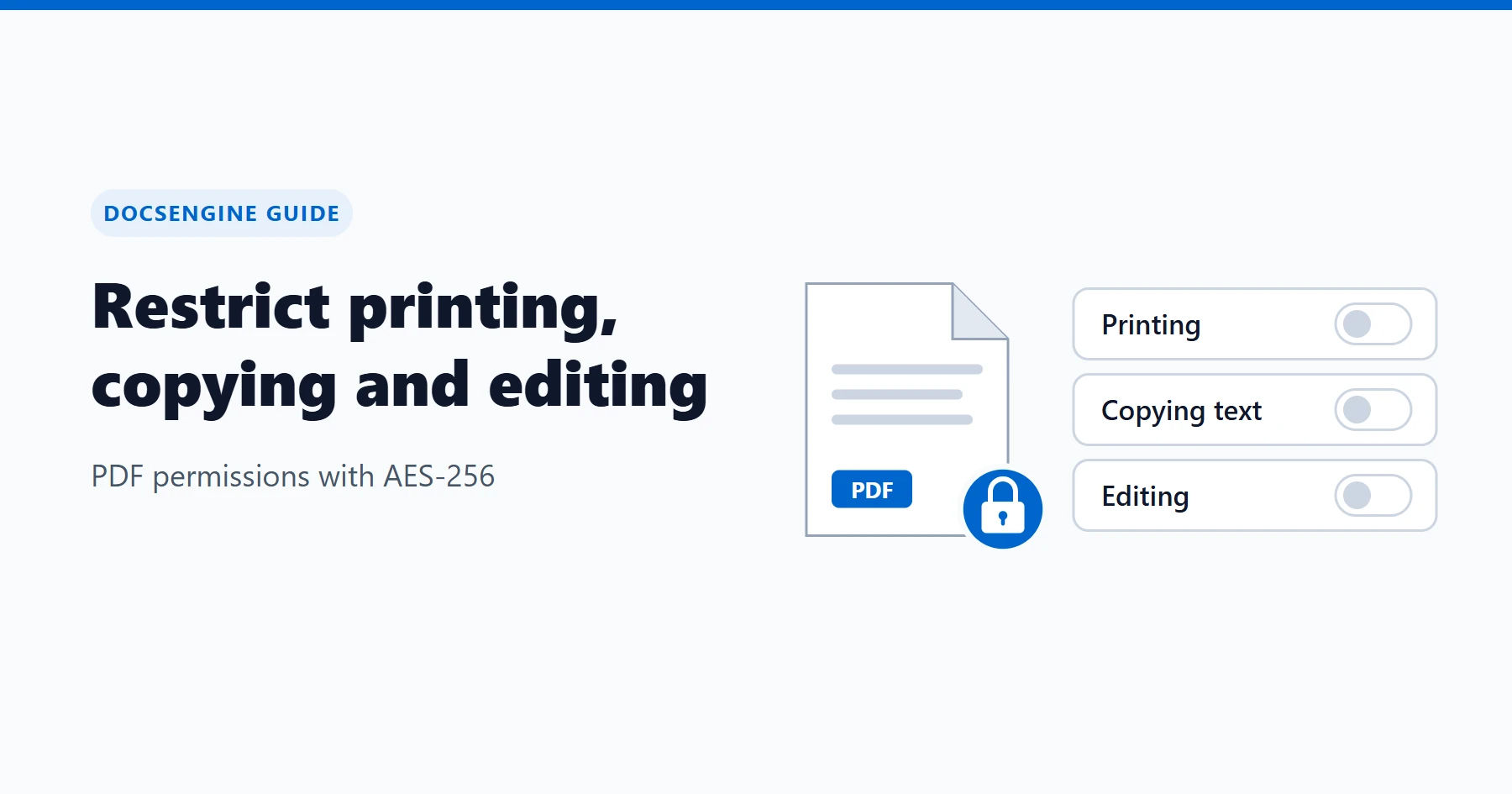 Printing, copying and editing can each be switched off.
Key Takeaways & Executive Summary
In Protect PDF, set an open password, switch off Allow printing, Allow copying text or Allow editing, and click Protect PDF.
The tool always sets an open password and encrypts with AES-256; it doesn’t create files that open freely but block printing.
Use an owner password that differs from the open password, or leave it empty and a random one is generated.
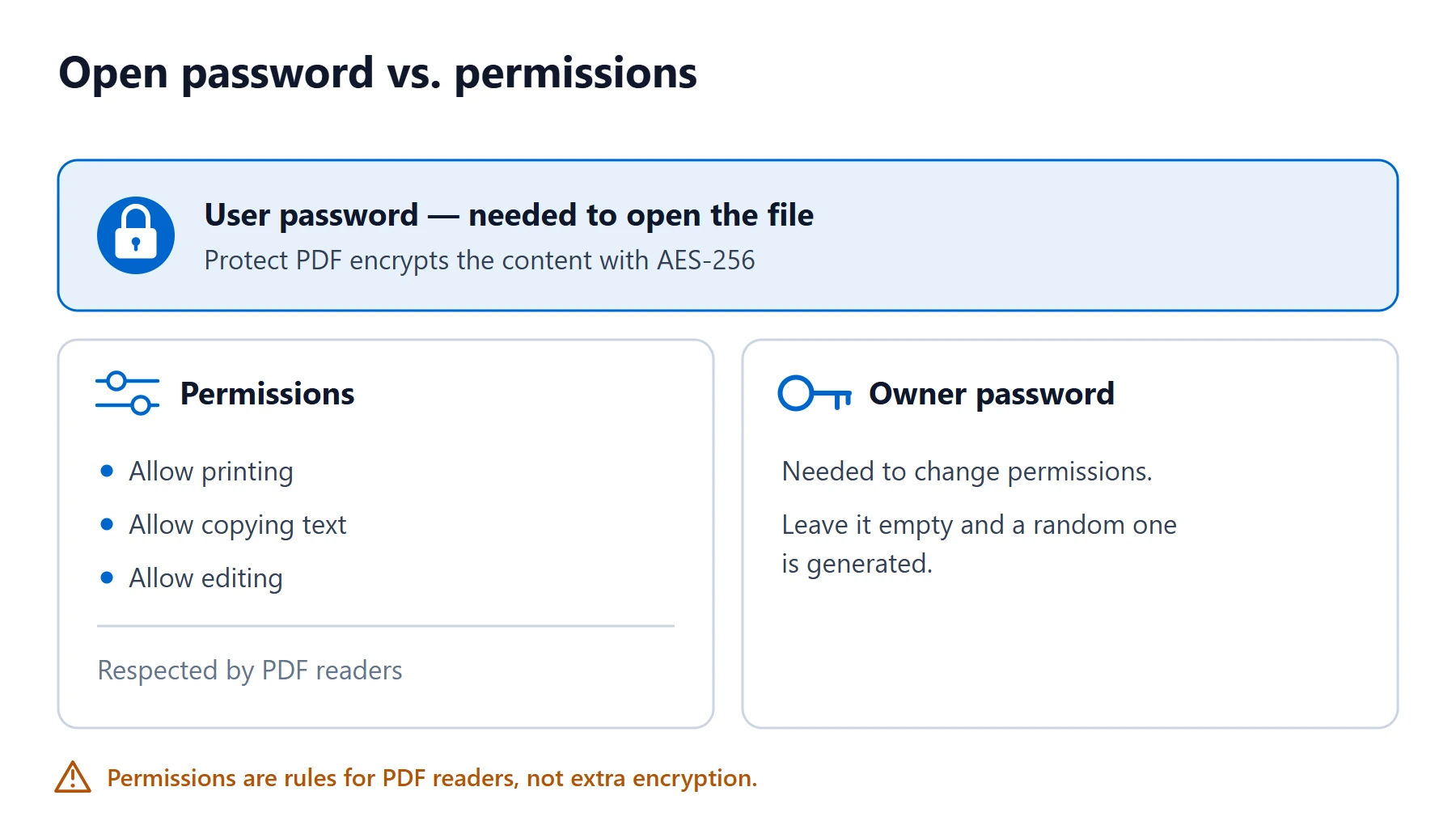
Permissions are honored by compliant PDF readers; they are rules, not a hard barrier. The open password is the real protection.
To lift restrictions later, run Unlock PDF with the open password, then protect again with new settings.
Table of Contents
How to prevent printing, copying or editing a PDF (quick answer)
Step-by-step: restrict a PDF with Protect PDF
What each switch blocks
Open password, owner password and permissions
Why there is no restrictions-only option
How strong are PDF permissions?
How to lift the restrictions later
Limitations and alternatives
Privacy: your file and passwords stay on your device
Frequently Asked Questions
Sources
How to prevent printing, copying or editing a PDF (quick answer)
Open Protect PDF, enter a User Password (Required to Open), switch off Allow printing, Allow copying text and/or Allow editing, and click Protect PDF. The file is encrypted with AES-256, and PDF readers that respect permissions block the actions you turned off.
Know two things up front. This tool always adds an open password, so recipients need it to view the file. And permissions are instructions to the reader app, not extra encryption. This guide focuses on those permission switches; for passwords in general, see how to password protect a PDF.
Step-by-step: restrict a PDF with Protect PDF
You can protect up to 50 files in one run; they all get the same passwords and permissions.
All three switches start on
Allow printing, Allow copying text and Allow editing are on by default. If you only type a password and click Protect PDF, the file is encrypted, but anyone who opens it may print, copy and edit.
- Open the Protect PDF tool and add your PDF.
- Type a password in User Password (Required to Open). This is the one you share with recipients. The tool doesn’t enforce a minimum length, so choose a long passphrase yourself.
- In Owner / Master Password (Optional), enter a second, different password if you may want to change permissions later in a PDF editor. Leave it empty and a strong random one is generated.
- Switch off what you want to block: Allow printing, Allow copying text, Allow editing.
- Click Protect PDF and download the result; contract.pdf becomes contract_protected.pdf.
- Test it: open the file with the open password in your usual reader and confirm that printing or copying is blocked.
What each switch blocks
Each switch clears permission flags in the file’s encryption dictionary, a bit field (called P) defined by the PDF specification. Protect PDF uses qpdf to write it, and the qpdf manual lists exactly which flags each setting clears.
Note that “editing” is broad. With Allow editing off, compliant readers also block comments, form filling and page assembly, not just changes to the text.
Screen readers still work
According to the qpdf manual, the PDF specification no longer allows restricting extraction for accessibility, and conforming readers treat that permission as granted. Turning off copying is meant to stop copy and paste, not assistive technology.
| Switch turned off | What compliant readers block | Permission bits cleared |
|---|---|---|
| Allow printing | All printing, at low and full resolution | Bits 3 and 12 |
| Allow copying text | Copying or extracting text and graphics | Bit 5 |
| Allow editing | Changing content, adding or editing comments, filling in forms, and inserting, rotating or deleting pages | Bits 4, 6, 9 and 11 |
Open password, owner password and permissions
A protected PDF has two passwords. The open (user) password lets someone view the file, with your restrictions applied. The owner password grants full access, including the right to change passwords and permissions. ISO 32000-1 says a reader opened with the owner password should allow everything.
That is why the two must differ. With AES-256 files, a reader typically tries the password you type as the owner password first, so if both passwords are the same, everyone who can open the file is treated as the owner and your restrictions do nothing.
If you leave Owner / Master Password (Optional) empty, Protect PDF generates a random 24-character owner password and never shows it. The restrictions stay intact, but nobody, including you, can use an owner password to change them later. You can still remove the protection with the open password, as shown below.
Why there is no restrictions-only option
Many PDFs open without a password yet still block printing: they have an owner password and an empty open password. Protect PDF doesn’t create these, because User Password (Required to Open) is required.
In a restrictions-only file, anyone can open and decrypt the content, so the restrictions rest entirely on the reader app. The qpdf manual says such restrictions only stop people who don’t know how to get around them. With an open password, people without it can’t read the file at all.
How strong are PDF permissions?
Be realistic about what the switches do. Once a reader has the open password, it can decrypt the whole file. The PDF specification (ISO 32000-1, section 7.6.3.1) states that nothing in PDF encryption itself enforces the permissions; conforming readers are expected to respect them.
Compliant readers honor the flags, so a typical recipient sees printing or copying disabled. A non-compliant app, a modified open-source viewer or a command-line tool can ignore them, and nothing stops someone from taking screenshots.
Use permissions to discourage casual copying, for example a price list you don’t want pasted elsewhere, or an exam paper you don’t want printed. For material that must not leak, limit who gets the open password, and consider a visible watermark with the recipient’s name so leaked copies point back to their source.
The real protection is the open password
AES-256 encryption with a long, unique open password is what keeps strangers out. Permissions only shape what people who already have that password can do in a compliant reader.
How to lift the restrictions later
Open Unlock PDF, add the protected file, type the open password in PDF Password, and click Unlock PDF. The result, for example contract_unlocked.pdf, has no password and no restrictions, and the content is unchanged.
To change permissions, such as allowing printing while keeping copying off, unlock the file first, then run Protect PDF again with the new switch settings. You don’t need the owner password for this, so it works even when the owner password was generated at random.
For files that open without a password but block printing, leave PDF Password empty. Unlock PDF doesn’t crack or recover forgotten passwords, and you should only unlock files you are entitled to. More in how to unlock a password-protected PDF.
Limitations and alternatives
Protect PDF keeps the choices simple. Here is what it doesn’t offer:
- No restrictions-only output: an open password is always set.
- AES-256 only, with no AES-128 or RC4 options for very old readers.
- Three on/off switches. You can’t allow form filling while blocking other edits, or allow only low-resolution printing.
- No password recovery. If you forget the open password, neither tool can get the file back, so store it in a password manager.
- A PDF that already needs a password to open must be unlocked first.
- Permissions don’t stop screenshots or software that ignores them.
Privacy: your file and passwords stay on your device
Encrypting a document is pointless if you have to hand it to someone else first, so this tool does the work locally.
Runs in your browser
Protect PDF and Unlock PDF run in your browser using qpdf compiled to WebAssembly. Your PDF and your passwords never leave your device. One run can handle up to 600 MB in total on a desktop and 200 MB on a phone.
Restrict your PDF
Set an open password and switch off printing, copying or editing. AES-256, free, and your file stays on your device.
Frequently Asked Questions
In a compliant reader, copying is blocked. Software that ignores permissions, or text recognition run on a screenshot, can still get the text.
Yes. With Allow editing off, the form-filling and comment flags are cleared too, so compliant readers block both.
Yes. Unlock the file with its open password in Unlock PDF, then protect it again with the new settings.
Check that Allow printing was off when you clicked Protect PDF and that you didn’t use the same password in both fields. Some apps also ignore permissions altogether.
Sources
- qpdf manual: PDF encryption (qpdf)
- ISO 32000-1:2008 (PDF 1.7) public copy (Adobe / ISO)
- ISO 32000-2:2020 (PDF 2.0) (ISO)
Table of Contents
How to prevent printing, copying or editing a PDF (quick answer)
Step-by-step: restrict a PDF with Protect PDF
What each switch blocks
Open password, owner password and permissions
Why there is no restrictions-only option
How strong are PDF permissions?
How to lift the restrictions later
Limitations and alternatives
Privacy: your file and passwords stay on your device
Frequently Asked Questions
Sources
How to prevent printing, copying or editing a PDF (quick answer)
Step-by-step: restrict a PDF with Protect PDF
What each switch blocks
Open password, owner password and permissions
Why there is no restrictions-only option
How strong are PDF permissions?
How to lift the restrictions later
Limitations and alternatives
Privacy: your file and passwords stay on your device
Frequently Asked Questions
Sources
Protect PDF
Free, no sign-up. Runs in your browser, so your files never leave your device.
Share this guide
How to Unlock a Password-Protected PDF and Remove Printing Restrictions