How to Convert HEIC, WebP, PNG and AVIF Images to JPG (Free, in Your Browser)
Some upload forms and apps still only take JPG. Here is how to convert HEIC, WebP, PNG and AVIF files, and what to do when an iPhone photo won’t open.
DocsEngine Editorial Team
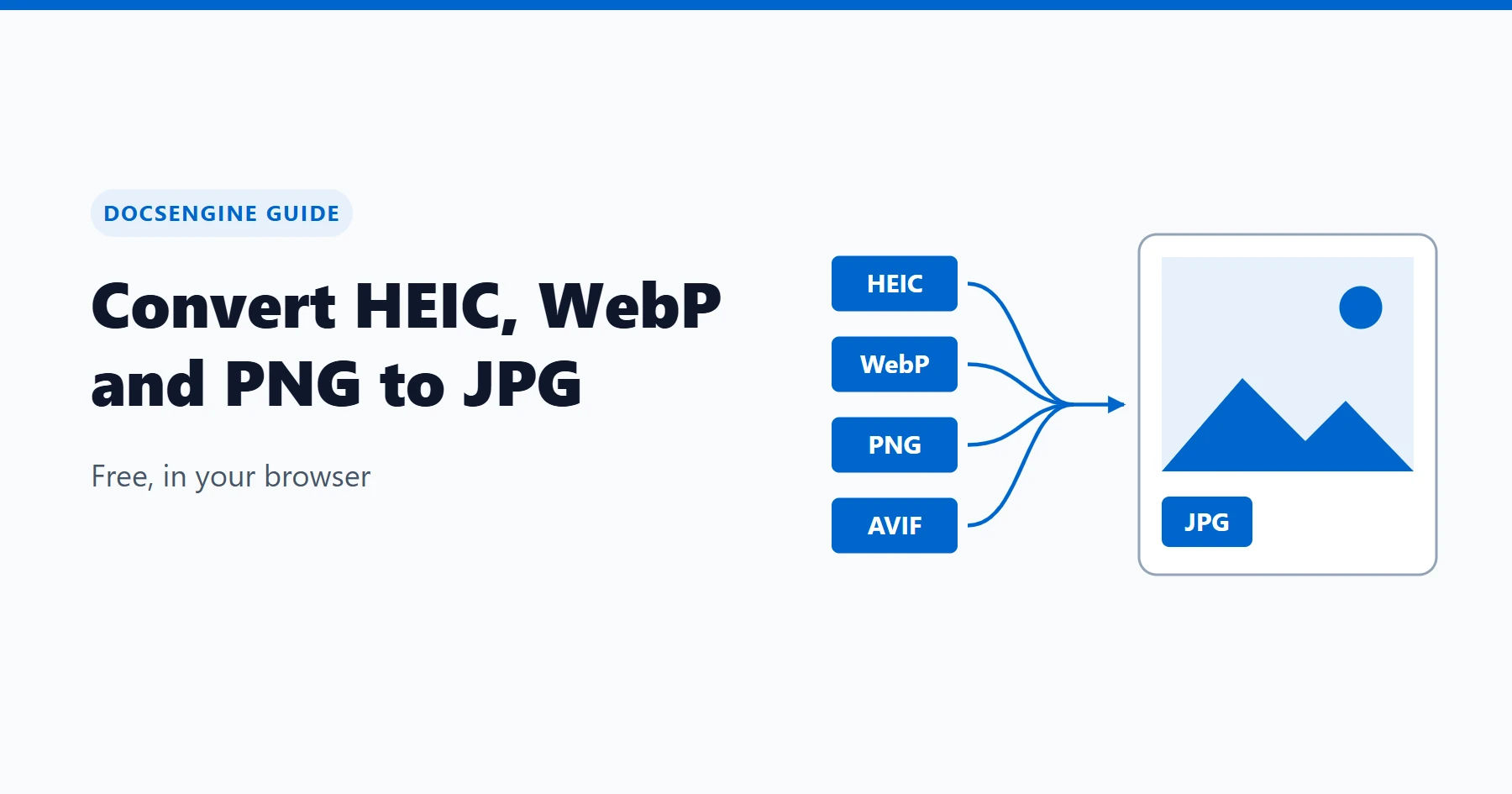 HEIC, WebP, PNG and AVIF images converted to JPG in the browser.
Key Takeaways & Executive Summary
Image to JPG converts HEIC, WebP, PNG, AVIF, BMP, GIF, TIFF and SVG files to JPG at a fixed 92% quality.
HEIC only opens where the browser can read it, which in practice means Safari on an iPhone, iPad or Mac.
Outside Safari, set the iPhone camera to Most Compatible for new photos, or let a transfer or share convert existing ones.
Transparent areas turn white, and EXIF and GPS data are removed from every JPG.
You can convert up to 50 images per batch and download them as a ZIP. Everything is converted on your own device.
Table of Contents
How to convert HEIC, WebP or PNG to JPG (quick answer)
Step by step: convert images to JPG
Which formats Image to JPG can open
HEIC photos from an iPhone: what to do outside Safari
What changes when an image becomes a JPG
Limitations and alternatives
Privacy: your photos stay on your device
Frequently Asked Questions
Sources
How to convert HEIC, WebP or PNG to JPG (quick answer)
Open Image to JPG, add your HEIC, WebP, PNG or AVIF files and click Image to JPG. Each image is saved as a JPG at 92% quality, ready for websites and apps that only accept JPG.
WebP, PNG and AVIF open in every modern browser. HEIC photos from an iPhone only open where the browser itself can read them, which in practice means Safari on an iPhone, iPad or Mac. The HEIC section below covers what to do in other browsers.
Step by step: convert images to JPG
- Open Image to JPG. If you’re converting HEIC photos, use Safari on your iPhone, iPad or Mac.
- Add your images. You can add up to 50 at once, in any mix of formats.
- Click Image to JPG. There are no settings to pick, because the quality is fixed at 92%.
- Download the results. For example, photo.heic becomes photo.jpg. With more than one image you also get a ZIP named docsengine_image-to-jpg.zip, next to the separate downloads.
- Check the results before you delete any originals. Transparent areas are now white, and an animation keeps only its first frame.
Which formats Image to JPG can open
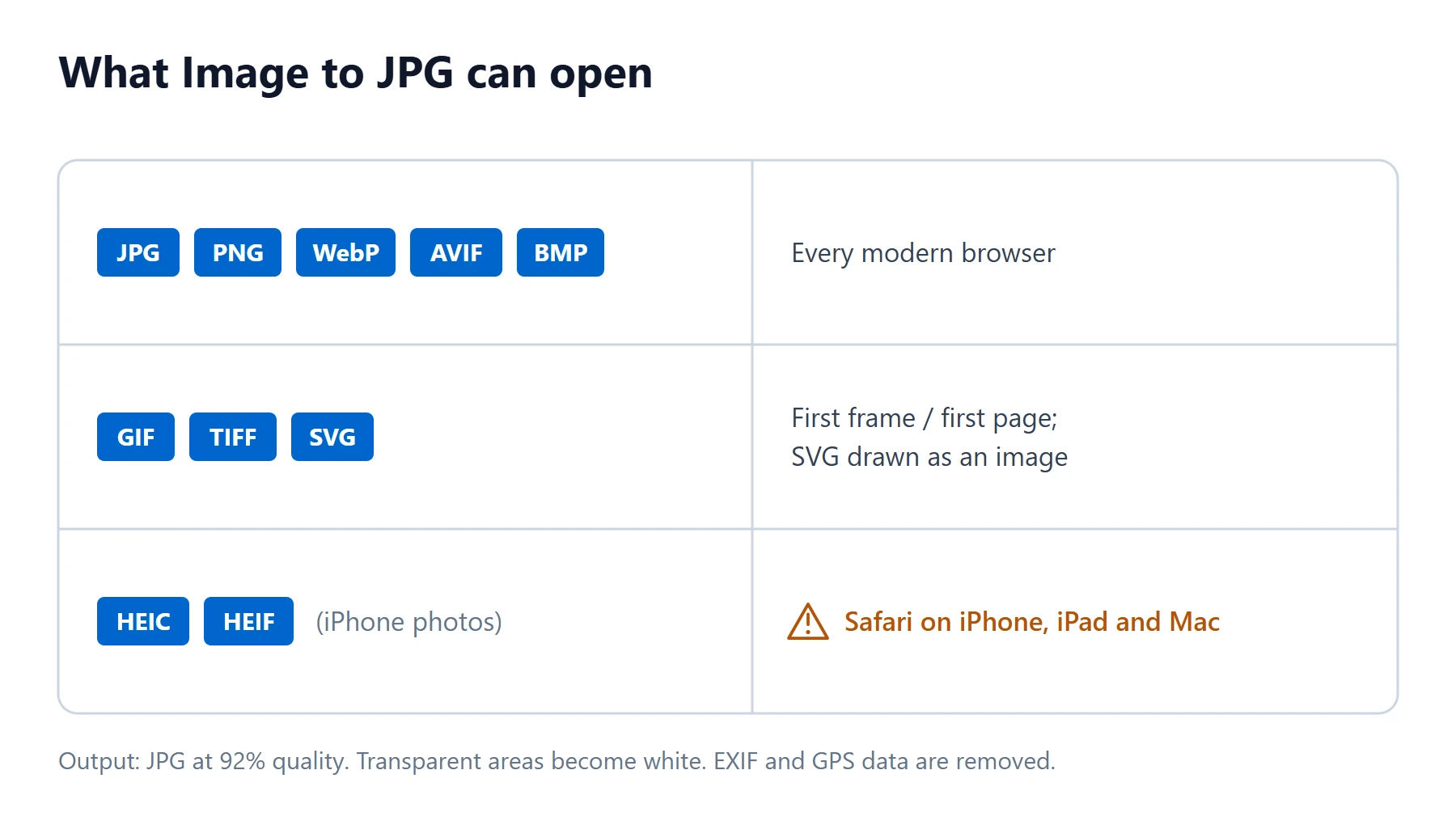
For most formats, the tool uses your browser’s own image decoder through createImageBitmap. AVIF and WebP are supported in current versions of Chrome, Edge, Firefox and Safari, according to MDN.
| Input format | Where it opens | What you get |
|---|---|---|
| JPG, PNG, WebP, AVIF, BMP | Every modern browser | One JPG per file (a JPG input is saved as name_converted.jpg) |
| GIF and animated WebP | Every modern browser | The first frame only |
| TIFF | Every modern browser | The first page only |
| SVG | Every modern browser | Drawn as an image at least 1,024 px on its long side |
| HEIC, HEIF (iPhone photos) | Safari on iPhone, iPad and Mac | One JPG per photo; other browsers show an error |
HEIC photos from an iPhone: what to do outside Safari
A HEIC file uses HEIF, a container format whose images are compressed with HEVC. iPhones and iPads save photos this way when the camera is set to High Efficiency. Image to JPG has no HEIC decoder of its own and relies on the browser. Safari on an iPhone, iPad or Mac can read these photos, but in other browsers you see the message “HEIC/HEIF photos can only be opened in Safari (iPhone, iPad or Mac).”
Here are the practical ways around that, with the iPhone settings as Apple describes them:
Most Compatible only affects new photos
Apple describes High Efficiency as the space-saving format, so photos saved as JPEG take more storage. Switching to Most Compatible doesn’t convert the photos you already took.
- Use Safari. Open Image to JPG in Safari on the iPhone, iPad or Mac that has the photos, and convert them there.
- Change the camera format for future photos. Open Settings, tap Camera, tap Formats, then tap Most Compatible. Apple says new photos and videos then use JPEG or H.264. Tap High Efficiency to switch back. The setting only appears on devices that can capture HEIF.
- Let the transfer convert them. Apple notes that photos you import over USB from an iPhone or iPad into Photos, Image Capture or a PC might be converted to JPEG. That conversion is off when Keep Originals is selected under Settings, Apps, Photos, so check that setting if you want JPGs.
- Share them. When you send photos by AirDrop, Messages or email to a device that doesn’t support HEIF, Apple says they might automatically be shared in a more compatible format such as JPEG.
What changes when an image becomes a JPG
JPEG is a lossy format with no alpha channel, so it can’t store transparency. Every conversion re-encodes the picture at 92% quality and fills any transparent areas with white. A logo with a transparent background becomes a logo on a white rectangle. Because some detail is discarded, keep your originals.
The tool also removes EXIF, GPS and XMP metadata, because every image is redrawn through a canvas before it is saved. That is a privacy plus: the JPG no longer records where an iPhone photo was taken. It also means the camera model, the date taken and any DPI value are gone. The photo’s rotation is applied to the pixels first, so it still shows the right way up.
File size can go either way. A PNG screenshot may get smaller as a JPG. A HEIC, WebP or AVIF file can come out larger, because those newer formats are designed to store photos in less space.
Limitations and alternatives
JPG still too big for an upload form?
Shrink its dimensions with Resize Image, then check the file size. Our guide on compressing an image to 20 KB, 50 KB or 100 KB walks through the steps.
- No settings. Quality is fixed at 92% and transparency always becomes white. To pick the quality yourself, use Compress Image with the output format set to JPG.
- To keep a transparent background, convert to PNG with Image to PNG instead.
- HEIC and HEIF only open in Safari on an iPhone, iPad or Mac.
- Animated GIF and WebP files keep only their first frame, and multi-page TIFF files only their first page.
- Very large images are scaled down when they are opened. The thresholds are 16 megapixels or 4,096 px on iPhone and iPad, 24 MP or 8,192 px on Android phones and low-memory devices, and 64 MP or 16,384 px on desktop computers.
- The file limit is 500 MB on a desktop and 150 MB on a phone.
- Need one PDF rather than separate JPGs? Images to PDF combines up to 100 images into one PDF, including HEIC photos in Safari.
Privacy: your photos stay on your device
Image to JPG runs in your browser, so your files never leave your device. The conversion happens on your phone or computer, and the JPGs are saved from there.
Only with your consent
If your images are larger than your device can handle, the page offers to use our server instead. Nothing is uploaded unless you agree.
Convert your images to JPG
HEIC, WebP, PNG or AVIF in, JPG out, converted on your own device.
Frequently Asked Questions
JPEG is lossy, so each conversion discards some detail. The tool always saves at 92% quality, so keep your originals in case you need them later.
They become white, because JPEG can’t store transparency. Use Image to PNG if you need to keep it.
Yes. EXIF, GPS and XMP metadata are dropped from every JPG, so the location, the camera details and the date taken are no longer in the file.
Yes, up to 50 per batch. They are converted one by one, and with more than one image you get a ZIP as well as the separate files.
Sources
- Using HEIF or HEVC media on Apple devices (Apple Support)
- HEIF (High Efficiency Image File Format) (Nokia Technologies)
- MDN: Image file type and format guide (MDN Web Docs)
- MDN: createImageBitmap() (MDN Web Docs)
Table of Contents
How to convert HEIC, WebP or PNG to JPG (quick answer)
Step by step: convert images to JPG
Which formats Image to JPG can open
HEIC photos from an iPhone: what to do outside Safari
What changes when an image becomes a JPG
Limitations and alternatives
Privacy: your photos stay on your device
Frequently Asked Questions
Sources
How to convert HEIC, WebP or PNG to JPG (quick answer)
Step by step: convert images to JPG
Which formats Image to JPG can open
HEIC photos from an iPhone: what to do outside Safari
What changes when an image becomes a JPG
Limitations and alternatives
Privacy: your photos stay on your device
Frequently Asked Questions
Sources
Image to JPG
Free, no sign-up. Runs in your browser, so your files never leave your device.
Share this guide
How to Compress an Image Under 20KB, 50KB or 100KB for Upload Forms