How to Combine JPG and PNG Images into a Single PDF Document
Need to compile photographed receipts, passport scans, or design sketches into one organized file? Discover how to convert images to PDF with auto-fit orientation and custom page margins.
Technical Document Guide
 Visual guide to compiling multiple JPG, PNG, and photo scans into an organized, paginated PDF booklet.
Key Takeaways & Executive Summary
Multi-format image input: Combine JPG, JPEG, PNG, and WebP photos into a unified PDF booklet in any custom sequence.
Auto-orientation detection: Automatic aspect ratio detection fits portrait and landscape photos perfectly without awkward cropping.
Custom page margins: Choose between no-margin full bleed, standard margins, or generous borders for neat binder printing.
Standard page standardization: Normalize photos of different resolutions onto uniform A4 or US Letter sheets.
Zero quality loss: Image streams are embedded into the PDF container without double compression loss or color shifting.
Table of Contents
1. The Advantage of Compiling Multiple Images into a Single PDF
2. Configuring Page Margins, Orientation, and Sizing
3. Step-by-Step Guide: How to Convert Images to PDF Online
4. Optimizing File Size for Image-Heavy PDF Documents
Frequently Asked Questions
1. The Advantage of Compiling Multiple Images into a Single PDF
2. Configuring Page Margins, Orientation, and Sizing
3. Step-by-Step Guide: How to Convert Images to PDF Online
4. Optimizing File Size for Image-Heavy PDF Documents
Frequently Asked Questions
1. The Advantage of Compiling Multiple Images into a Single PDF
In an era where everyone uses smartphone cameras to capture receipts, tax slips, driver's licenses, legal contracts, and whiteboards, sharing photographic documentation as loose JPG or PNG files creates disorganized, bloated email threads.
Converting images into a single standardized PDF file packages your photos into an organized, paginated booklet. PDF document readers enable smooth scrolling, instant printing, and easy archiving. Furthermore, banks, government visa portals, and expense reporting systems universally require multi-image submissions to be compiled as a single PDF document.
Portal Compliance
Most visa application and reimbursement portals reject raw image uploads exceeding 5 files, but readily accept a single organized PDF containing 20+ receipts.
2. Configuring Page Margins, Orientation, and Sizing
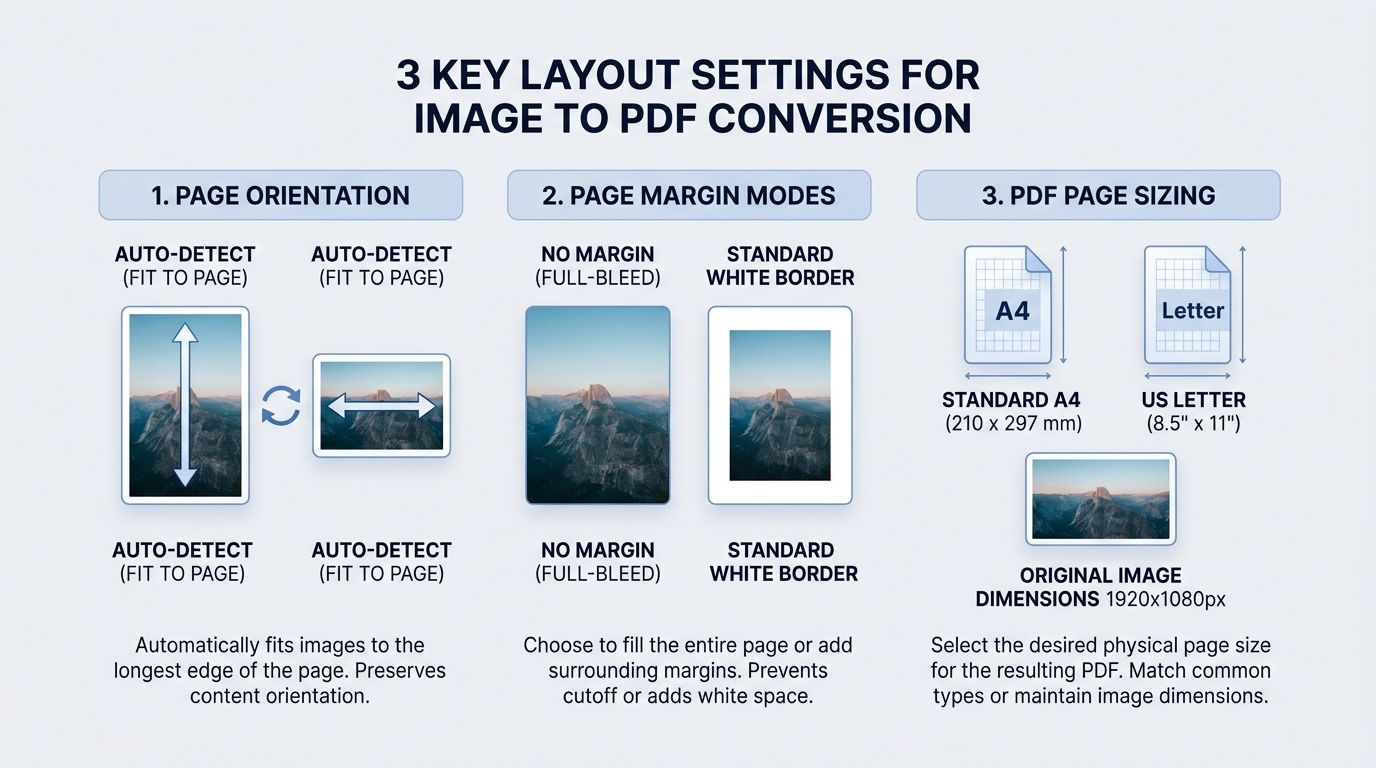
One of the major challenges when converting photos to PDF is dealing with disparate aspect ratios—for example, combining a tall vertical receipt with a wide horizontal landscape certificate. DocsEngine provides intelligent layout controls to standardize your presentation:
| Layout Setting | Available Modes | Visual Effect | Recommended Document Type |
|---|---|---|---|
| Page Orientation | Auto-Detect / Portrait / Landscape | Rotates page to fit the photo's longest dimension | Mixed receipt and landscape certificate packets |
| Page Margins | No Margin (Full-Bleed) / Normal Margin | Extends photo to edge or adds clean 0.5-inch white border | Normal Margin for printing; Full-Bleed for photos |
| Page Size Format | Standard A4 / US Letter / Fit Image | Standardizes all pages to uniform physical paper size | Standard A4 for international visa & job submissions |
3. Step-by-Step Guide: How to Convert Images to PDF Online
Compiling your photos into a PDF with DocsEngine takes under a minute:
- Upload Images: Open the DocsEngine Images to PDF tool and drag multiple JPG, PNG, or WebP files into the drop zone.
- Reorder Sequence: Arrange the image thumbnails in the sequence you want them to appear in your document.
- Configure Layout Settings: Choose your page orientation (portrait/landscape/auto-fit) and select margin preferences.
- Generate & Download PDF: Click "Convert to PDF" and download your organized PDF booklet immediately.
4. Optimizing File Size for Image-Heavy PDF Documents
Smartphone photos captured at 12MP to 48MP can result in a merged PDF that exceeds 50MB. If your compiled document is too large for email attachments or portal limits, pass your final file through our Compress PDF tool to reduce file weight by 70% to 90% while keeping receipts crisp and legible.
Combine Your Photos into a Clean PDF
Compile receipts, scans, and photos into a standardized, paginated PDF file in seconds. 100% free.
Frequently Asked Questions
With Auto-Detect orientation enabled, each page automatically adapts its aspect ratio to match the individual photo, preventing awkward cropping or letterboxing.
Yes. You can upload a mixture of JPG, JPEG, PNG, and WebP images simultaneously into a single document.
No. Images are embedded directly into the PDF structure at their native resolution without secondary lossy recompression.
Table of Contents
1. The Advantage of Compiling Multiple Images into a Single PDF
2. Configuring Page Margins, Orientation, and Sizing
3. Step-by-Step Guide: How to Convert Images to PDF Online
4. Optimizing File Size for Image-Heavy PDF Documents
Frequently Asked Questions
1. The Advantage of Compiling Multiple Images into a Single PDF
2. Configuring Page Margins, Orientation, and Sizing
3. Step-by-Step Guide: How to Convert Images to PDF Online
4. Optimizing File Size for Image-Heavy PDF Documents
Frequently Asked Questions
Images to PDF
Run fast, private document processing in your browser with zero permanent storage.
Share this guide

How to Convert PDF to High-Resolution JPG Images: Resolution, DPI & Quality
How to Compress PDF Files Without Losing Quality: The Complete Engineering Guide