How to Resize Image Dimensions in Pixels, Centimeters & DPI Without Blurring
Enlarging or downscaling photos often causes pixelation, jagged edges, or stretched proportions. Master bicubic image resampling, aspect ratio locking, and DPI calculation for flawless digital and print output.
Technical Document Guide
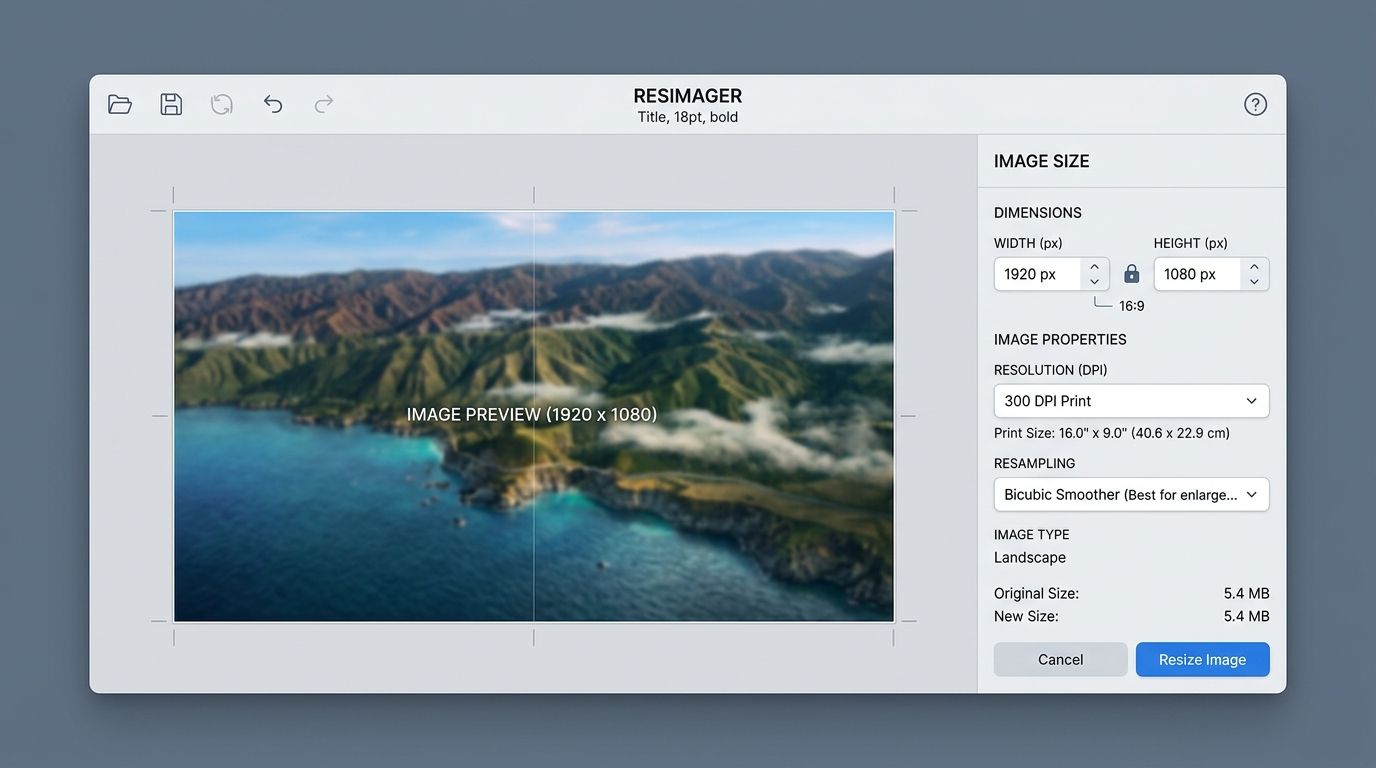 Visual guide to high-fidelity image resizing: comparing nearest-neighbor, bilinear, and Lanczos bicubic interpolation filters.
Key Takeaways & Executive Summary
Resampling vs. canvas resizing: Image resizing (resampling) calculates new pixel values across the entire raster grid; canvas resizing adds or clips margins around the perimeter.
Aspect ratio lock (constrained proportions): Locking width and height ensures images scale proportionally, preventing stretched faces, distorted logos, and skewed architecture.
Lanczos & Bicubic interpolation: High-order convolution filters compute weighted averages of neighboring pixels to eliminate staircase aliasing and blurry transitions.
Physical units vs. pixel resolution: Learn the fundamental DPI formula: Pixels = Inches × DPI. A 4×6 inch print at 300 DPI requires exactly 1200×1800 pixels.
Screen vs. print optimization: Use 72–96 DPI for web pages and mobile displays; enforce 300 DPI for print brochures, wedding albums, and posters.
Table of Contents
1. Why Resizing Images Causes Blurring (And How Modern Resampling Fixes It)
2. The DPI Formula: Converting Pixels to Inches and Centimeters
3. Step-by-Step Guide: How to Resize Images Online with DocsEngine
4. Common Image Resizing Mistakes to Avoid
Frequently Asked Questions
1. Why Resizing Images Causes Blurring (And How Modern Resampling Fixes It)
2. The DPI Formula: Converting Pixels to Inches and Centimeters
3. Step-by-Step Guide: How to Resize Images Online with DocsEngine
4. Common Image Resizing Mistakes to Avoid
Frequently Asked Questions
1. Why Resizing Images Causes Blurring (And How Modern Resampling Fixes It)
Whenever you change the pixel width and height of a digital photograph, software must invent or combine pixel values. If you downscale a 4000x3000 photo to 800x600, 96% of the original pixels must be discarded. If you upscale a 300x200 photo to 1200x800, the computer must generate 93% of new pixels from scratch.
Primitive image viewers use "Nearest Neighbor" interpolation, which simply duplicates or drops adjacent pixels. This causes jagged diagonal lines, harsh blocky pixelation, and ruined fine details. Professional image resizing relies on advanced convolution filters—such as Bicubic and Lanczos resampling—which sample a 16-to-36 pixel neighborhood to synthesize smooth, natural gradients and crisp edges.
Interpolation Filter Quality
Lanczos-3 resampling uses sinc mathematical filtering to preserve fine textural frequencies, avoiding both the blurriness of linear filters and the ringing artifacts of simple splines.
2. The DPI Formula: Converting Pixels to Inches and Centimeters
DPI (Dots Per Inch) or PPI (Pixels Per Inch) defines print density. A digital screen has no inherent DPI—it simply displays pixels 1-to-1. DPI only becomes relevant when sending an image to a physical printer or specifying dimensions in centimeters or inches.
To calculate required pixel dimensions for physical print media, use this standard equation:
• Width in Pixels = Width in Inches × DPI
• Height in Pixels = Height in Inches × DPI
| Print Format | Physical Size (Inches / CM) | Recommended DPI | Required Pixel Dimensions |
|---|---|---|---|
| Standard Passport Photo | 2 x 2 inches (5.1 x 5.1 cm) | 300 DPI | 600 x 600 px |
| Schengen / Visa Photo | 3.5 x 4.5 cm (1.38 x 1.77 in) | 300 DPI | 413 x 531 px |
| Standard Photo Print | 4 x 6 inches (10.2 x 15.2 cm) | 300 DPI | 1200 x 1800 px |
| Magazine Page / Flyer | 8.5 x 11 inches (A4 size) | 300 DPI | 2550 x 3300 px |
| Full HD Web Banner | Desktop 16:9 viewport | 72–96 DPI | 1920 x 1080 px |
3. Step-by-Step Guide: How to Resize Images Online with DocsEngine
Changing your image dimensions with DocsEngine takes 3 straightforward steps:
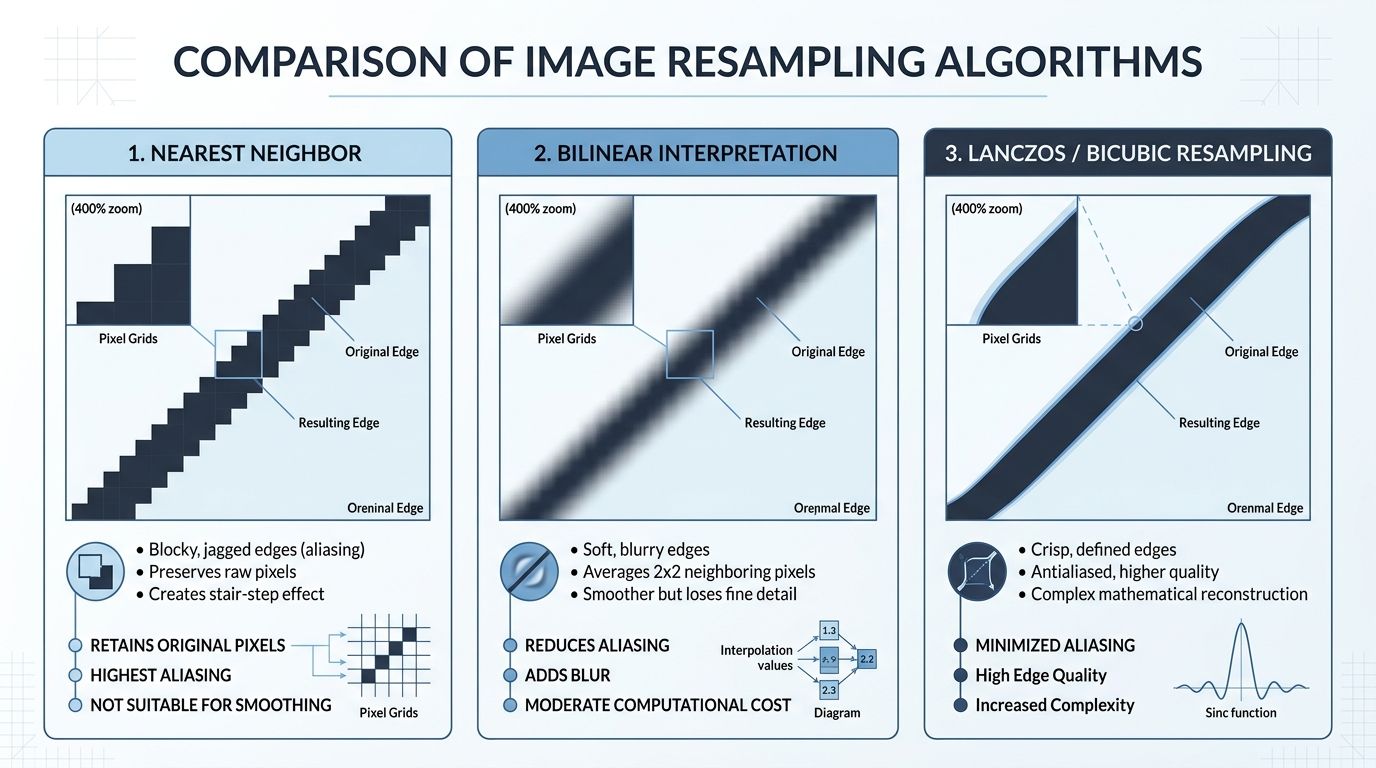
- Upload Image: Drag and drop your JPG, PNG, or WebP photo into the DocsEngine Resize Image tool.
- Specify Dimensions: Enter your target Width and Height in pixels, inches, or centimeters. Keep "Lock Aspect Ratio" checked to preserve proportions.
- Configure DPI & Output: Set DPI to 300 for print or 72 for web. Click "Resize Image" and download your perfectly scaled file.
4. Common Image Resizing Mistakes to Avoid
• Unchecking Aspect Ratio Lock: Forcing arbitrary dimensions without locking proportions stretches faces, makes vehicles look squashed, and destroys logo typography.
• Upscaling Extreme Low-Res Images: Resampling a 100px thumbnail to 3000px cannot invent detail that was never recorded. For extreme enlargements, use our AI Image Upscaler instead.
• Overwriting Original Files: Always save resized images as copies to preserve your master high-resolution camera originals.
Resize Your Images in Pixels & DPI Now
Scale photos for web banners, social media, and 300 DPI print publications with zero distortion. 100% free.
Frequently Asked Questions
In the DocsEngine Resize Image tool, specify your target print dimensions in inches or centimeters and toggle the DPI setting to 300. The engine sets the embedded JFIF/EXIF DPI density metadata.
Yes. Locking the aspect ratio guarantees that modifying the width automatically updates the height proportionally, preventing stretched or squashed distortion.
Yes. DocsEngine fully supports 32-bit RGBA PNG files, preserving transparent background alpha channels during the resizing process.
Table of Contents
1. Why Resizing Images Causes Blurring (And How Modern Resampling Fixes It)
2. The DPI Formula: Converting Pixels to Inches and Centimeters
3. Step-by-Step Guide: How to Resize Images Online with DocsEngine
4. Common Image Resizing Mistakes to Avoid
Frequently Asked Questions
1. Why Resizing Images Causes Blurring (And How Modern Resampling Fixes It)
2. The DPI Formula: Converting Pixels to Inches and Centimeters
3. Step-by-Step Guide: How to Resize Images Online with DocsEngine
4. Common Image Resizing Mistakes to Avoid
Frequently Asked Questions
Resize Image
Run fast, private document processing in your browser with zero permanent storage.
Share this guide

How to Crop Images to Exact Dimensions & Aspect Ratios (Passport, Social & Web)
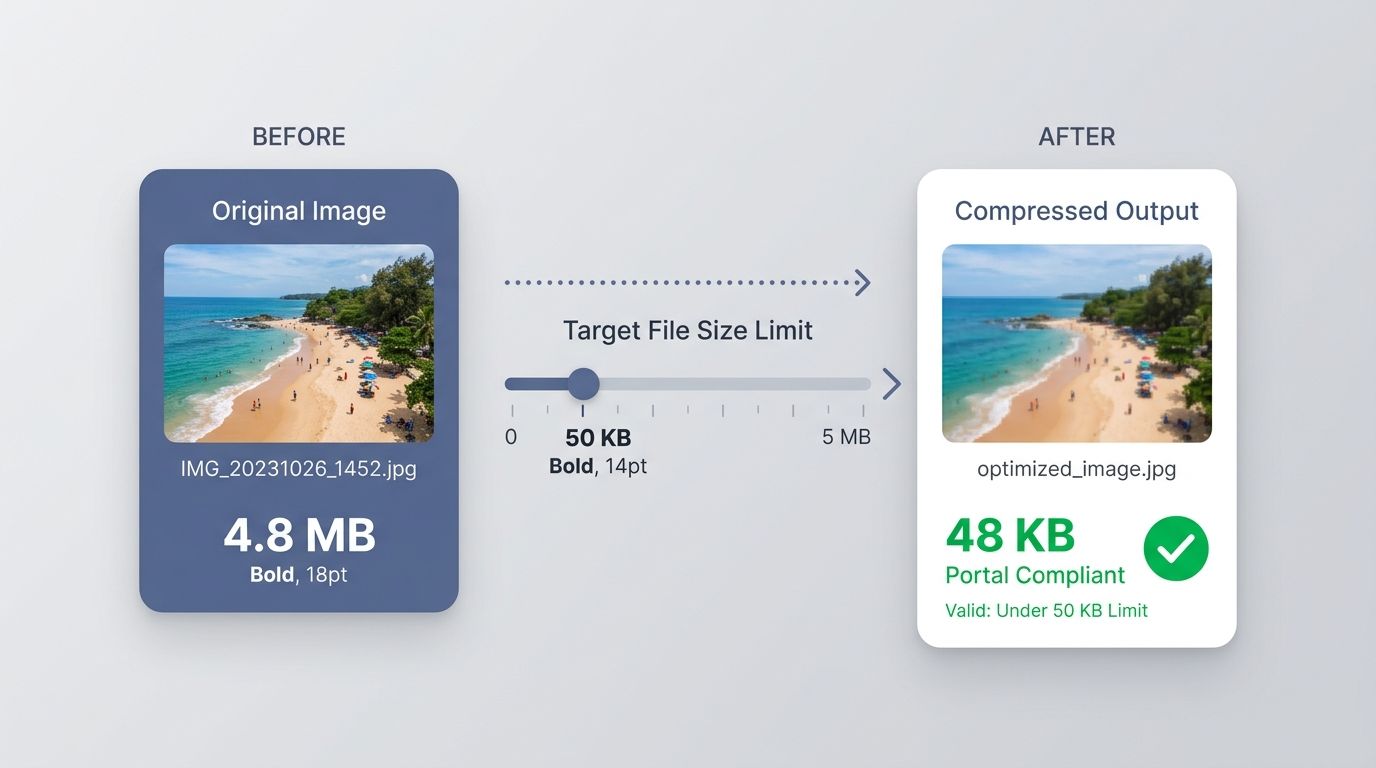
How to Compress Images to 20KB, 50KB, or 100KB for Government Portals & Web