How to Crop Images to Exact Dimensions & Aspect Ratios (Passport, Social & Web)
Social media banners and government visa forms demand precise bounding boxes. Learn how pixel-accurate cropping centers subjects, removes borders, and enforces standard dimensions without distortion.
Technical Document Guide
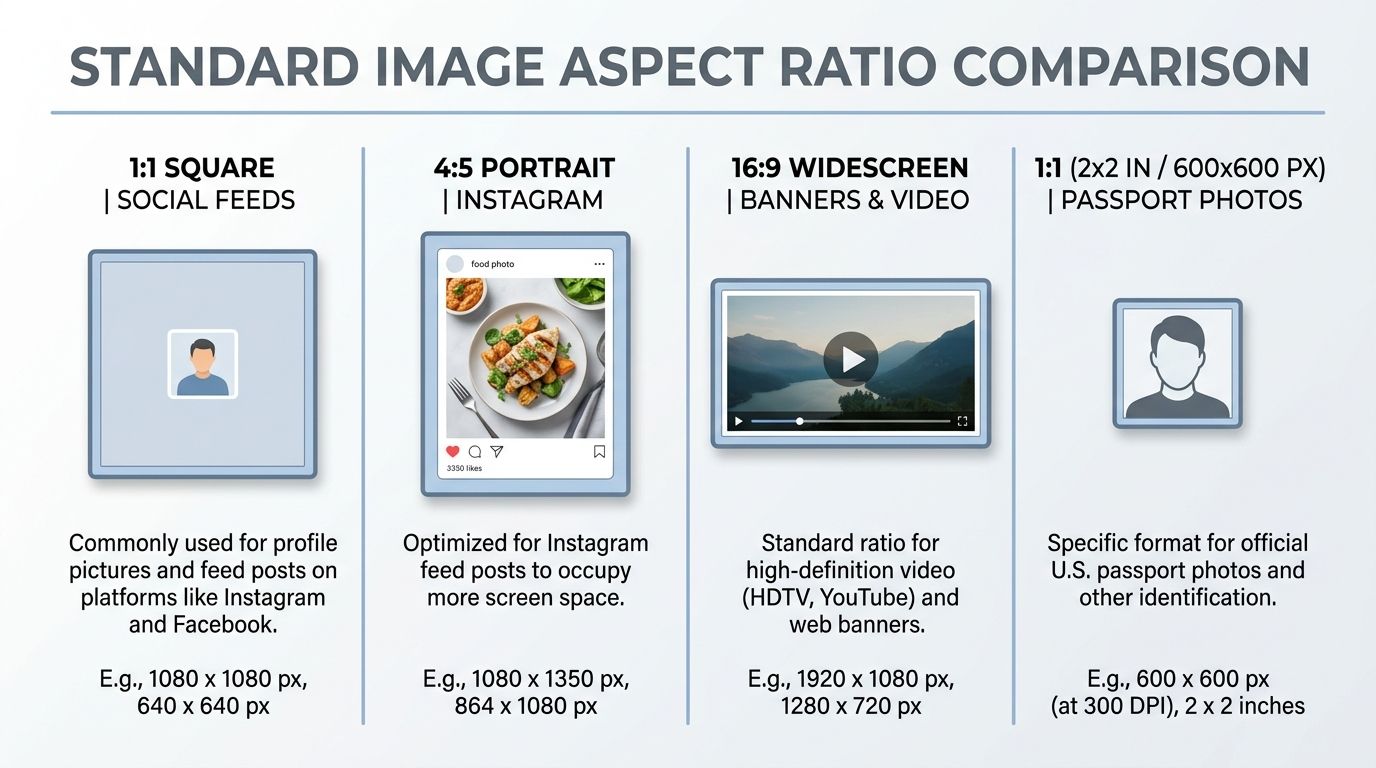
 Visual demonstration of cropping digital photos to standardized social media aspect ratios and official passport bounding dimensions.
Key Takeaways & Executive Summary
Cropping vs. resizing: Cropping trims unwanted outer boundaries to reframe the subject and change aspect ratio; resizing stretches or compresses existing pixels.
Standard social media ratios: Master 1:1 (Instagram feeds), 4:5 (portrait feeds), 9:16 (Instagram Reels & TikTok), and 16:9 (YouTube & LinkedIn banners).
Official biometric passport specs: Standardize 2x2 inch (600x600 px) for US passports and 35x45mm for Schengen, UK, and Indian visas.
Lossless pixel extraction: Cropping extracts the exact pixel matrix from the crop zone without re-interpolating or blurring subject facial details.
Interactive crop grid: Utilize visual rule-of-thirds grid guides to ensure subjects are harmoniously positioned.
Table of Contents
1. Cropping vs. Resizing: Why Cropping Is Crucial to Prevent Distortion
2. Standard Aspect Ratios & Dimension Guide (Social Media & Government IDs)
3. Step-by-Step Guide: How to Crop Images Online with DocsEngine
4. Essential Rules for Biometric Passport and Visa Photo Cropping
Frequently Asked Questions
1. Cropping vs. Resizing: Why Cropping Is Crucial to Prevent Distortion
2. Standard Aspect Ratios & Dimension Guide (Social Media & Government IDs)
3. Step-by-Step Guide: How to Crop Images Online with DocsEngine
4. Essential Rules for Biometric Passport and Visa Photo Cropping
Frequently Asked Questions
1. Cropping vs. Resizing: Why Cropping Is Crucial to Prevent Distortion
Many users confuse image cropping with image resizing. If you take a wide rectangular photo (16:9) and forcefully resize it into a square (1:1), the people and objects inside the photo will appear unnaturally squished and distorted. Resizing changes pixel dimensions across the entire image canvas.
Cropping, on the other hand, discards unwanted peripheral visual data outside of a selected rectangular bounding box. It alters the framing and aspect ratio of your image while preserving the natural geometry and proportions of the subject.
Aspect Ratio Preservation
Never squash a landscape photo to fit a square avatar box. Crop the perimeter instead to maintain natural facial contours and proper perspective.
2. Standard Aspect Ratios & Dimension Guide (Social Media & Government IDs)
Different platforms require specific geometric proportions. The table below lists standard dimensions for digital and official identity formats:
| Platform / Format | Aspect Ratio | Recommended Pixels | Primary Purpose |
|---|---|---|---|
| Instagram Post (Square) | 1:1 | 1080 x 1080 px | Standard feed posts and product highlights |
| Instagram / Facebook (Portrait) | 4:5 | 1080 x 1350 px | Vertical feed optimization (maximizes screen real estate) |
| Stories, Reels & TikTok | 9:16 | 1080 x 1920 px | Full-screen vertical smartphone viewing |
| YouTube Thumbnail / Twitter Post | 16:9 | 1280 x 720 px / 1200 x 675 px | Widescreen desktop and mobile feed previews |
| US Visa / Passport | 1:1 (2x2 inch) | 600 x 600 px (at 300 DPI) | State Department official visa submission |
| Schengen / UK / India Visa | 7:9 (35x45 mm) | 413 x 531 px (at 300 DPI) | Consular visa applications and residency permits |
3. Step-by-Step Guide: How to Crop Images Online with DocsEngine
Cropping your photos to exact specifications takes just seconds:
- Upload Image: Drag and drop your JPG, PNG, or WebP photo into the DocsEngine Crop Image tool.
- Select Aspect Ratio or Custom Bounding Box: Choose from one-click presets (1:1, 16:9, 4:3, 9:16) or drag the crop handles manually.
- Align with Rule of Thirds: Use the on-screen overlay grid to center the face, horizon, or product.
- Confirm and Save: Click "Crop Image" to download your newly framed image with zero compression artifacts.
4. Essential Rules for Biometric Passport and Visa Photo Cropping
Government passport portals frequently reject photos due to improper framing. When cropping biometric photos, verify the following guidelines:
• Head Height: The subject's head (from the bottom of the chin to the top of the hair) must occupy between 50% and 69% of the photo's total vertical height.
• Eye Level: The eyes should be positioned roughly two-thirds of the way up from the bottom of the frame.
• Clear Margins: Ensure equal spacing between the left and right edges of the subject's ears and the crop boundaries.
Crop Your Photos to Exact Ratios Now
Crop for Instagram, YouTube, passports, and web banners with zero quality loss. 100% free.
Frequently Asked Questions
Yes. Our tool supports circular avatar cropping, outputting a transparent PNG so your avatar fits seamlessly into round profile widgets.
Yes. You can enter exact pixel coordinates or lock the aspect ratio to maintain required proportions while scaling.
DocsEngine supports JPG, JPEG, PNG, WebP, GIF, and BMP image files.
Table of Contents
1. Cropping vs. Resizing: Why Cropping Is Crucial to Prevent Distortion
2. Standard Aspect Ratios & Dimension Guide (Social Media & Government IDs)
3. Step-by-Step Guide: How to Crop Images Online with DocsEngine
4. Essential Rules for Biometric Passport and Visa Photo Cropping
Frequently Asked Questions
1. Cropping vs. Resizing: Why Cropping Is Crucial to Prevent Distortion
2. Standard Aspect Ratios & Dimension Guide (Social Media & Government IDs)
3. Step-by-Step Guide: How to Crop Images Online with DocsEngine
4. Essential Rules for Biometric Passport and Visa Photo Cropping
Frequently Asked Questions
Crop Image
Run fast, private document processing in your browser with zero permanent storage.
Share this guide
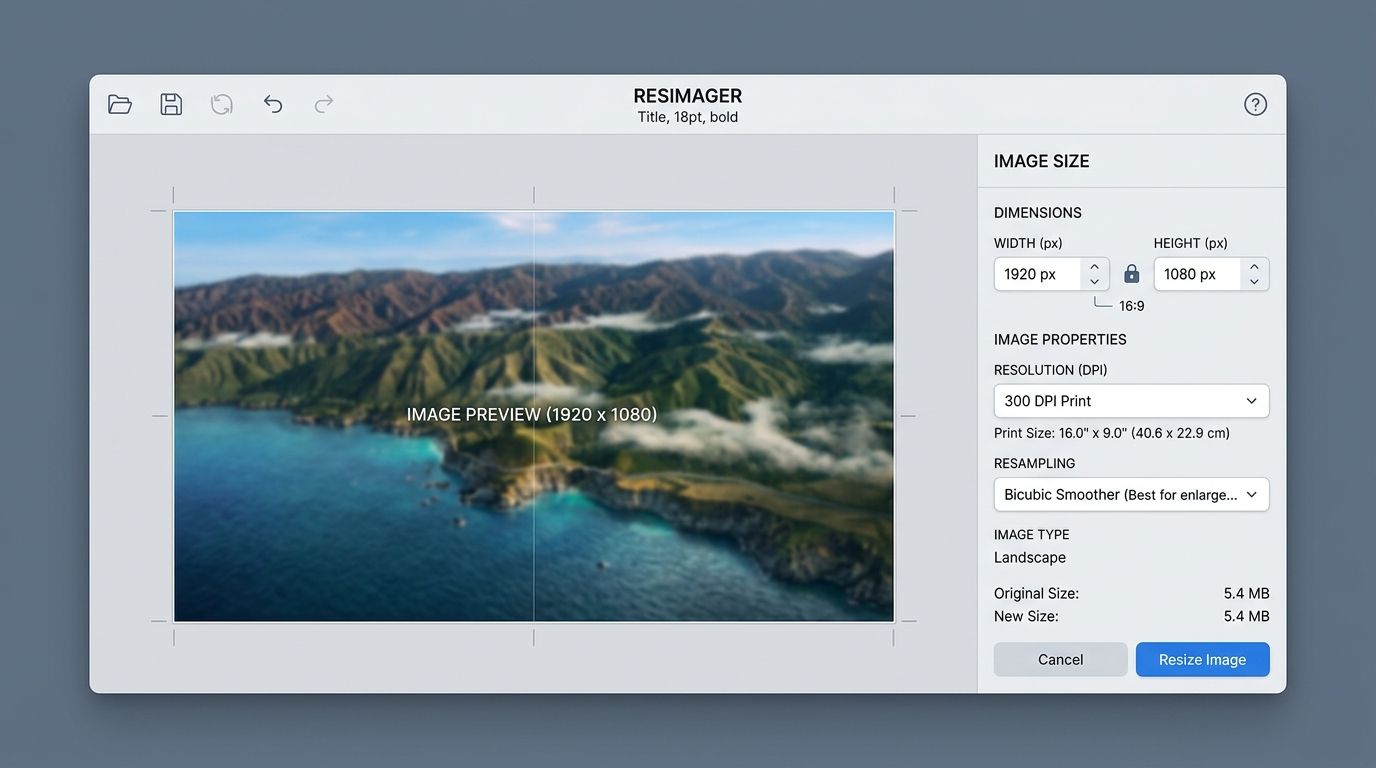
How to Resize Image Dimensions in Pixels, Centimeters & DPI Without Blurring
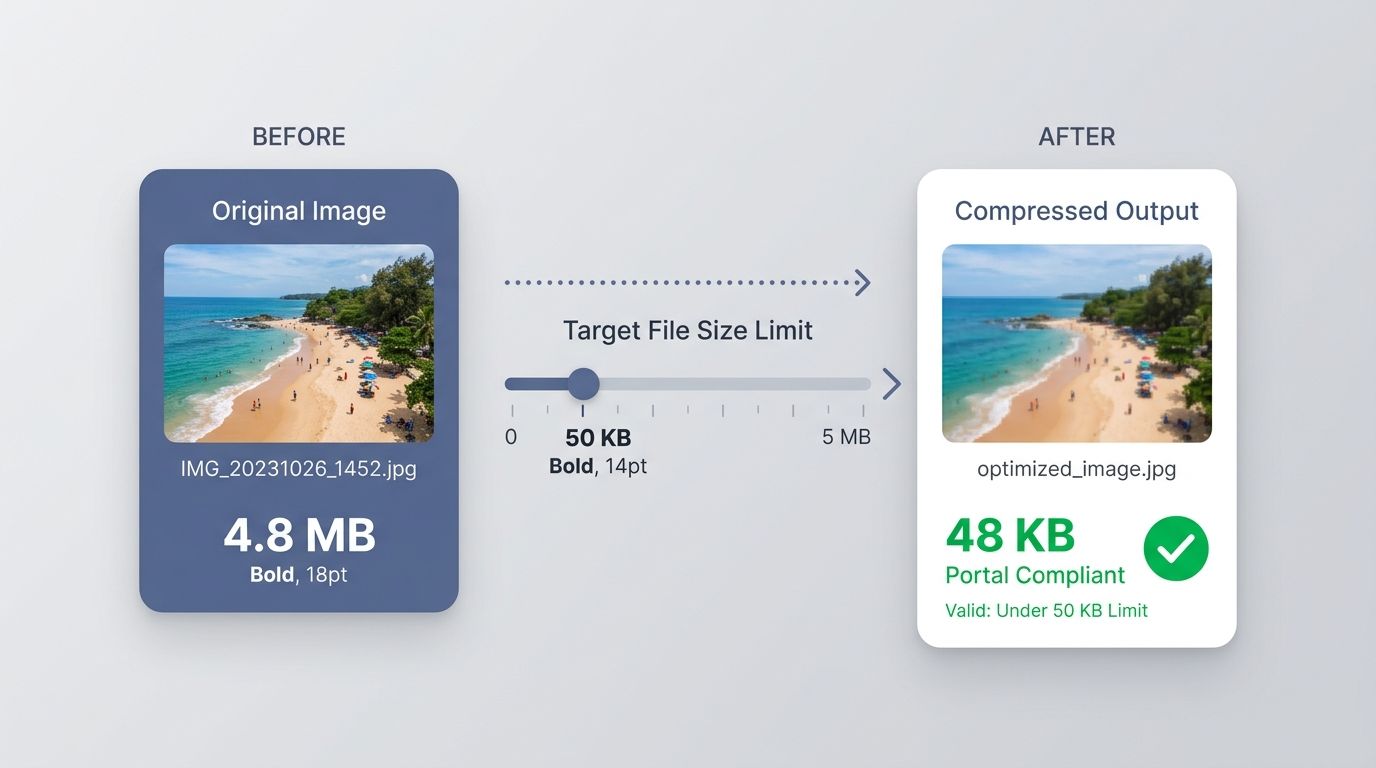
How to Compress Images to 20KB, 50KB, or 100KB for Government Portals & Web