How to Convert Markdown and HTML Files to PDF (READMEs, Notes and Saved Pages)
Markdown and HTML files look fine in an editor but are awkward to share. Here is how to turn them into PDFs, and which parts of a file won’t make it across.
DocsEngine Editorial Team
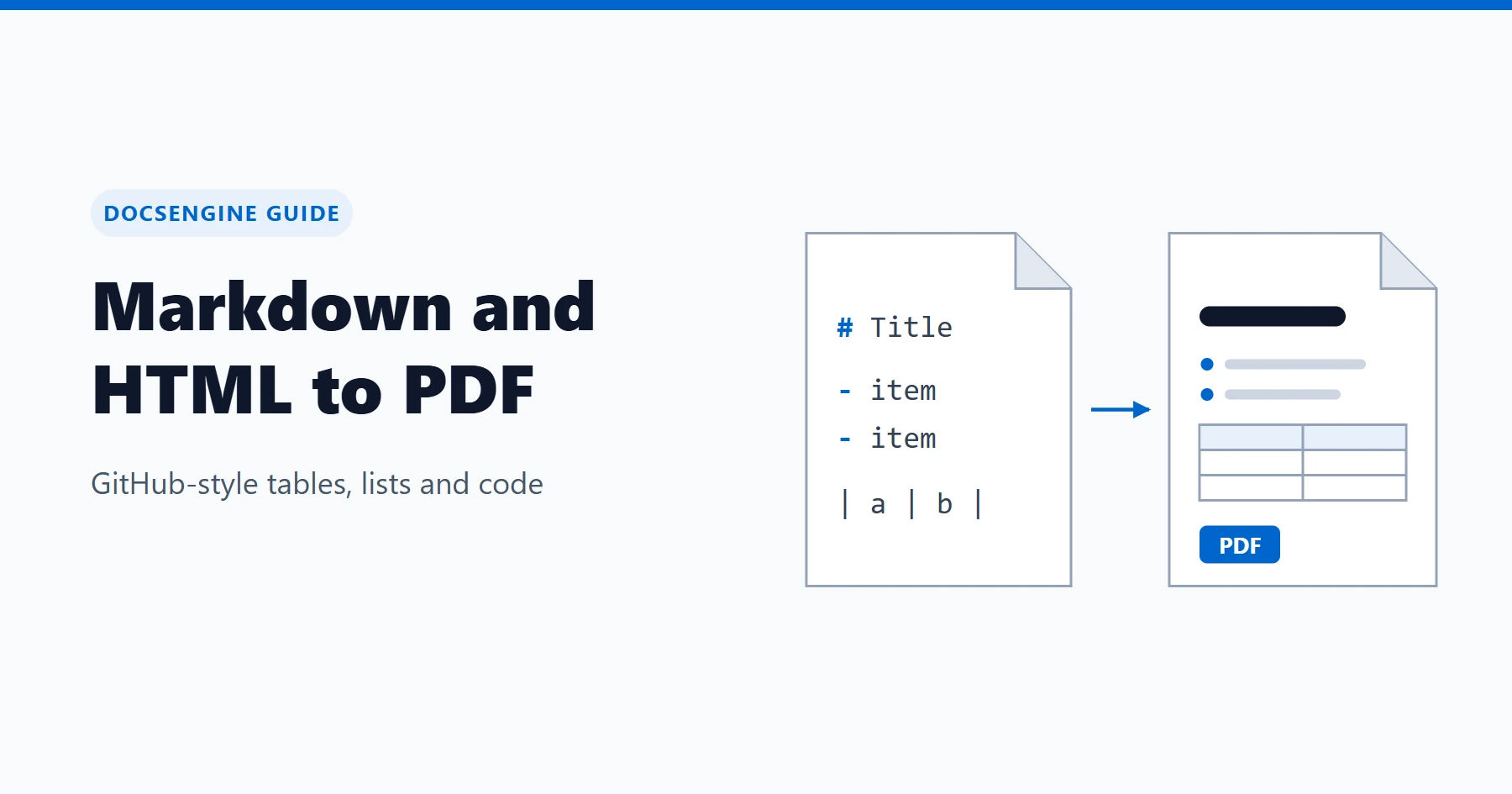 Markdown and HTML files rendered as PDF pages.
Key Takeaways & Executive Summary
Markdown to PDF turns .md, .markdown and .txt files into PDFs with GitHub-style tables, task lists, block quotes and code blocks.
HTML to PDF converts an .html file you upload. CSS and images load only from full URLs, and no JavaScript runs.
Each output page is an image with an invisible text layer. You can search and copy the text, but it isn’t vector and links aren’t clickable.
Code blocks have no syntax colours, and relative image paths don’t load.
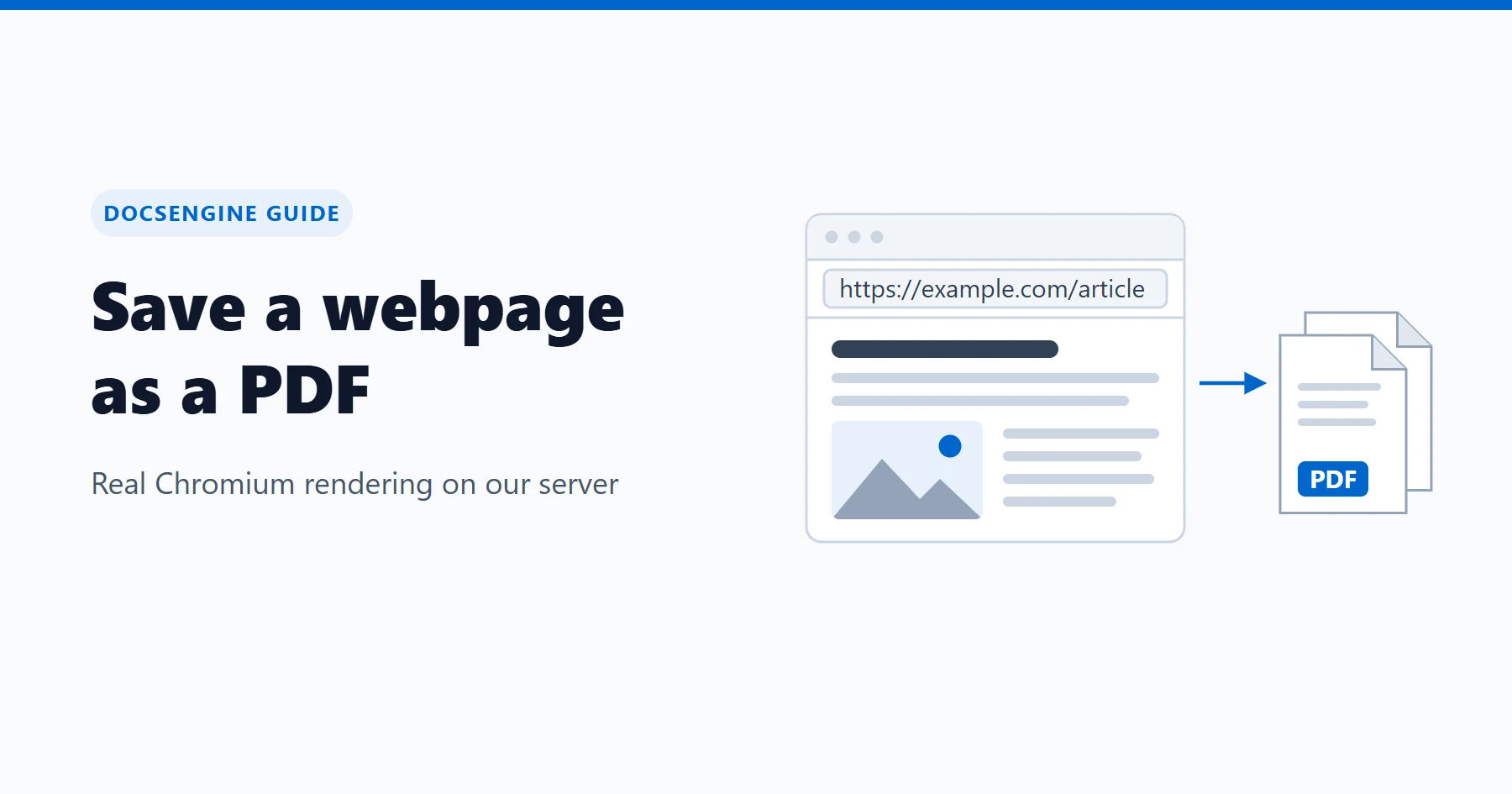
For a live website, use URL to PDF, a server tool that runs the page’s JavaScript.
Table of Contents
How to convert Markdown or HTML to PDF (quick answer)
Step by step: Markdown to PDF
Step by step: HTML file to PDF
What each converter supports
Markdown to PDF: what renders and what doesn’t
HTML to PDF: what to expect from a saved page
Converting a live website? Use URL to PDF
Limitations
Privacy: your Markdown and HTML files stay on your device
Frequently Asked Questions
Sources
How to convert Markdown or HTML to PDF (quick answer)
To convert Markdown to PDF, open Markdown to PDF, add your .md file, choose A4 or US Letter and click Markdown to PDF. For an HTML file, such as a page saved from your browser, use HTML to PDF the same way. Both tools run in your browser.
Each PDF page is a picture of the rendered page with an invisible text layer on top. You can search, select and copy the text, but links aren’t clickable and the text isn’t vector.
Step by step: Markdown to PDF
- Open Markdown to PDF and add your file. It accepts .md, .markdown and .txt files.
- Under Page Size, pick A4 (the default) or US Letter. The margin is fixed at 54 pt, which is 0.75 inch.
- Click Markdown to PDF. The tool styles the Markdown, loads any images that use https links and splits the result into pages.
- Download the PDF. For example, README.md becomes README.pdf. If you converted several files, they come as a ZIP.
Step by step: HTML file to PDF
Use this for an .html file on your computer, such as an email template, an exported report or a page you saved from your browser.
- Open HTML to PDF and add an .html, .htm or .xhtml file.
- Choose the Page Size (A4 or US Letter) and the Orientation (Portrait or Landscape). The margin is fixed at 36 pt, or 0.5 inch.
- Click HTML to PDF and download the result. The PDF gets its title from the page’s title tag.
What each converter supports
The two tools share the same page renderer but take different input. Here is how they compare.
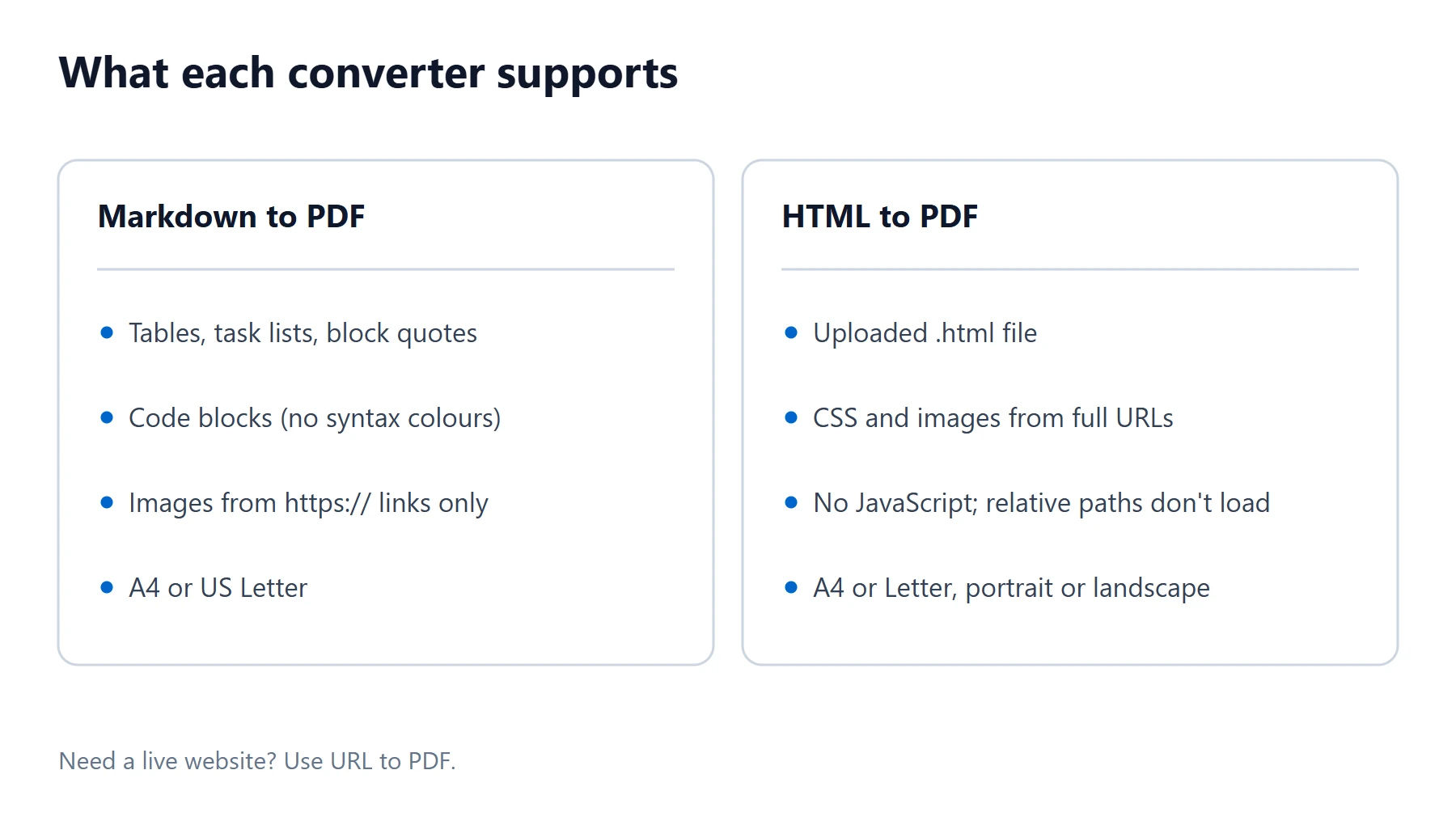
| Feature | Markdown to PDF | HTML to PDF |
|---|---|---|
| Input files | .md, .markdown, .txt | .html, .htm, .xhtml |
| Page options | A4 or US Letter, 54 pt margin | A4 or US Letter, portrait or landscape, 36 pt margin |
| Styling | Built-in GitHub-like style | Your own CSS, inside the file or from full URLs |
| Images | Only from https:// links | Only from full URLs; relative paths don’t load |
| Code blocks | Monospace, no syntax colours | As styled by your CSS |
| JavaScript | Not run; scripts removed | Not run; scripts removed |
Markdown to PDF: what renders and what doesn’t
The converter uses the marked parser with GitHub Flavored Markdown turned on. Headings, lists, links, block quotes, tables, task lists with checkboxes and fenced code blocks all render in a style close to GitHub’s. Raw HTML inside the Markdown is kept, but scripts are removed.
Code blocks keep their monospace font and line breaks on a light grey background, but there is no syntax highlighting. Math formulas and Mermaid diagrams aren’t rendered either, so they show up as their source text.
Images are what trips most people up. Only the Markdown file itself is added, so a relative path such as images/screenshot.png has nothing to point to. Images with a full https:// address can load, and the tool waits up to 12 seconds for them. Any image that doesn’t load is replaced by its alt text in square brackets.
Before you convert a README
Change relative image paths to full https:// links where the images are hosted. Headings stay on the same page as the paragraph after them, and long tables repeat their header row on each new page.
HTML to PDF: what to expect from a saved page
HTML to PDF lays out your file in a sandboxed frame inside your browser. No JavaScript runs, and scripts, iframes, embedded objects and audio are removed. A video is replaced by its poster image. Fixed and sticky elements, such as a sticky header, are moved into the normal flow so they don’t cover every page.
Stylesheets and images load only from full URLs. A page saved with your browser’s save command usually points to a folder of files next to it with relative paths. Those can’t load, because only the .html file is added. Images from servers that block cross-site fetching may come out blank.
Layouts wider than the page are scaled down to fit, to as little as 40% of their size. Page breaks fall between lines of text and between table rows, and an image that doesn’t fit is moved to the next page rather than cut. To start a new page at a certain point, add the CSS rule break-before: page to that element.
Make a saved page convert well
Put the CSS in a style block inside the .html file, or change image and stylesheet links to full https:// addresses before you convert.
Converting a live website? Use URL to PDF
If the page is online, URL to PDF is usually the better choice. It opens the address in a headless Chromium browser on our server through Playwright, runs the page’s JavaScript and prints a vector PDF with selectable text.
Because it runs on a server, the privacy rule is different. The link is sent over HTTPS, and the PDF is deleted right after you download it, or 10 minutes after processing if you never download it. It can’t open pages that need a login. Our guide to saving a webpage as a PDF covers the settings.
Limitations
- Output pages are images at about 190 DPI with an invisible text layer. The text is searchable and copyable but not vector, so it can look soft when you zoom in far or print large. Phones may render at a lower resolution.
- Links aren’t clickable, and the PDF has no bookmarks or tags (the structure screen readers use).
- Markdown to PDF has no syntax highlighting, math or Mermaid diagrams.
- HTML to PDF runs no JavaScript, so charts or content that a script draws won’t appear.
- Margins are fixed at 54 pt for Markdown and 36 pt for HTML, and there are no header or footer settings.
- Only one file is read per conversion, so linked files with relative paths, such as local images or stylesheets, are never included.
Privacy: your Markdown and HTML files stay on your device
Markdown to PDF and HTML to PDF run in your browser, so your files never leave your device. Images and stylesheets your file links to are fetched by your browser from their own servers, just as when you open the file yourself.
Large files
The size limit is 150 MB on a desktop and 50 MB on a phone. If a file is too large for your device, the page offers to use our server instead. Nothing is uploaded unless you click Use secure server.
Convert your Markdown file to PDF
Pick A4 or US Letter and get a searchable PDF, made in your browser.
Frequently Asked Questions
No. The pages are images with an invisible text layer, so you can select and copy the link text, but clicking it does nothing.
Relative paths such as images/logo.png can’t load, because only the one file is added. Use full https:// URLs instead. Even then, images from servers that block cross-site fetching can come out blank.
No. Fenced code blocks keep their monospace font and line breaks on a grey background, but without colours.
No, it only takes a file. For a page on the web, use URL to PDF, which loads the address on our server and runs its JavaScript.
Sources
- GitHub Flavored Markdown spec (GitHub)
- marked (Markdown parser) (marked)
- Playwright: page.pdf() (Playwright)
Table of Contents
How to convert Markdown or HTML to PDF (quick answer)
Step by step: Markdown to PDF
Step by step: HTML file to PDF
What each converter supports
Markdown to PDF: what renders and what doesn’t
HTML to PDF: what to expect from a saved page
Converting a live website? Use URL to PDF
Limitations
Privacy: your Markdown and HTML files stay on your device
Frequently Asked Questions
Sources
How to convert Markdown or HTML to PDF (quick answer)
Step by step: Markdown to PDF
Step by step: HTML file to PDF
What each converter supports
Markdown to PDF: what renders and what doesn’t
HTML to PDF: what to expect from a saved page
Converting a live website? Use URL to PDF
Limitations
Privacy: your Markdown and HTML files stay on your device
Frequently Asked Questions
Sources
Markdown to PDF
Free, no sign-up. Runs in your browser, so your files never leave your device.
Share this guide