How to Save Any Webpage Link as a High-Quality PDF Document
Standard browser "Print to PDF" strips background colors, mangles headers, and slices diagrams awkwardly across pages. Discover how headless Chromium saves true vector replicas of any webpage.
Technical Document Guide
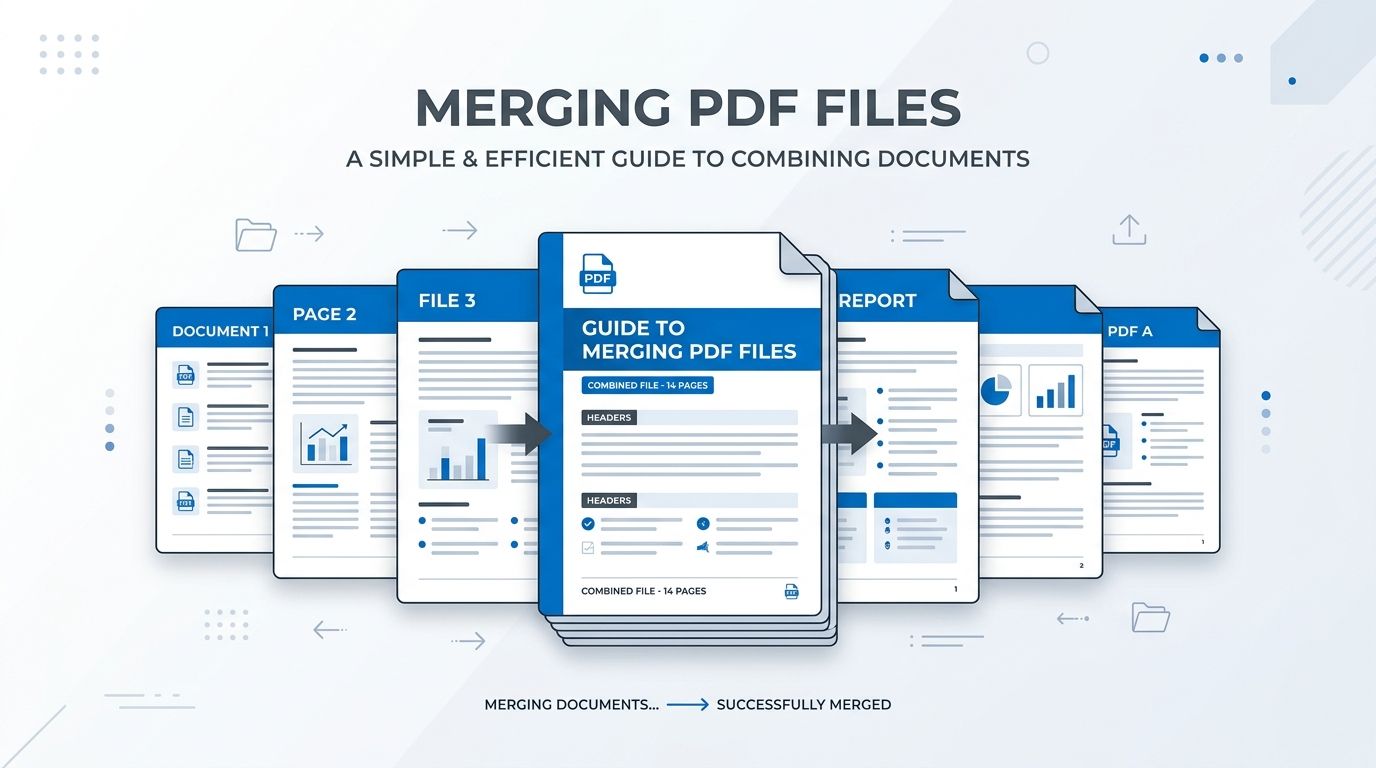 Visual representation of transforming dynamic webpage URLs into high-fidelity vector PDF files with preserved web styling.
Key Takeaways & Executive Summary
Headless Chromium rendering: Loads the live webpage, executes dynamic client-side JavaScript, and waits for web fonts before generating vector PDF.
Preserves CSS backgrounds & colors: Avoids browser print stylesheets that strip brand colors, dark mode themes, and card headers.
Continuous canvas option: Save long articles and blog posts as a single unbroken scrollable PDF canvas without awkward page cuts.
Lazy-loaded image capture: Engine automatically auto-scrolls through the viewport to trigger image intersection observers.
Responsive device emulation: Choose between Desktop (1440px), iPad Tablet (768px), or Mobile iPhone (390px) rendering viewports.
Table of Contents
1. Why Browser "Print to PDF" Fails on Modern Websites
2. How the Headless Chromium Pipeline Preserves Exact Styling
3. Continuous Canvas vs. Standard Paginated A4: Which Should You Choose?
4. Step-by-Step Guide: How to Convert Any Website URL to PDF Online
Frequently Asked Questions
1. Why Browser "Print to PDF" Fails on Modern Websites
2. How the Headless Chromium Pipeline Preserves Exact Styling
3. Continuous Canvas vs. Standard Paginated A4: Which Should You Choose?
4. Step-by-Step Guide: How to Convert Any Website URL to PDF Online
Frequently Asked Questions
1. Why Browser "Print to PDF" Fails on Modern Websites
When attempting to save an online article, academic documentation, or financial dashboard using your browser's built-in "Print to PDF" dialog (Ctrl+P / Cmd+P), the result is frequently disappointing. By default, web browsers activate CSS @media print rules that intentionally strip background colors, hide navigation bars, suppress dark mode styling, and convert colorful diagrams into washed-out grayscale.
Furthermore, browser print dialogs have no awareness of content flow: they slice pages at arbitrary physical intervals, cutting directly through headlines, graphs, and code blocks. Any images configured with modern lazy-loading (loading="lazy") often remain blank white boxes because the print engine does not trigger scroll events.
Archive Quality Risk
Default browser print dialogs strip over 60% of modern CSS styling and fail to capture client-side JavaScript charts from D3, Chart.js, or React.
2. How the Headless Chromium Pipeline Preserves Exact Styling
DocsEngine uses a dedicated headless Chromium rendering pipeline to capture web content exactly as designed for human eyes:
1. Screen Media Emulation: Rather than applying print stylesheets, our engine forces screen media rendering, ensuring all backgrounds, shadows, and color themes are preserved.
2. Web Font Loading: The pipeline waits for web fonts (including Google Fonts, Adobe Typekit, and self-hosted fonts) to load completely before rasterizing.
3. Automated Page Pre-Scrolling: The browser automatically scrolls down the page to trigger all IntersectionObservers, ensuring every lazy-loaded photo and diagram is loaded.
| Feature | Standard Browser Print (Ctrl+P) | DocsEngine Headless Pipeline | Visual Result in PDF |
|---|---|---|---|
| CSS Backgrounds & Themes | Stripped to blank white | 100% preserved (incl. Dark Mode) | Exact website brand aesthetic |
| Lazy-Loaded Images | Remain blank white boxes | Auto-scrolled and fully loaded | Zero missing photos or figures |
| Web Typography & Fonts | Reverts to local system fonts | Web fonts rendered & embedded | Identical typography and kerning |
| Page Break Control | Slices through text & diagrams | Continuous canvas or smart breaks | Clean reading experience without cuts |
| Device Emulation | Fixed to desktop printer size | Desktop, iPad, or Mobile iPhone viewports | Tailored layout for your specific need |
3. Continuous Canvas vs. Standard Paginated A4: Which Should You Choose?
DocsEngine offers two distinct rendering layout modes:
Mode A: Standard Paginated A4: Perfect if you intend to physically print the document or submit it as a traditional multi-page document. Includes smart margin offsets.
Mode B: Single Continuous Canvas: The ultimate mode for digital reading. Compiles the entire height of the webpage into a single unbroken, scrollable PDF page. No page cuts, no split paragraphs, and no broken illustrations.
4. Step-by-Step Guide: How to Convert Any Website URL to PDF Online
Saving an online article or website link takes under 15 seconds:
- Copy the Webpage URL: Copy the address of any public webpage or article (e.g., https://example.com/article).
- Paste into DocsEngine URL to PDF: Navigate to our URL to PDF tool and paste the web link.
- Choose Device & Layout Options: Select your viewport (Desktop, Tablet, or Mobile) and toggle Continuous Canvas if desired.
- Download Your High-Fidelity PDF: Click "Convert to PDF" and download your vector PDF document.
Save Any Webpage as a Pixel-Perfect PDF
Convert articles, documentation, and live websites into clean vector PDF files with exact CSS styles and Google Fonts.
Frequently Asked Questions
Yes. Select the "Single Continuous Canvas" option. The engine captures the full height of the webpage into a single unbroken PDF document without page break cuts.
Yes. Our rendering pipeline auto-scrolls down the document before compiling the PDF, triggering all intersection observers so every image is captured.
No. For security and anti-abuse safeguards, DocsEngine only fetches publicly accessible website URLs with strict SSRF private IP defenses.
Table of Contents
1. Why Browser "Print to PDF" Fails on Modern Websites
2. How the Headless Chromium Pipeline Preserves Exact Styling
3. Continuous Canvas vs. Standard Paginated A4: Which Should You Choose?
4. Step-by-Step Guide: How to Convert Any Website URL to PDF Online
Frequently Asked Questions
1. Why Browser "Print to PDF" Fails on Modern Websites
2. How the Headless Chromium Pipeline Preserves Exact Styling
3. Continuous Canvas vs. Standard Paginated A4: Which Should You Choose?
4. Step-by-Step Guide: How to Convert Any Website URL to PDF Online
Frequently Asked Questions
URL to PDF
Run fast, private document processing in your browser with zero permanent storage.
Share this guide
How to Compress PDF Files Without Losing Quality: The Complete Engineering Guide
How to Convert PDF to Word (DOCX) Without Losing Formatting: The Complete Guide