How to Extract Images from a PDF (Original JPEGs, PNG and JPEG 2000)
Pull the pictures out of a PDF as separate image files, with JPEGs saved exactly as stored, and learn why charts and logos drawn as vectors need PDF to JPG instead.
DocsEngine Editorial Team
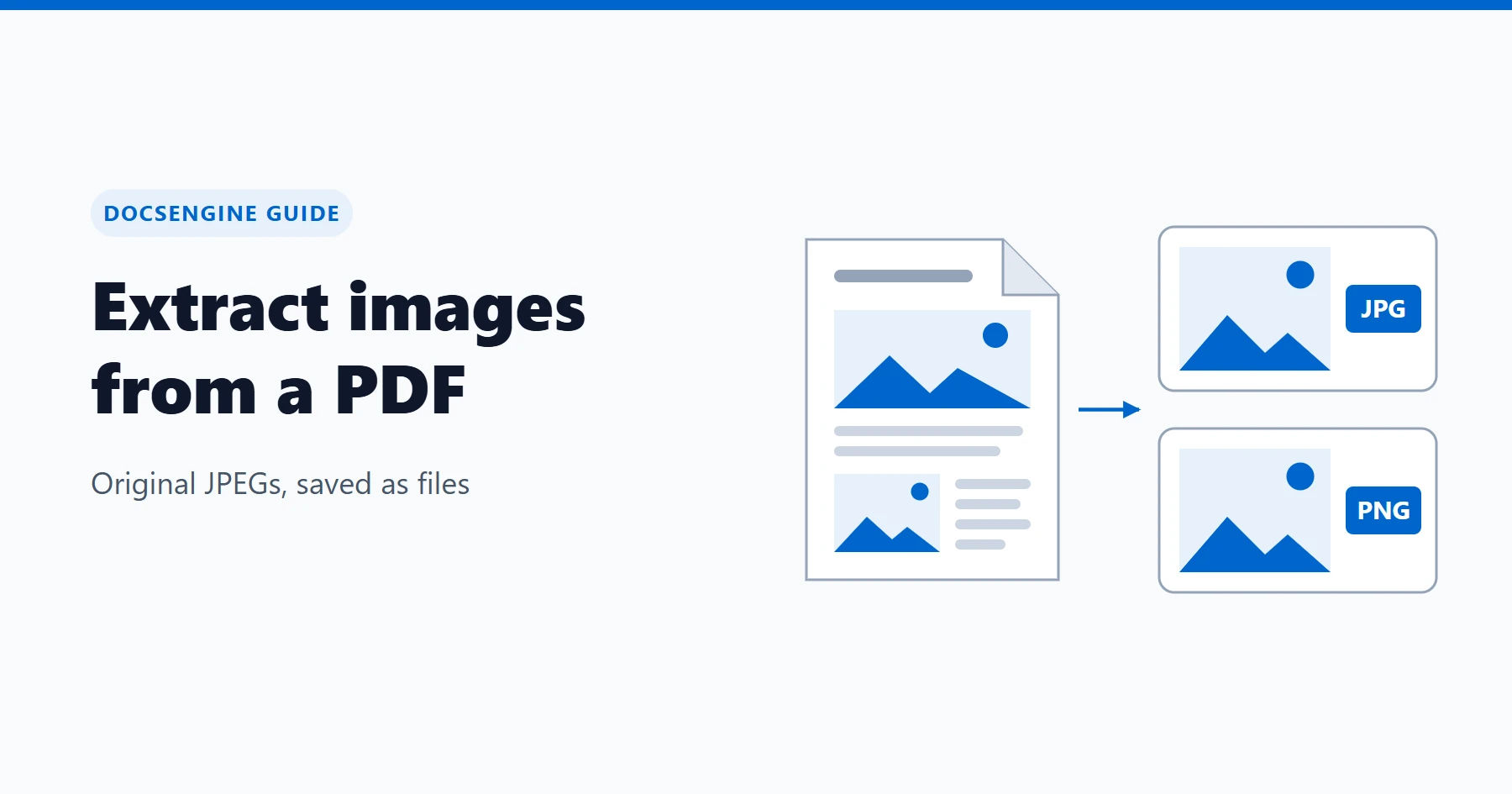 Embedded pictures come out as separate image files.
Key Takeaways & Executive Summary
Add your PDF and click Extract Images from PDF; there are no settings to choose.
Plain JPEG photos are saved byte-for-byte as .jpg, so they keep the quality they have inside the PDF.
Other images are decoded and saved as PNG, with transparency where the image has it; JPEG 2000 images are saved as .jp2.
Images under 48 pixels on a side are skipped, and a picture used on several pages is saved once.
Charts, logos and text drawn as vectors aren’t images. Use PDF to JPG to capture them.
Table of Contents
How to extract images from a PDF (quick answer)
Step-by-step: save the pictures from a PDF
What you get: JPG, PNG or JP2
Why byte-for-byte JPEGs matter
What gets skipped, and why
Extract Images vs. PDF to JPG
Limitations and alternatives
Privacy: extraction happens in your browser
Frequently Asked Questions
Sources
How to extract images from a PDF (quick answer)
Open Extract Images, add your PDF, and click Extract Images from PDF. The tool finds the pictures embedded in every page and saves each one as its own file, packed into one ZIP when there are several.
Plain JPEG photos come out exactly as they were stored in the PDF, without being compressed again. Everything runs in your browser, so the document stays on your device.
Step-by-step: save the pictures from a PDF
You can add up to 50 PDFs in one run.
- Open the Extract Images tool and add one or more PDFs.
- If a PDF needs a password to open, enter it when the page asks, or unlock the file first with Unlock PDF.
- Click Extract Images from PDF. There are no options to set.
- Download the result. Files are named after the PDF, the page and the image’s position on that page, such as catalog_p3_img1.jpg for the first picture on page 3.
- If the tool reports “No embedded images were found in this PDF.”, the graphics are probably vector drawings. Use PDF to JPG instead (see below).
What you get: JPG, PNG or JP2
You don’t pick an output format. Each picture is saved in the form that best preserves how it is stored in the PDF.
| How the image is stored in the PDF | Saved as | What that means |
|---|---|---|
| Plain JPEG photo | .jpg, byte-for-byte | Identical to the embedded data, no re-encoding |
| JPEG with transparency or special color handling | .png (with transparency where present) | Decoded the way a viewer shows it, then saved as PNG |
| JPEG 2000 | .jp2, as stored | Identical to the embedded data |
| Other images (Flate, fax-style black and white, JBIG2, indexed colors) | .png | Decoded, then saved as PNG |
Why byte-for-byte JPEGs matter
JPEG compression is lossy: each time a JPEG is decoded and saved again, it can lose a little more detail. The PDF specification describes its JPEG filter (DCTDecode) as always lossy. By copying the JPEG data straight out of the PDF, Extract Images gives you the same picture the author placed in the document, at its stored resolution.
Other images are decoded to pixels and saved as PNG. Nothing more is lost in that step, though a PNG of a photo can be larger than the data it came from. JPEG 2000 images are saved as .jp2 files without conversion; if your image viewer can’t open .jp2, render that page with PDF to JPG instead.
The extracted file has the image’s stored pixel size, which can differ from how large it looks on the page. PDFs often place a big photo in a small frame, or stretch a small image across a page.
What gets skipped, and why
Not everything you see on a page is an extractable picture. The tool deliberately leaves out four kinds of things:
Scanned PDFs and reused page parts
A scanned PDF usually stores each page as one large picture, so extracting it gives you one image per page: the scan itself. Pictures inside reusable page parts (nested form objects), such as a letterhead, are found too.
- Tiny images: anything under 48 pixels on either side, such as bullets, icons and spacer images.
- Stencil masks: one-bit shapes that only mark where a color should be painted, often used for simple logos or effects.
- Duplicates: a logo or background repeated on every page is saved once, under the first page where it appears.
- Vector graphics: charts, diagrams, many logos and all normal text are drawn with lines, shapes and fonts rather than stored as pictures, so there is nothing to extract.
Extract Images vs. PDF to JPG
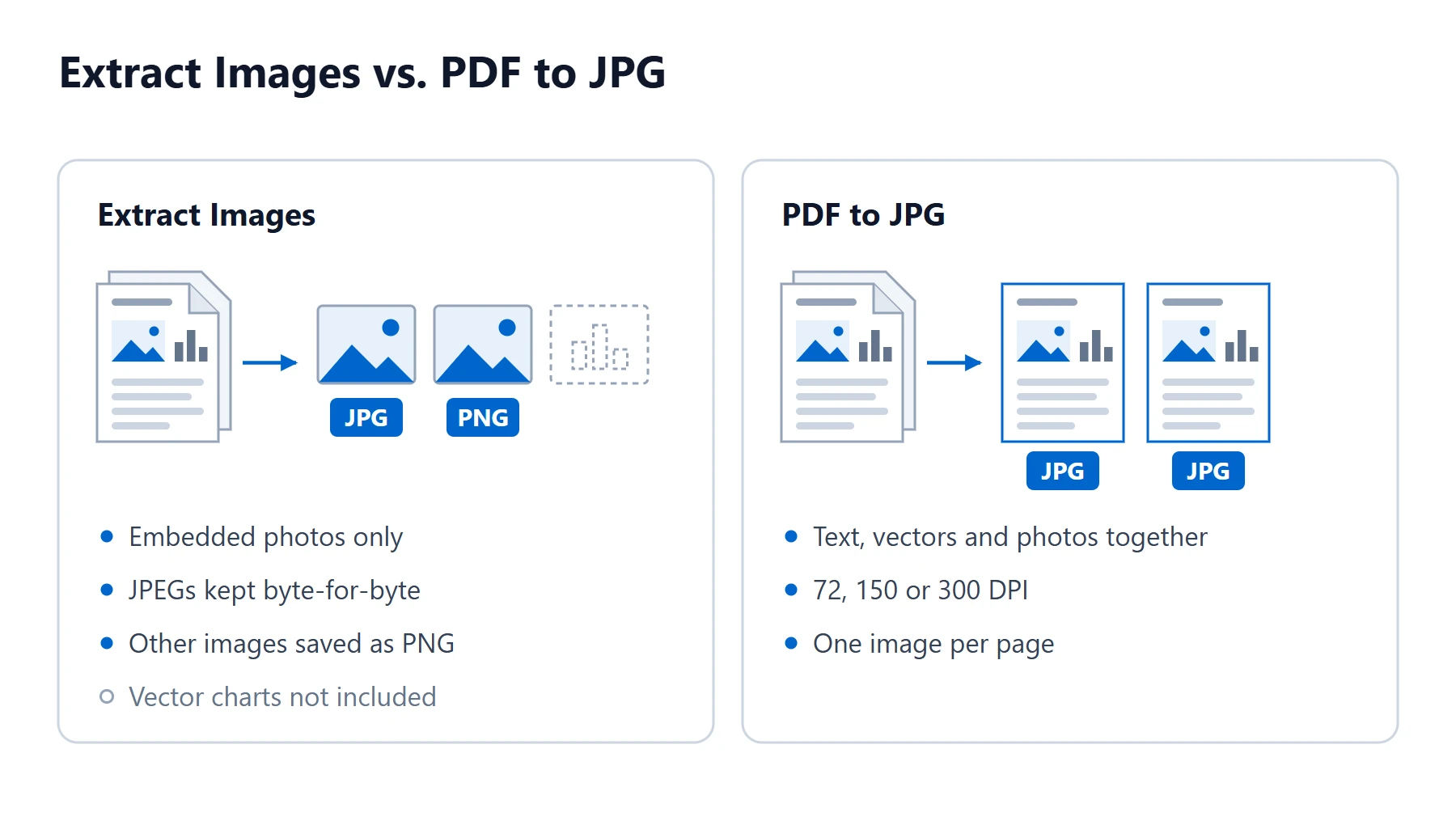
The two tools answer different questions. Extract Images gives you the separate pictures inside the PDF. PDF to JPG takes a picture of each whole page, with text, vector charts and photos together, at 72, 150 or 300 DPI, one image per page.
Use PDF to JPG when you need a chart, a vector logo, a slide or a page exactly as it looks. Use Extract Images when you want the original photos at their stored quality, for example product shots from a catalog or photos from a report.
To get a single chart as an image, render its page with PDF to JPG at 300 DPI, then trim it with Crop Image. Our guide to converting PDF to JPG explains the DPI choices.
Limitations and alternatives
Extract Images has no settings, which keeps it simple but also means:
- You can’t choose the output format, a minimum image size or a page range. To work on certain pages only, split the PDF first.
- Vector graphics are never extracted. Use PDF to JPG for charts, diagrams and vector logos.
- Only plain JPEGs and JPEG 2000 images keep their original bytes. Everything else is decoded and saved as PNG.
- Pictures come out as stored, without any cropping, scaling or rotation the page layout applies to them. For a picture exactly as it appears on the page, render the page and crop it.
- Need the words too? Text is handled separately; see how to extract text from a PDF.
- Images in a PDF usually belong to someone. Check that you have the right to reuse them.
Privacy: extraction happens in your browser
Catalogs, reports and scanned records can be confidential, so the work is done locally by default.
Runs in your browser
Extract Images runs in your browser; your files never leave your device. If a run is larger than your device can handle (300 MB in total on a desktop, 100 MB on a phone), the page offers to process it on our server instead and uploads nothing unless you click Use secure server. Server files are uploaded over HTTPS; the uploaded file is deleted as soon as processing finishes, and the result right after you download it, or 10 minutes after processing if you never download it.
Extract the images from your PDF
Save the embedded photos as separate files, with JPEGs left untouched. Free, and it runs in your browser.
Frequently Asked Questions
Images under 48 pixels on either side and stencil masks are skipped, repeated images are saved once, and vector graphics aren’t images at all.
If it is drawn as vectors, render the page with PDF to JPG at 300 DPI and crop the result with Crop Image.
It is a JPEG 2000 image, saved exactly as it was stored in the PDF. If your viewer can’t open it, convert that page with PDF to JPG instead.
Not directly; every page is scanned. The file names show the page each image came from, or you can split out the pages you need first.
The PDF has no pictures of 48 pixels or more, so its graphics are probably vector drawings or text. Use PDF to JPG to save the pages as images.
Sources
- ISO 32000-1:2008 (PDF 1.7) public copy (Adobe / ISO)
- ITU-T T.81 (JPEG standard) (ITU-T / W3C)
- PNG Specification (Third Edition) (W3C)
Table of Contents
How to extract images from a PDF (quick answer)
Step-by-step: save the pictures from a PDF
What you get: JPG, PNG or JP2
Why byte-for-byte JPEGs matter
What gets skipped, and why
Extract Images vs. PDF to JPG
Limitations and alternatives
Privacy: extraction happens in your browser
Frequently Asked Questions
Sources
How to extract images from a PDF (quick answer)
Step-by-step: save the pictures from a PDF
What you get: JPG, PNG or JP2
Why byte-for-byte JPEGs matter
What gets skipped, and why
Extract Images vs. PDF to JPG
Limitations and alternatives
Privacy: extraction happens in your browser
Frequently Asked Questions
Sources
Extract Images from PDF
Free, no sign-up. Runs in your browser, so your files never leave your device.
Share this guide

How to Convert PDF to High-Resolution JPG Images: Resolution, DPI & Quality
How to Extract Text from a PDF (Copy All the Text to a .txt File)