How to Convert PDF to High-Resolution JPG Images: Resolution, DPI & Quality
Need to extract pages from a PDF as crisp image files for a presentation, social post, or website? Learn how to convert PDF to JPG with high resolution and zero watermark degradation.
Technical Document Guide
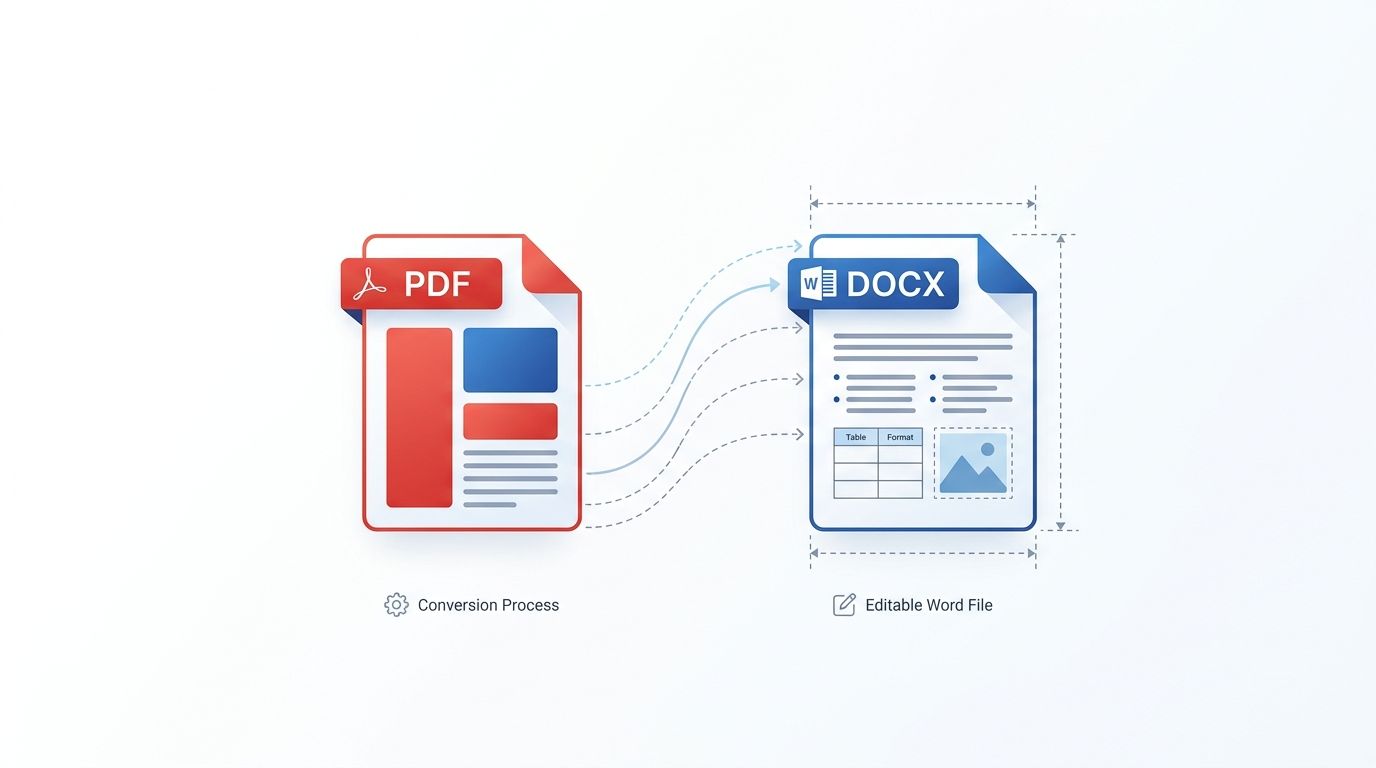
 Visual guide to rendering PDF document pages into high-definition raster JPG images with customizable DPI resolution.
Key Takeaways & Executive Summary
DPI resolution selection: Choose between 72 DPI (web fast sharing), 150 DPI (standard presentations & email), and 300 DPI (ultra-crisp print quality).
Retain typography clarity: Subpixel font anti-aliasing renders sharp letterforms even on small footnote captions and dense technical diagrams.
Batch page rasterization: Convert every page in a 50-page PDF document simultaneously and download all images in an organized ZIP archive.
Zero compression artifacts: High JPEG quality settings (Q=92+) prevent muddy block artifacts around text boundaries.
Secure in-memory conversion: Documents are processed in isolated memory buffers and auto-deleted every 12 hours at midnight.
Table of Contents
1. When and Why You Need to Convert PDF to JPG Images
2. Understanding DPI: 72 DPI vs. 150 DPI vs. 300 DPI Comparison
3. Step-by-Step Guide: How to Convert PDF Pages to JPG Online
4. JPG vs. PNG: Which Format Should You Choose for PDF Pages?
Frequently Asked Questions
1. When and Why You Need to Convert PDF to JPG Images
2. Understanding DPI: 72 DPI vs. 150 DPI vs. 300 DPI Comparison
3. Step-by-Step Guide: How to Convert PDF Pages to JPG Online
4. JPG vs. PNG: Which Format Should You Choose for PDF Pages?
Frequently Asked Questions
1. When and Why You Need to Convert PDF to JPG Images
While PDF is the undisputed standard for distributing multi-page documents, image formats like JPG reign supreme across websites, social media platforms, presentation decks, and messaging applications.
Common reasons to convert PDF pages into JPG images include creating LinkedIn carousel graphics from whitepapers, embedding infographics or charts into PowerPoint and Keynote decks, sharing receipts or invoices on Slack or WhatsApp without requiring the recipient to open an external PDF viewer, and publishing document previews on websites.
Presentation Tip
PowerPoint and Google Slides display raster JPG images with faster rendering times and zero font shifting compared to embedding raw PDF objects.
2. Understanding DPI: 72 DPI vs. 150 DPI vs. 300 DPI Comparison
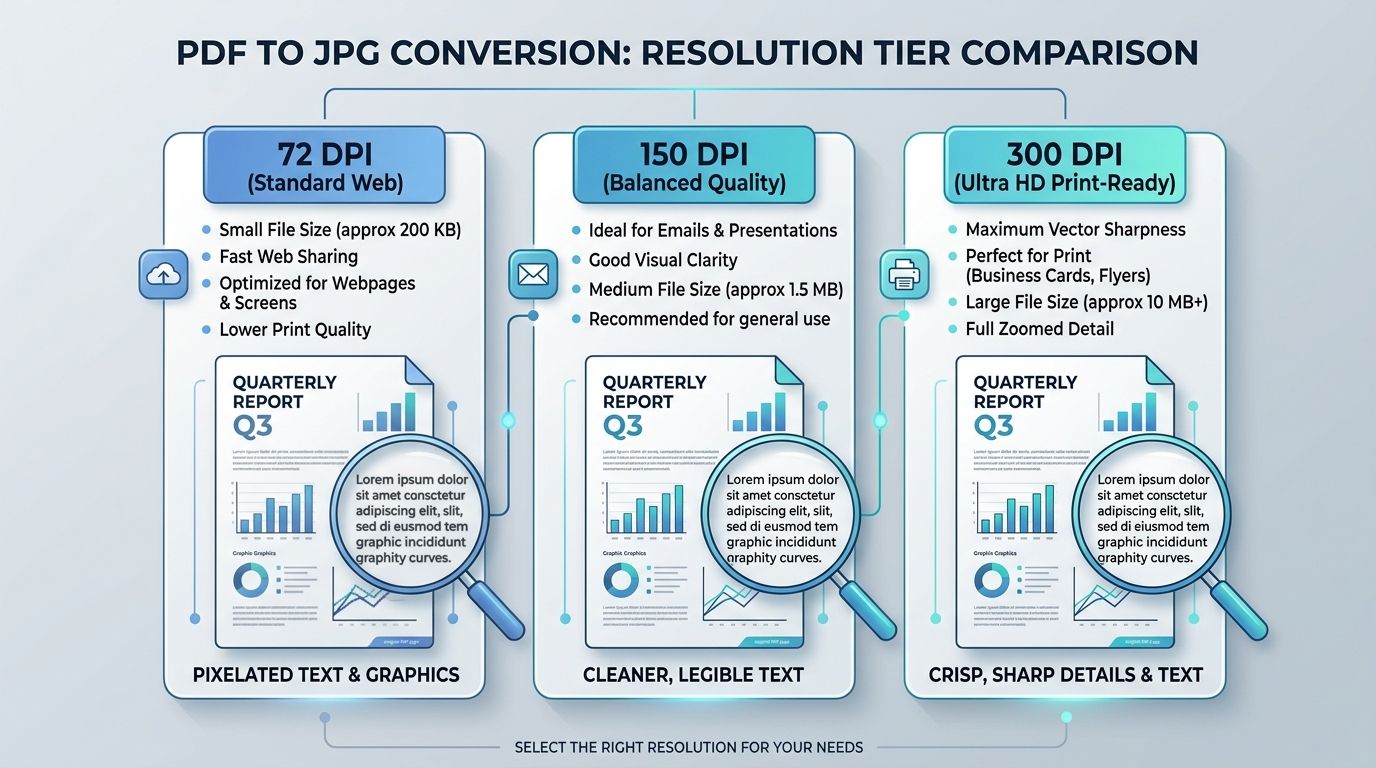
Dots Per Inch (DPI) determines the physical pixel density of the output image when a vector PDF page is rasterized. Selecting the right DPI ensures your images have adequate sharpness without unnecessary megabyte bloat.
DocsEngine renders images at three optimized standard density tiers tailored to real-world display and print demands:
| DPI Tier | Pixel Dimensions (Standard A4) | Average JPG Weight | Sharpness Level | Recommended Use Case |
|---|---|---|---|---|
| 72 DPI (Web/Draft) | 595 × 842 pixels | 150 KB – 350 KB | Standard screen display | Fast messaging, thumbnails, web previews |
| 150 DPI (Balanced) | 1240 × 1754 pixels | 750 KB – 1.8 MB | Retina crisp on laptops/phones | Keynote & PowerPoint slides, email attachments |
| 300 DPI (Ultra HD) | 2480 × 3508 pixels | 3.5 MB – 8.0 MB | Photographic print sharpness | Flyers, poster printing, high-zoom archival |
3. Step-by-Step Guide: How to Convert PDF Pages to JPG Online
Converting your document pages to JPG with DocsEngine is completely free and requires no registration:
- Upload Your PDF Document: Navigate to the DocsEngine PDF to JPG tool and drag your file into the workspace.
- Execute High-Resolution Rendering: Click "Convert to JPG". The rasterization pipeline renders each vector page with subpixel anti-aliasing.
- Download Your Images: Download single image files directly, or download the bundled ZIP archive containing every page as a numbered JPG.
4. JPG vs. PNG: Which Format Should You Choose for PDF Pages?
If your PDF consists primarily of photographic scans, magazine layouts, or continuous-tone illustrations, JPG is the optimal choice because its discrete cosine transform (DCT) compression produces tiny file sizes with imperceptible visual loss.
If your PDF consists of architectural CAD blueprints, monochrome black-and-white line diagrams, or documents requiring transparent backgrounds, consider our Image to PNG converter for lossless palette compression.
Turn Your PDF into High-Res Images Now
Convert PDF pages into ultra-sharp JPG photos ready for web, mobile, and presentations. Packaged in a fast ZIP.
Frequently Asked Questions
No. Our rendering engine uses high-density subpixel anti-aliasing to ensure that even fine footnotes, legal disclaimers, and small table text remain razor sharp.
For physical printing on office or commercial printers, 300 DPI provides maximum vector sharpness and photographic detail without pixelation.
No. DocsEngine processes documents of any length with zero page count caps, watermarks, or subscription requirements.
Table of Contents
1. When and Why You Need to Convert PDF to JPG Images
2. Understanding DPI: 72 DPI vs. 150 DPI vs. 300 DPI Comparison
3. Step-by-Step Guide: How to Convert PDF Pages to JPG Online
4. JPG vs. PNG: Which Format Should You Choose for PDF Pages?
Frequently Asked Questions
1. When and Why You Need to Convert PDF to JPG Images
2. Understanding DPI: 72 DPI vs. 150 DPI vs. 300 DPI Comparison
3. Step-by-Step Guide: How to Convert PDF Pages to JPG Online
4. JPG vs. PNG: Which Format Should You Choose for PDF Pages?
Frequently Asked Questions
PDF to JPG
Run fast, private document processing in your browser with zero permanent storage.
Share this guide

How to Compress PDF Files Without Losing Quality: The Complete Engineering Guide